
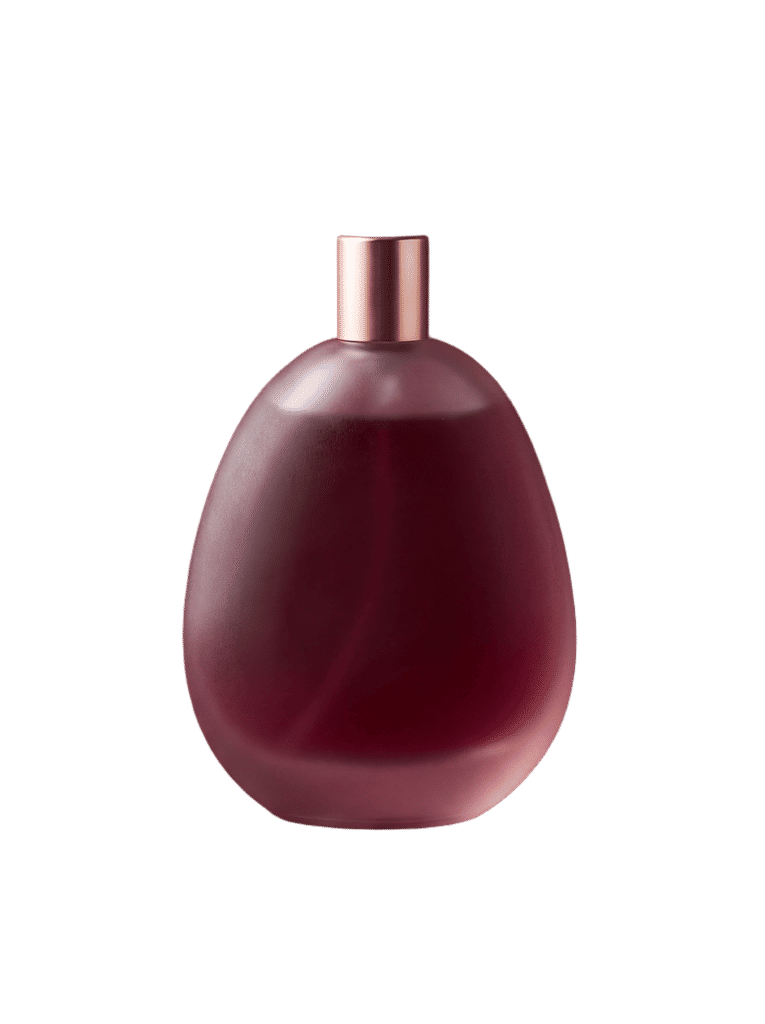
The background remover erases image backgrounds in one click, returning a clean subject ready for a new scene.

E-Commerce Product Photos
E-commerce teams clear background image clutter from product shots with the Technique, producing a clean catalog look across an entire range.

Portrait and Headshot Editing
Photographers and content creators get rid of background in photo headshots and portraits, ready to drop the subject onto a new backdrop.

Creative Compositing
Designers take background out of picture assets to composite subjects into new scenes, posters, and brand visuals.
How to use Techniques?
Discover how to utilize Background Remover for different scenarios.
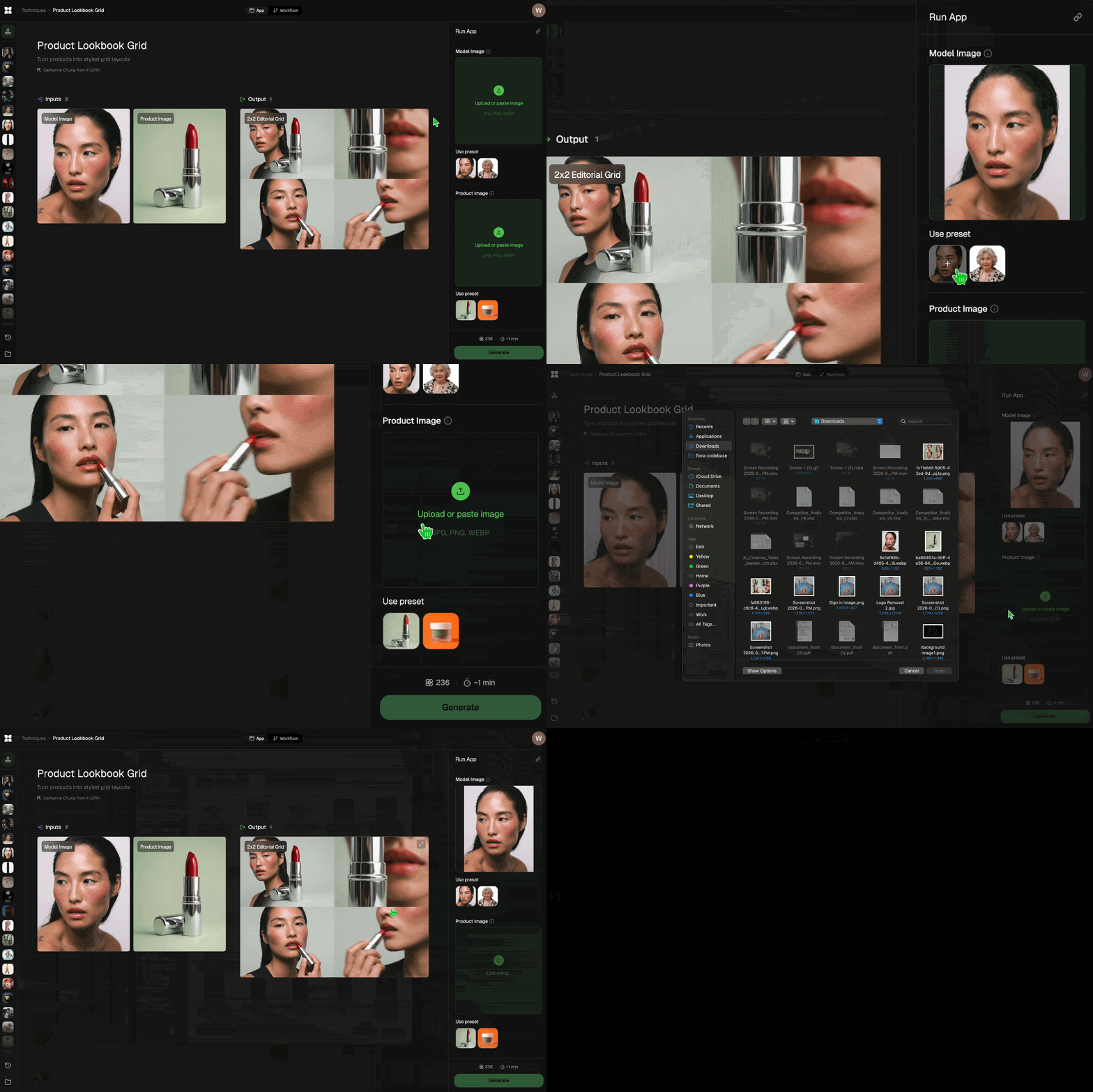
Add inputs
Upload images, videos, or type in the prompts to get started.
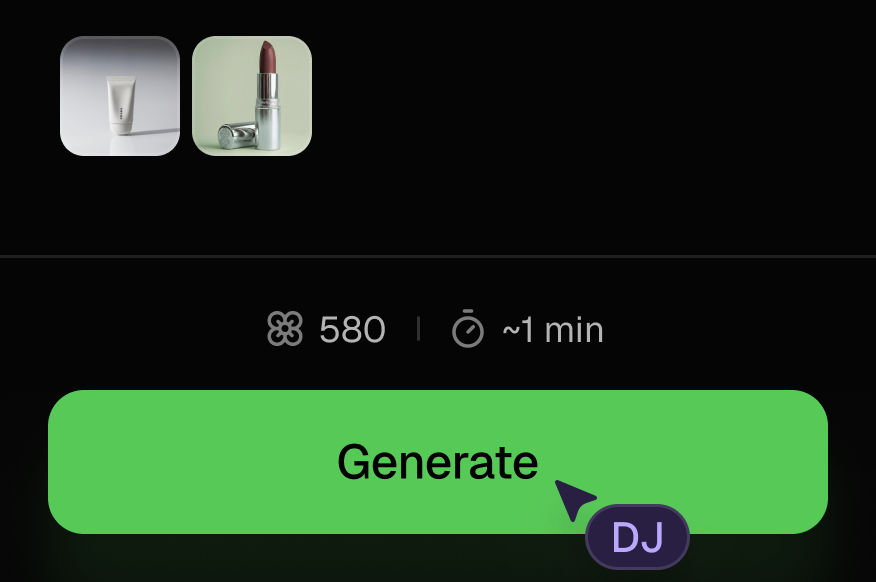
Generate outputs
Next, hit the "Generate" button to start generating your outputs.
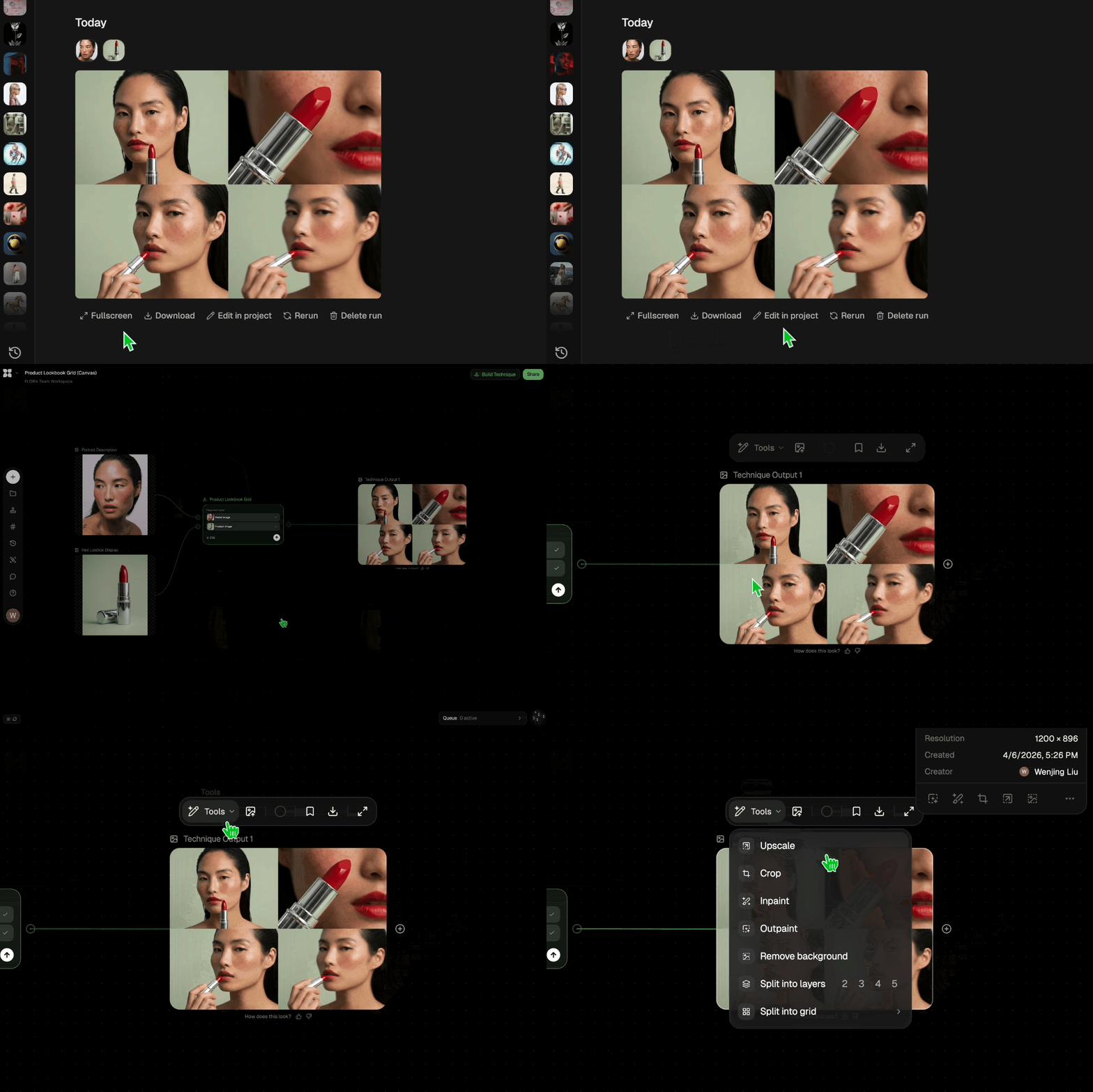
Edit and export
Refine your outputs on canvas, or download them directly.
Frequently asked questions
All you need to know about Background Remover
What is a background remover, and how does it work?
A background remover is a tool that automatically separates the subject of a photo from everything behind it, then deletes that background so you are left with a clean cutout. Modern versions are AI-powered, so you no longer trace edges by hand: you upload an image, the tool detects the subject, and it removes the background in a few seconds. On FLORA this happens on an infinite canvas, where the same cutout can flow straight into editing, upscaling, and full campaign visuals.
Removing a background used to be the slow, fiddly part of every design job. Today the right tool turns it into a single click, whether you are prepping a product shot, cleaning up a headshot, or pulling a logo off its backdrop. The goal is always the same: get rid of the background in a photo without leaving jagged edges or a halo around the subject. If you want to jump straight in, you can try FLORA free and erase background online in your browser.
Why the output is transparent
Think of a background remover as an automatic background eraser: instead of you selecting the subject pixel by pixel, the tool builds a mask around it and deletes the rest. The result is usually a PNG with a transparent background, which shows up as a checkerboard pattern rather than a color. That transparency is what lets you take the background out of a picture and place your subject anywhere, on any color, in any layout, with no visible box around it.
People describe this same task a dozen different ways, and they all point to one job:
- "Delete background from image"
- "Get rid of background in photo"
- "Take background out of picture"
- "Clear background image"
Under the hood, each one is asking the same tool to isolate the subject and drop the backdrop.
How the AI reads your image
Older tools relied on manual selection or a plain color key, which only worked if your subject sat against a flat, evenly lit backdrop. AI background removers are different. They are trained on millions of images, so they recognize where a subject ends and a background begins even when the two are similar in color or the edges are complicated.
In practice, the model does three things:
- Detects the subject. It figures out what the photo is "about," whether that is a person, a product, a car, or a pet.
- Builds a precise mask. It traces the outline, including the hard parts like hair strands, fur, glass, and soft shadows.
- Separates the layers. It keeps the subject and deletes the background, leaving transparency behind.
The result is a clean cutout with edges that hold up when you zoom in. This is why an AI background eraser can handle a frizzy hairstyle or a potted plant that would defeat a manual selection.
What you can do once the background is gone
Removing the background is rarely the final goal. It is the setup step that makes everything after it easier:
- Drop the product onto a clean white background for a marketplace listing.
- Put every shot on the same solid color background so a catalog or team page looks cohesive.
- Generate a brand-new background or swap the background to move a subject from a studio to a lifestyle scene.
- Pair it with related cleanup: erasing an unwanted object, recoloring the subject, or upscaling the final image so it stays sharp at full size.
Because it runs in the browser, you can delete background free from any device and keep editing without switching apps. You can erase background free, get the transparent PNG, and move straight into the next step on the same canvas. For the bigger picture, explore the FLORA AI image generator or read our roundup of the best AI image generators.
Related techniques
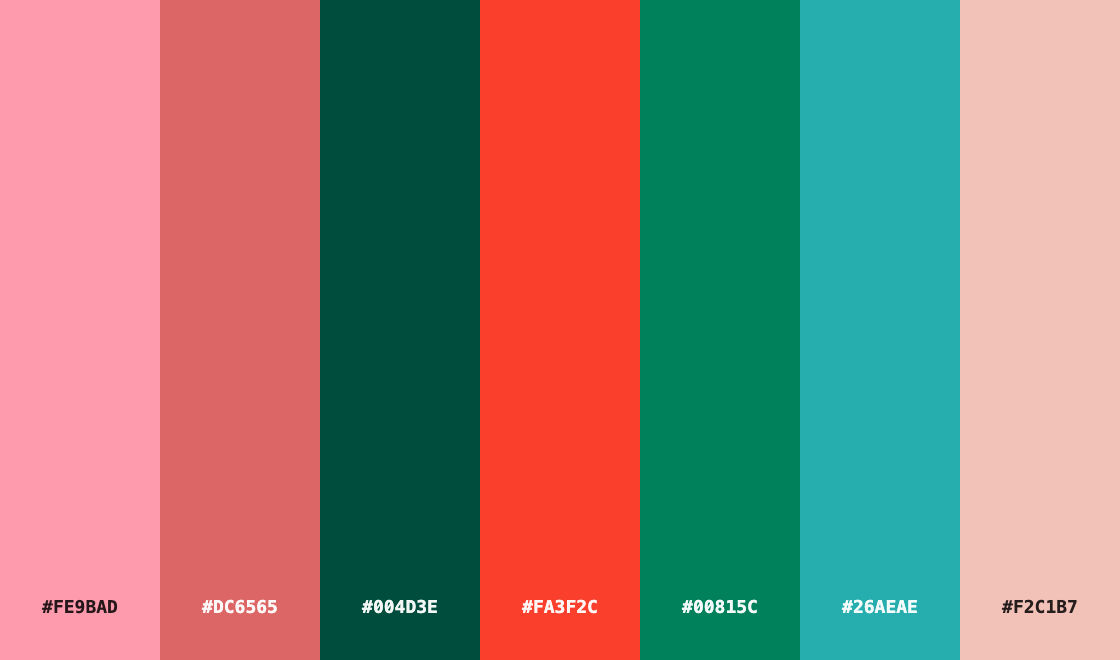 Color Palette ExtractionExtract color palettes from any image
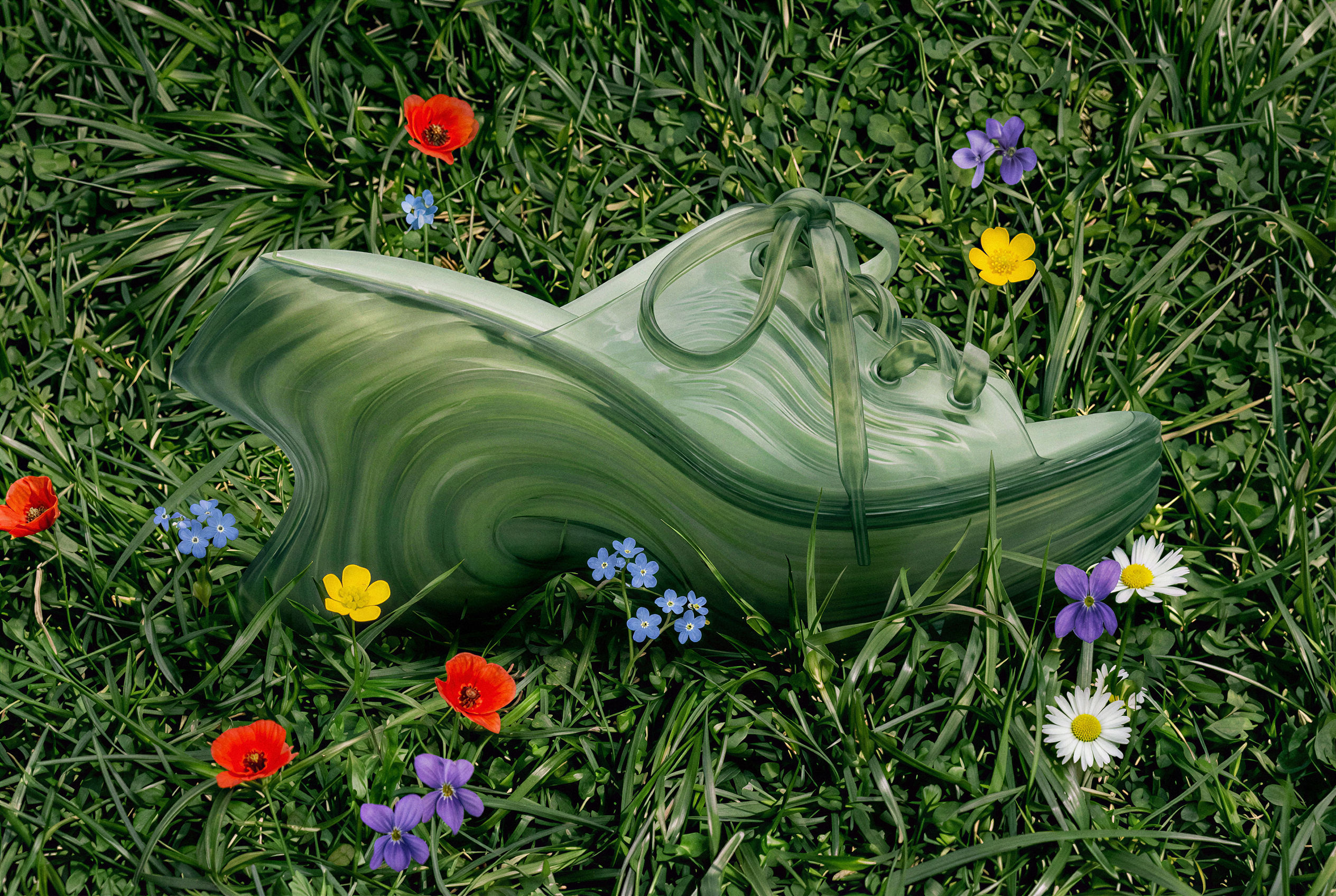 Image UpscalerUpscale any image to a higher resolution in one click.
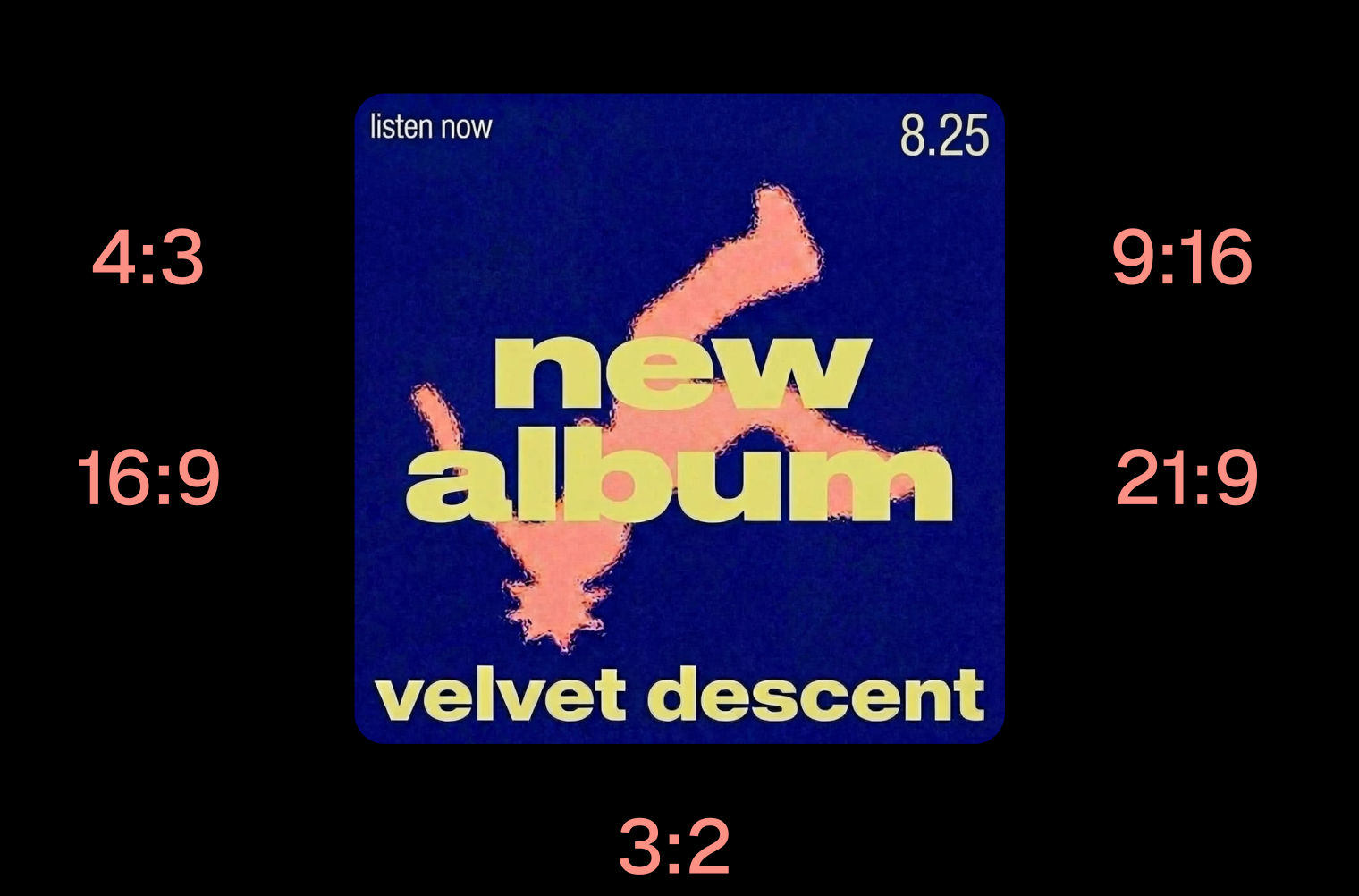 Layout ResizerResize layouts for any aspect ratio
 Prompt ExtractorReverse-engineers any image into a prompt
 3 Angle ShootFront shot in, 45, 90, and 180 angle back
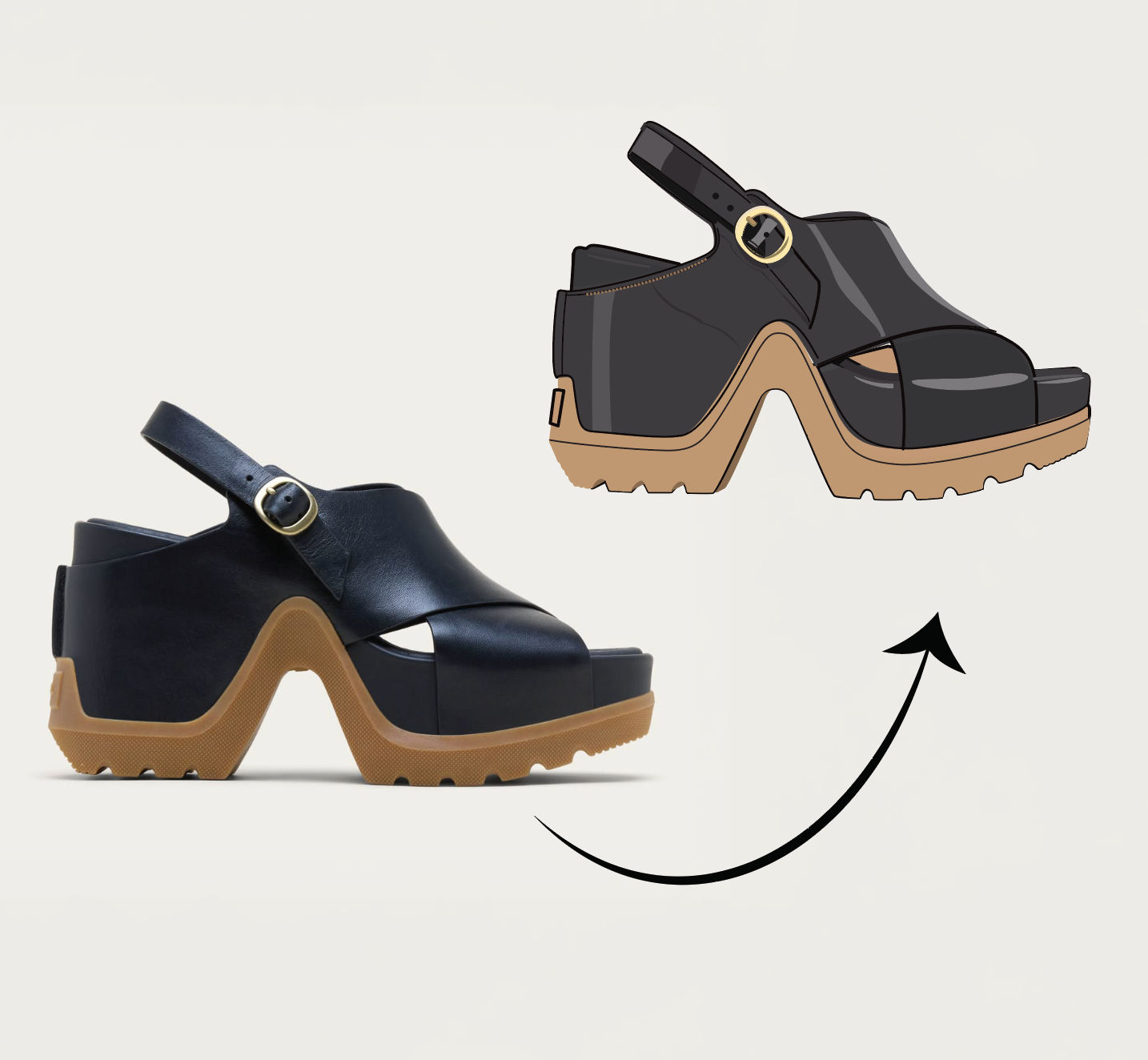 Anything to VectorTurn any image into a SVG vector illustration.
Use the Background Remover to Erase Image Backgrounds Instantly
Remove the background from any photo in one click.

FLORA