

Replaces any image background with a clean professional white background in one click.

E-Commerce Product Listings
Online sellers make photo background white for product images in one click, meeting marketplace requirements for platforms like Amazon and Shopify.

Professional Headshots
Businesses and individuals use this white background editor to create professional headshots for LinkedIn profiles, company directories, and bios.

Catalog and Print Preparation
Design teams turn background white across product images for print catalogs, lookbooks, and marketing materials, keeping consistency across all assets.
How to use Techniques?
Discover how to utilize White Background for different scenarios.
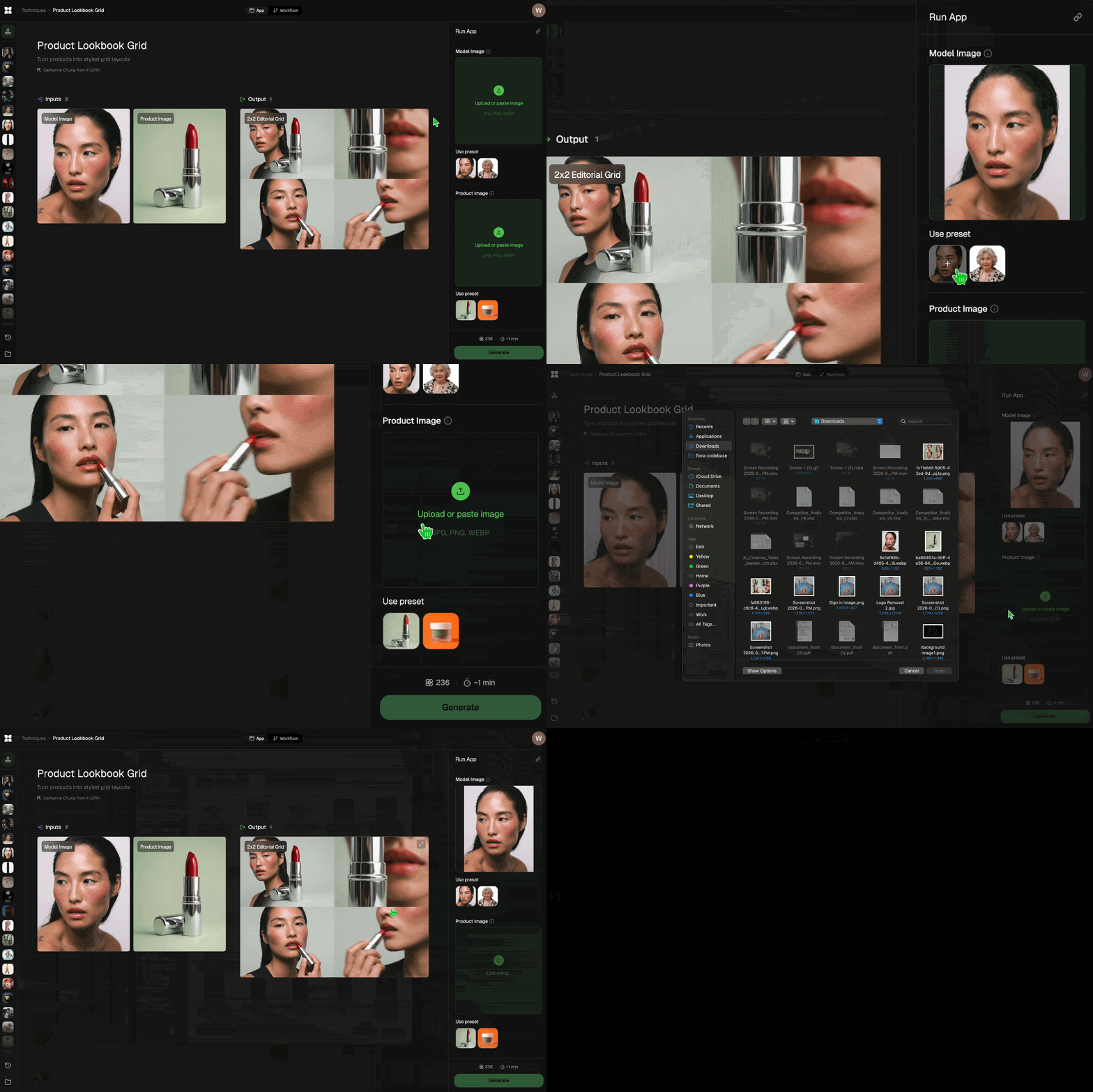
Add inputs
Upload images, videos, or type in the prompts to get started.
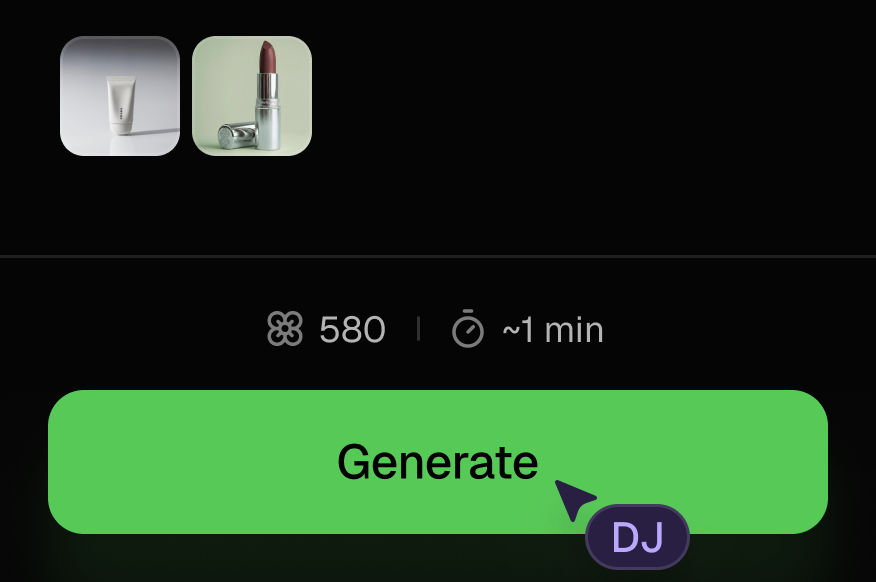
Generate outputs
Next, hit the "Generate" button to start generating your outputs.
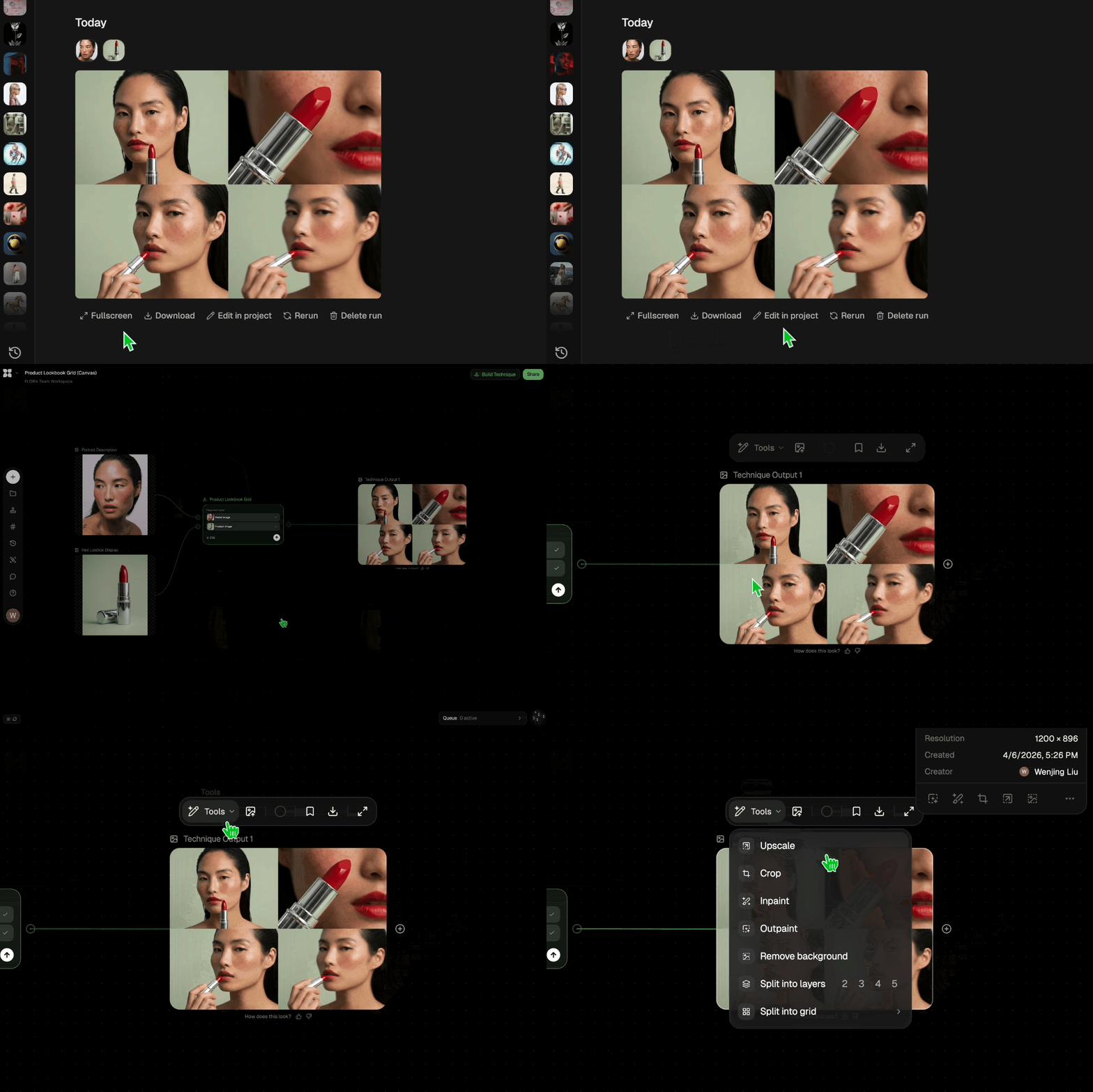
Edit and export
Refine your outputs on canvas, or download them directly.
Frequently asked questions
All you need to know about White Background
What is a white background, and how does the AI create one?
A white background is a plain, unbroken white field behind a subject, with no texture, shadow gradient, or color cast. It is the default for product photography and professional portraits because nothing behind the subject competes for attention, and every shot in a set sits on the same neutral base. AI handles this in a single step now: you upload a photo, the model finds the subject, separates it from whatever was behind it, and composites it onto clean white.
Getting there used to mean a seamless paper roll, two lights, and a careful exposure, or an hour with a pen tool and a lot of patience. Neither is necessary. On FLORA the whole thing runs on an infinite canvas, so the finished image flows straight into recoloring, upscaling, or a full campaign layout without leaving the workspace. You can start free and make photo background white in your browser.
Why a photographed white wall almost never comes out white
Point a camera at a white backdrop and the file usually comes back grey. Camera meters average a scene toward middle grey, so a frame dominated by brightness gets pulled down to compensate. Add a slight color temperature mismatch between your lights and the room, and that grey picks up a blue or amber tint. This is why so many people shoot against a wall, look at the result, and then go hunting for a way to add white background to photo files after the fact.
Pure white is a specific value, #FFFFFF, and marketplaces treat it literally. A backdrop that reads as white to your eye can still measure short of it and fail a listing check. Generating the field digitally sidesteps the problem: the value is set rather than photographed, so it comes back identical across every image you run, no matter what the lighting was on the day.
How the AI separates a subject from what is behind it
Older methods keyed on color, which meant they only worked against a flat, evenly lit backdrop. If your subject shared a tone with the wall, the selection fell apart. Trained models do not work that way. They read an image semantically, so they can tell a grey jacket from a grey wall.
Three things happen in sequence:
- Subject detection. The model works out what the photo is actually about, whether that is a sneaker, a face, a bottle, or a bicycle.
- Mask building. It traces the outline, including the parts that defeat manual selection: hair strands, fur, wire, glass, and soft shadow edges.
- Composite. It drops the original scene, lays the subject over a pure white field, and returns a finished image rather than a transparent cutout you still have to fill in yourself.
That third step is the difference between a background remover and a white background editor. One hands you transparency and leaves the rest to you. The other finishes the job.
The same task, described a dozen ways
Search behavior around this is scattered, but the intent underneath it never moves:
- "Make background white"
- "Change background to white"
- "Turn background white"
- "How to change photo background to white"
Every one of them points at the same outcome: subject kept, backdrop replaced, no halo or jagged edge where the two meet. A good white background photo editor treats them as one job rather than four.
Where this sits in a bigger workflow
Setting the backdrop is usually a step, not the finish line:
- Need transparency instead of white, so the subject can go anywhere? Use the background remover.
- Building a catalog on a brand color rather than neutral? Put every shot on the same solid color background.
- Moving a product out of the studio and into a scene? Generate a new background, or swap the background outright.
- Cleaning up before you composite? Remove an unwanted object, then upscale the result so it holds at full listing size.
Because all of it lives on one canvas, the image you generate is already sitting where the next step happens. For the wider set of models, explore the FLORA AI image generator, or see how they compare in our roundup of the best AI image generators.
Related techniques
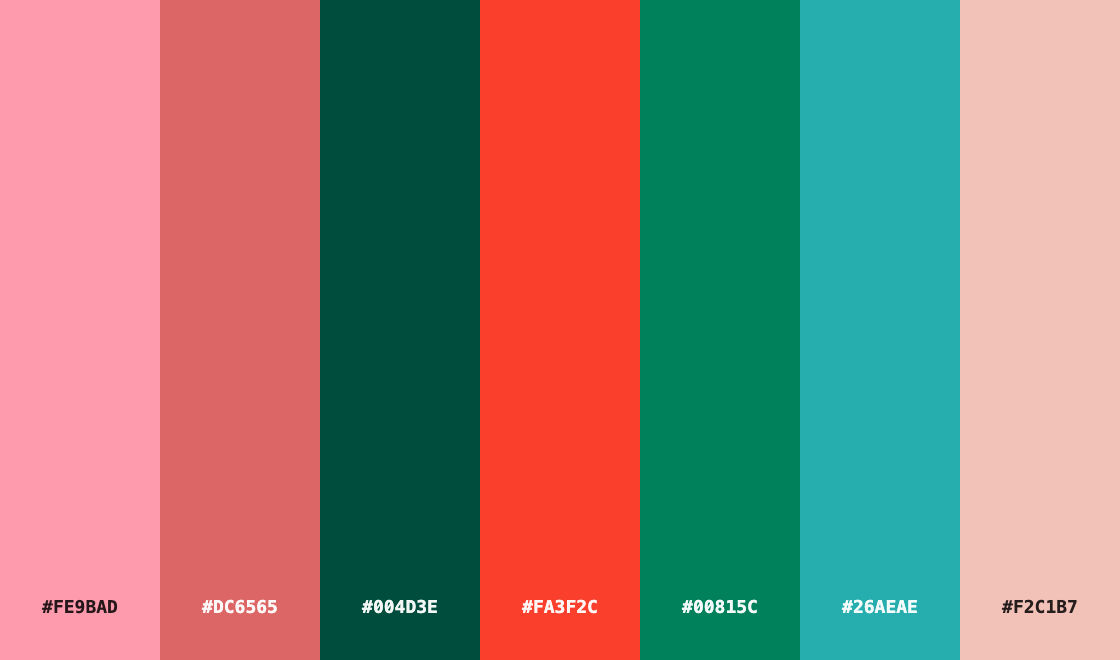 Color Palette ExtractionExtract color palettes from any image
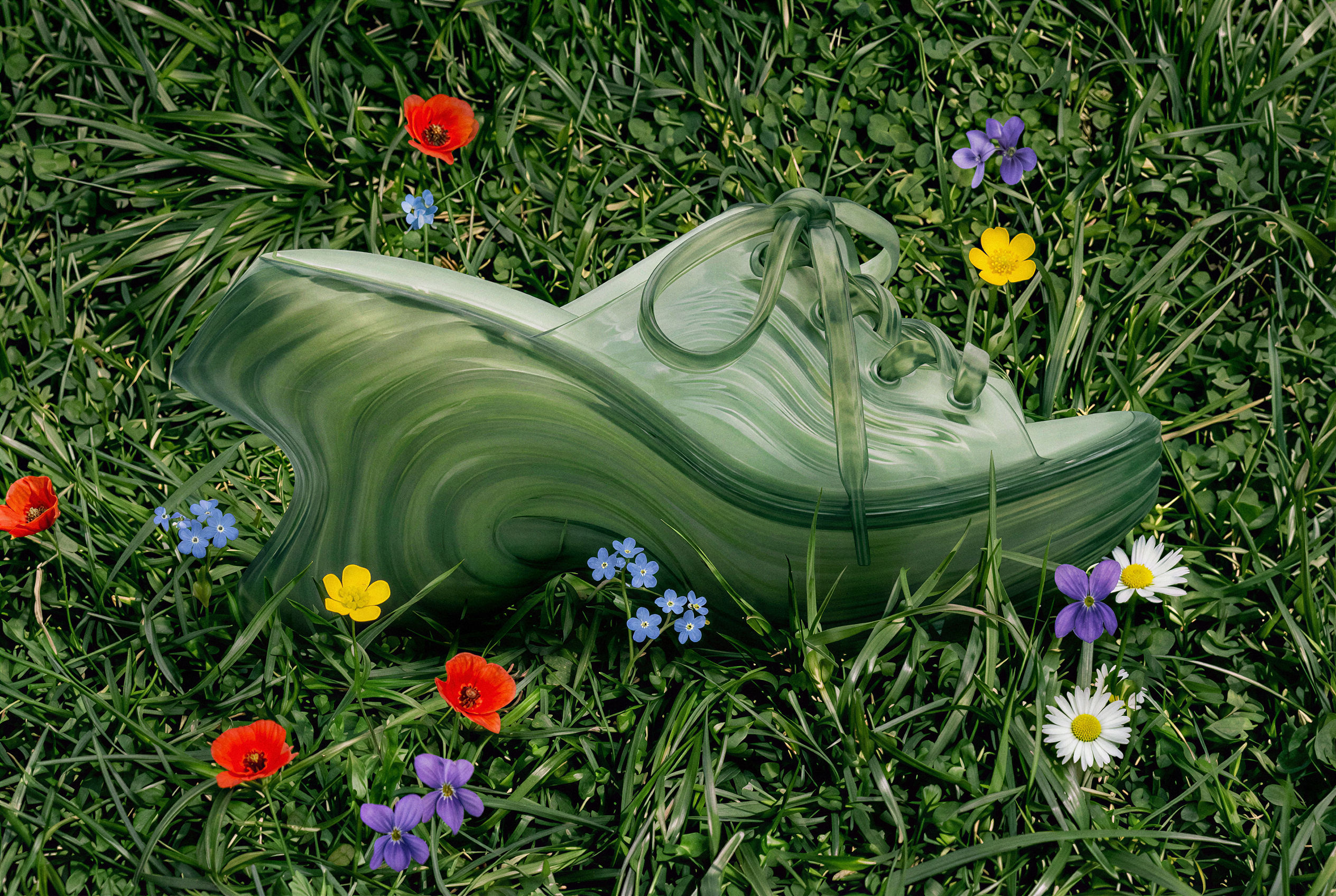 Image UpscalerUpscale any image to a higher resolution in one click.
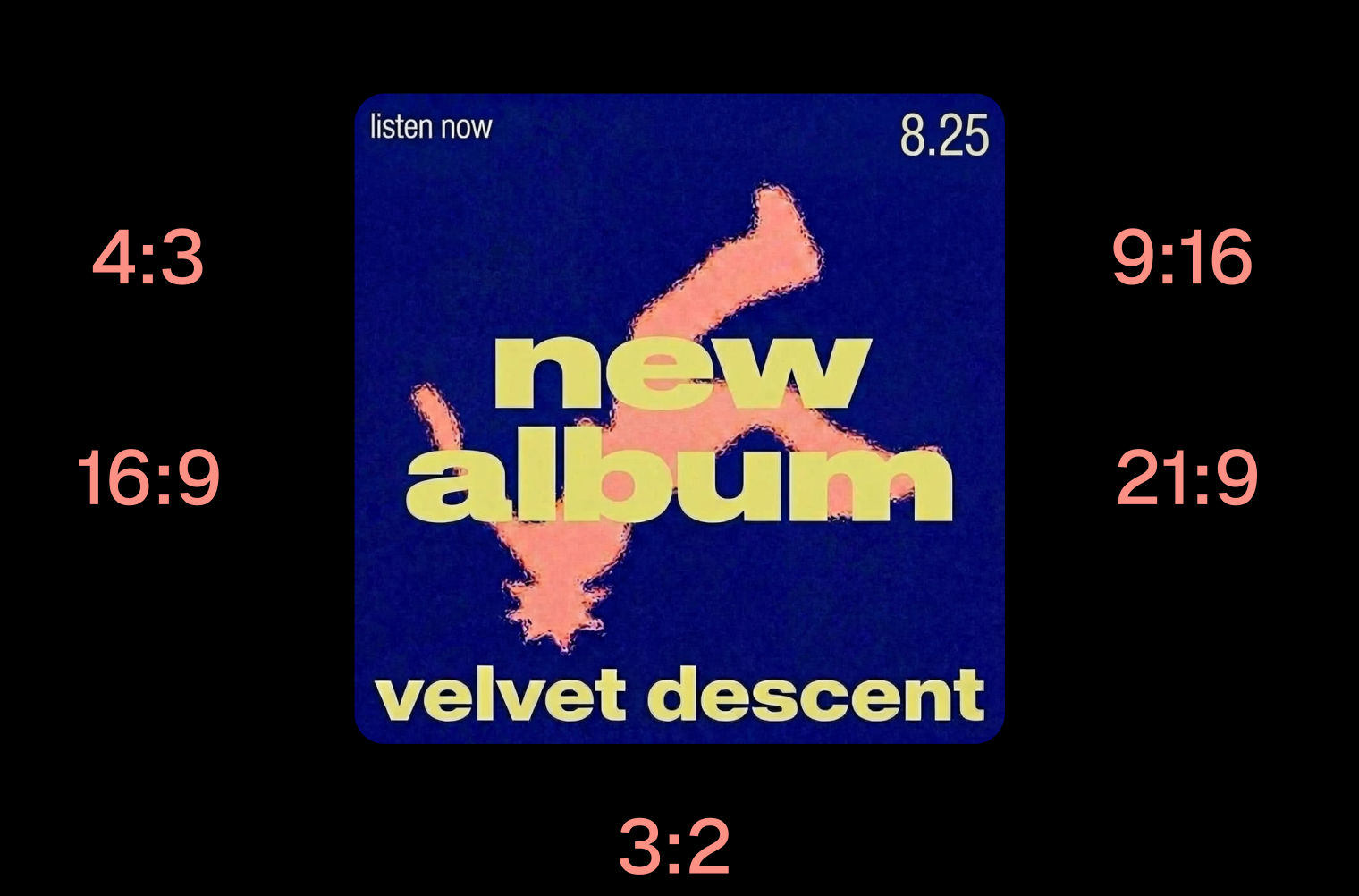 Layout ResizerResize layouts for any aspect ratio
 Prompt ExtractorReverse-engineers any image into a prompt
 3 Angle ShootFront shot in, 45, 90, and 180 angle back
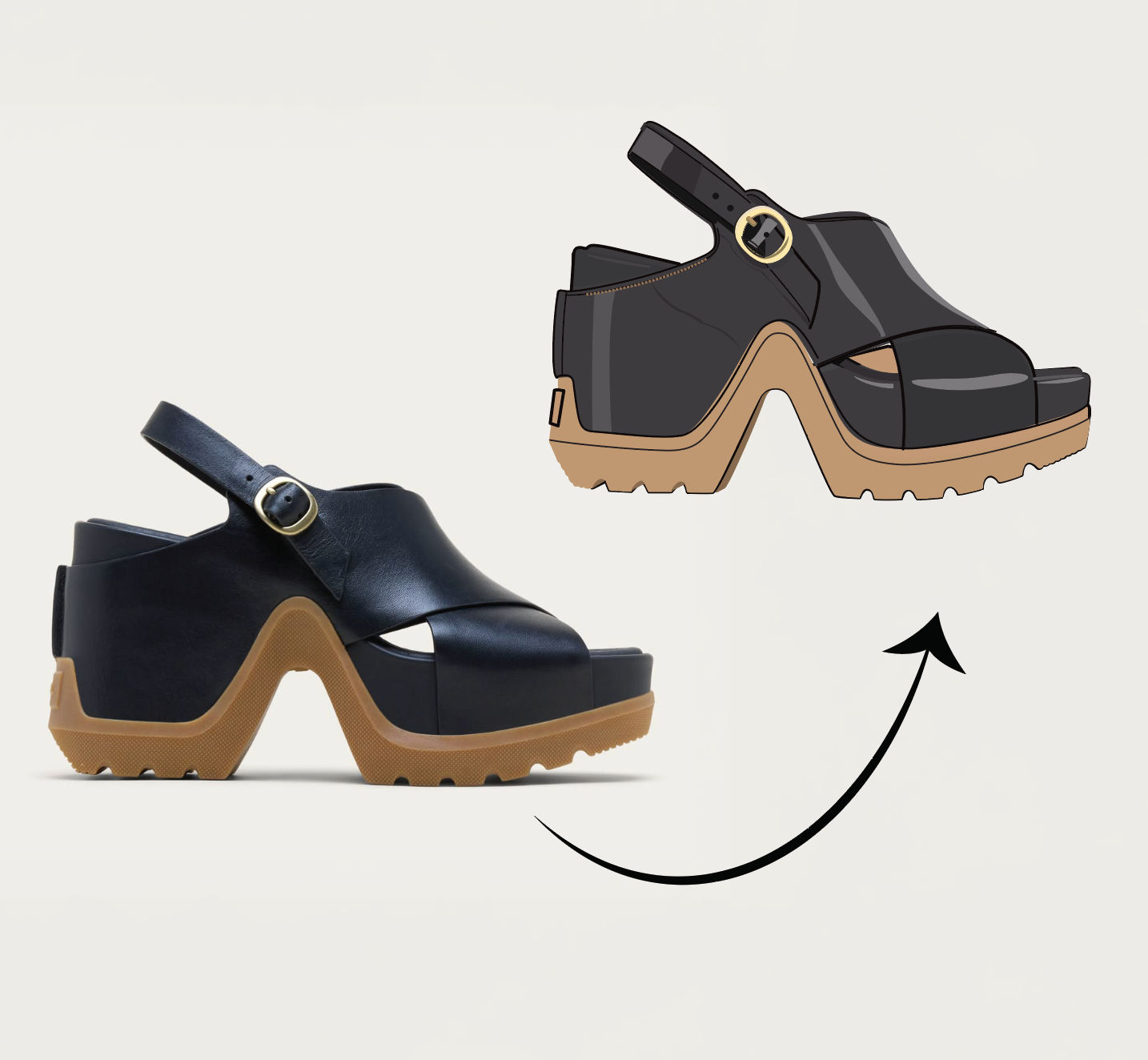 Anything to VectorTurn any image into a SVG vector illustration.
Add a White Background to Any Photo in One Click
Place any subject on a clean white background in one click.

FLORA