


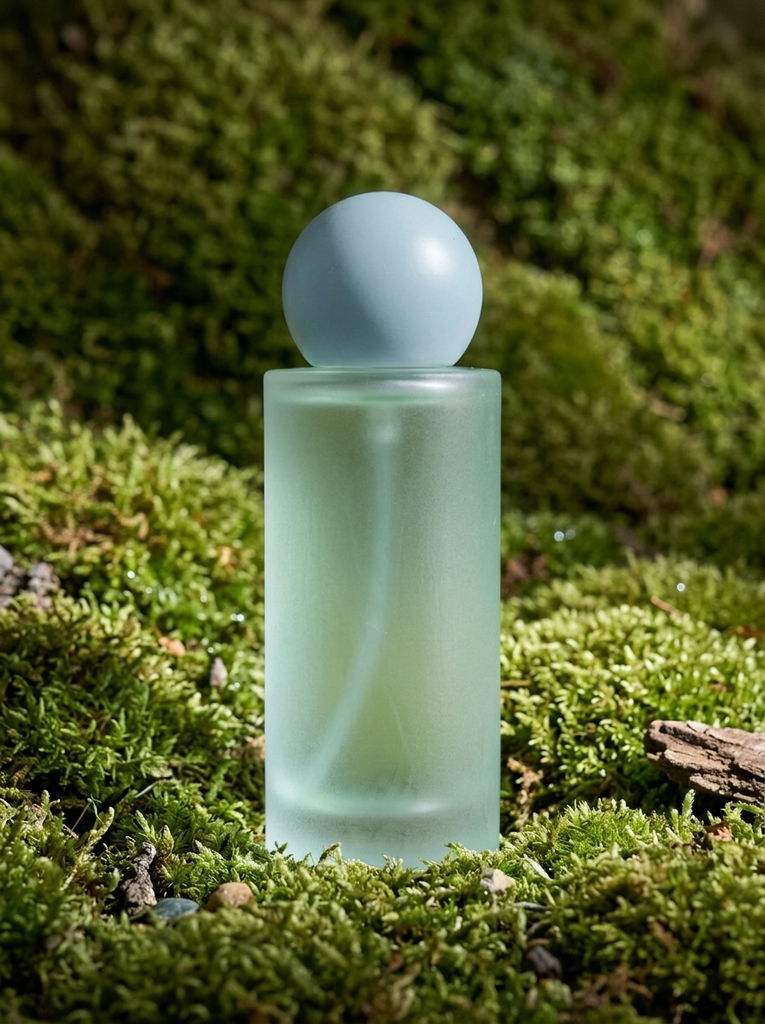

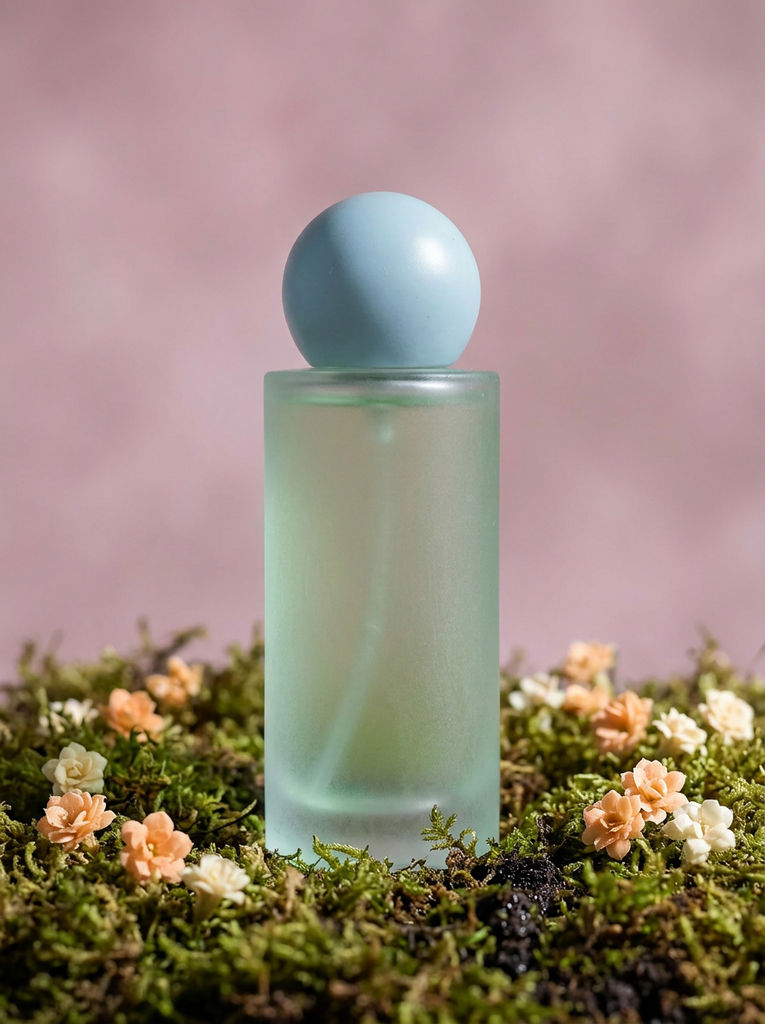


Generates a brand new AI-created background and places your subject into it in one click.

Product Photography Without a Studio
E-commerce teams generate a custom AI background for product images, from lifestyle scenes to abstract settings, without any studio setup or photography.

Creative Content for Social and Campaigns
Content creators use this AI background maker to create unique environments for portrait and product photos, making images stand out on social media and in marketing campaigns.

Ad Creative Variations
Marketing teams generate multiple AI art background variations for the same product, quickly building out diverse creative assets for testing.
How to use Techniques?
Discover how to utilize New Background Generator for different scenarios.
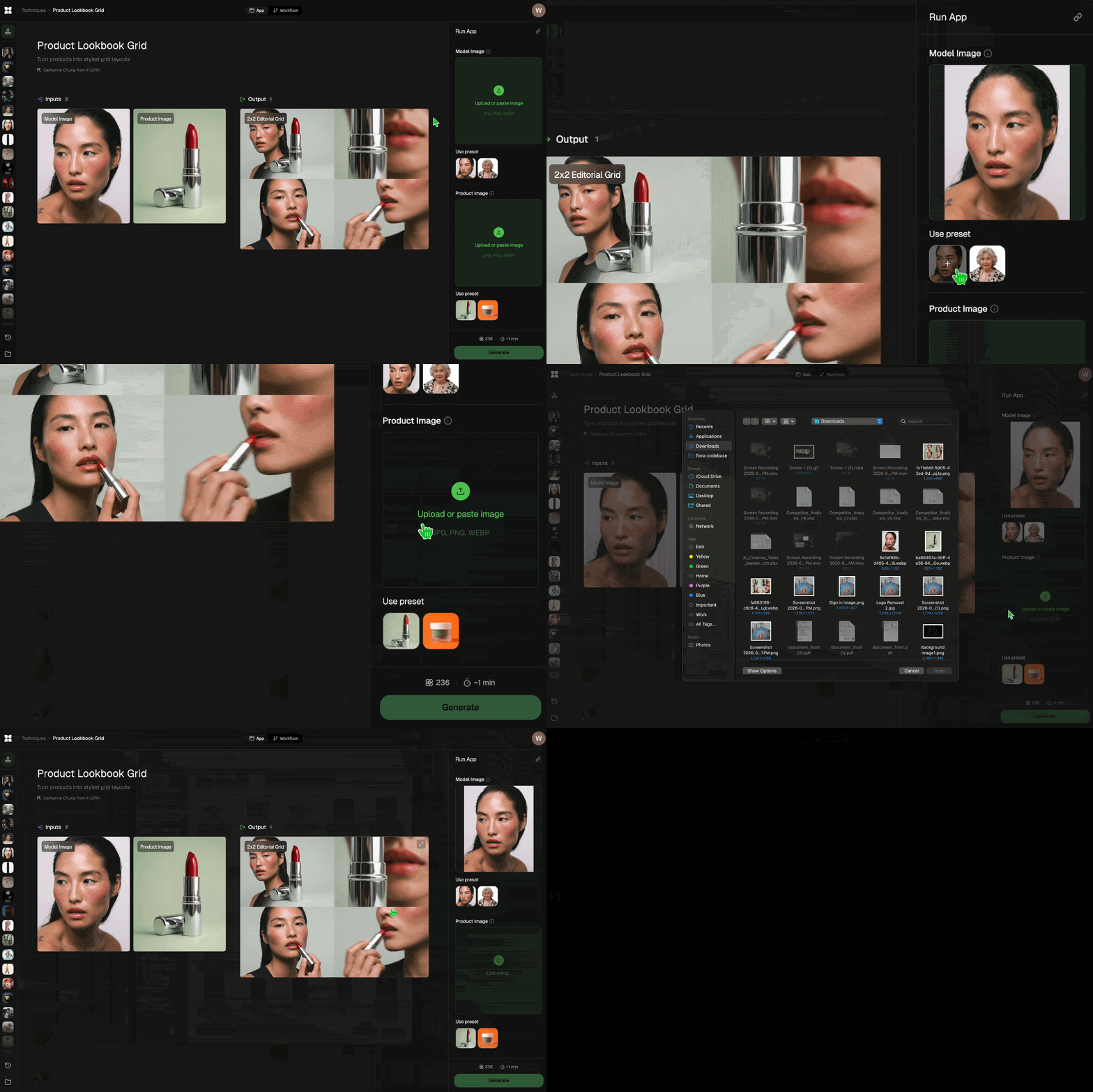
Add inputs
Upload images, videos, or type in the prompts to get started.
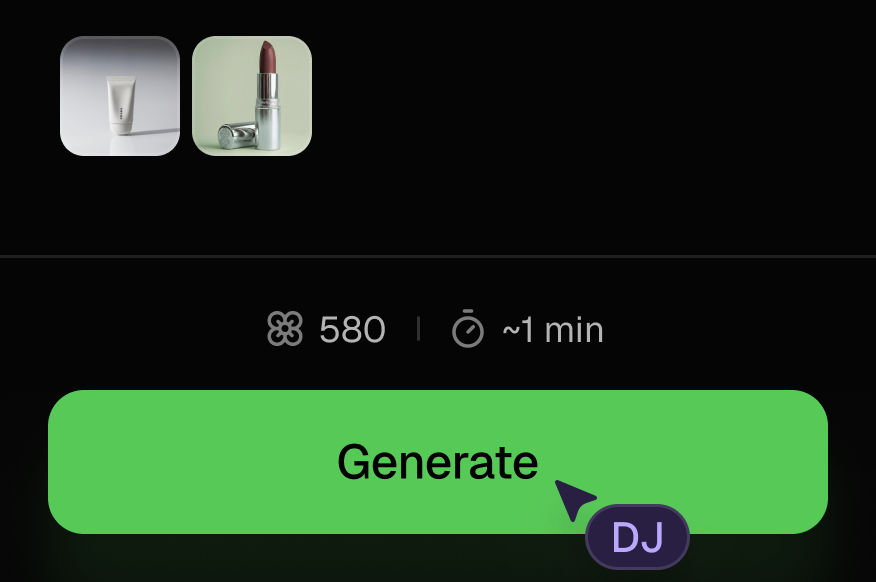
Generate outputs
Next, hit the "Generate" button to start generating your outputs.
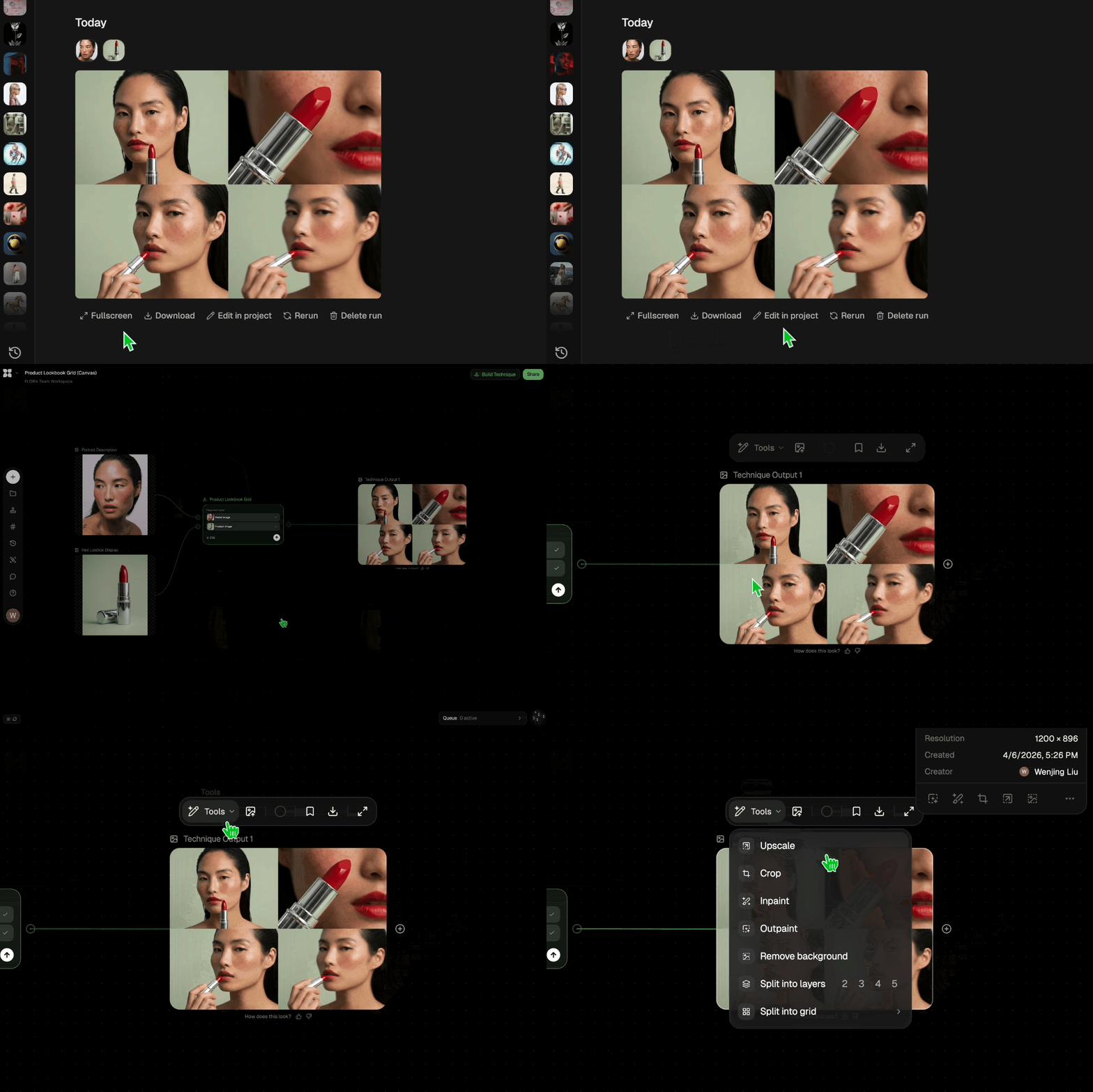
Edit and export
Refine your outputs on canvas, or download them directly.
Frequently asked questions
All you need to know about New Background Generator
What is an AI background generator, and how does it work?
An AI background generator builds a new setting for a photo you already have and puts your subject inside it, so the finished frame looks like one photograph instead of two stuck together. You upload the image, describe the scene you want, and the model generates the environment around whatever is already in the shot. On FLORA that happens on an infinite canvas, so the result can go straight into variations, an upscale, or the rest of a campaign without leaving the workspace.
Pasted backdrops usually give themselves away. The light falls the wrong direction, the subject sits a little too crisply against the scene, and the whole thing reads as flat. Generating the background avoids that, since the scene gets built around the subject you already have. You can try FLORA free and run the AI background generator online in your browser, with no studio time and no masking.
Why the result looks photographed
Most of the work is lighting. The model decides where the light in the new scene comes from, how hard it is, and what color it is, then applies those same decisions to your subject. Late afternoon sun from the left means a warm edge down the subject's left side and a soft shadow falling to the right. Get that wrong and no amount of detail in the background will save the image.
Then there is the shadow where the subject meets the surface. That small dark pool under a bottle or a shoe is what tells your eye the object is really resting on something, and it is usually the first thing missing from a manual composite. Depth does its part too. A background rendered with a shallow depth of field falls away behind the subject the way a real lens would.
Edges are where a convincing AI photo background is won or lost. Hair, glass, chrome, and sheer fabric all need a bit of the new scene showing through them. Put a hard cut line around any of those and the illusion is gone.
What the model is actually doing
An AI image background generator runs through a few steps in order:
- Reads the subject. What the photo is of, its shape and material, how it was lit to begin with.
- Separates it from the old backdrop. A precise mask around the subject, difficult edges included.
- Interprets the prompt. Your description becomes a scene with a surface, a depth, a light source, and a mood.
- Generates around the subject. The environment is rendered to match the subject's position, scale, and camera angle.
- Matches the two. Color temperature, shadow direction, grain, and focus get evened out across both layers.
All of it happens in one pass, which is why marketing teams reach for an AI background maker when they need six versions of the same product shot by Thursday.
Writing a description the model can use
Even the best AI background generator only works with what you give it. "Nice kitchen" gets you a stock-looking kitchen. Naming the surface, the light, and the distance gets you something closer to what you pictured: marble counter, soft window light from the left, kitchen blurred out behind.
It helps to think the way a photographer would. Where is the light coming from and how soft is it? What is the subject sitting on? How far back does the room go? If you want an AI art background rather than something photoreal, say so directly, since painterly, graphic, gradient, and illustrated all pull the output in different directions.
The same job under a lot of different names
Search around and you will find people calling this all kinds of things:
- AI background maker
- AI bg generator
- AI photo background
- "Add AI background to photo"
They all want the same outcome, which is keeping the subject and replacing everything behind it.
Which technique you actually want depends on the shot. For catalog work, a plain white background or a repeatable solid color background is often the better call. If you already have the backdrop and just need the subject moved into it, swapping the background is the closer fit, and studio blur covers the shots where the existing setting only needs softening. Everything sits on the same canvas as the FLORA AI image generator, and if you are still working out which tools belong in your process, our roundup of the best AI image generators covers the wider field.
Related techniques
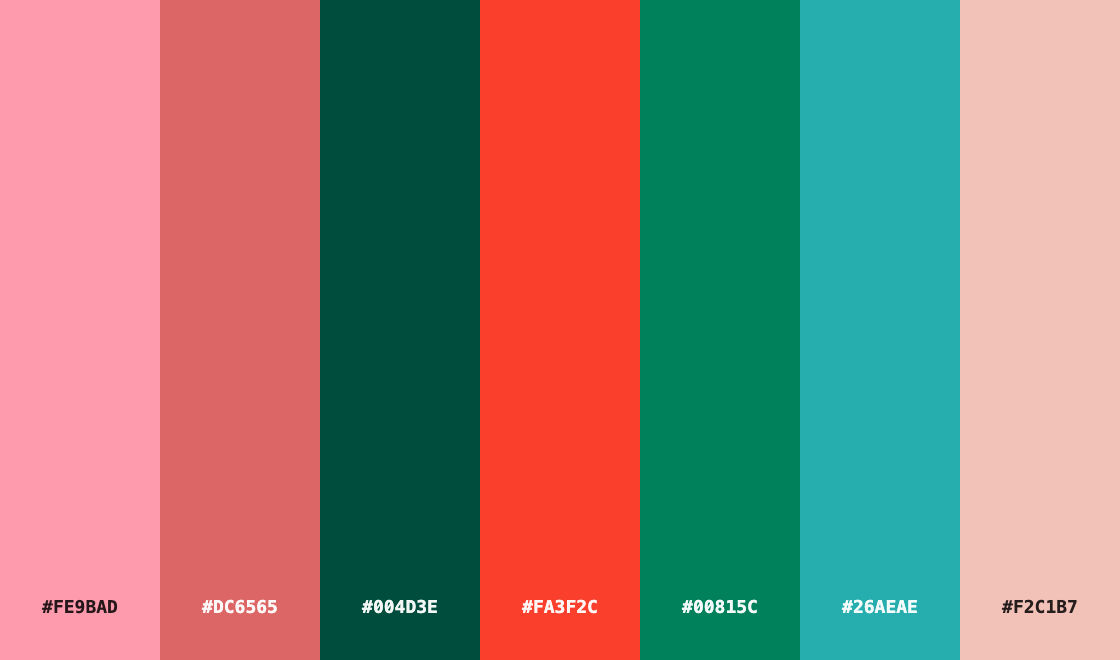 Color Palette ExtractionExtract color palettes from any image
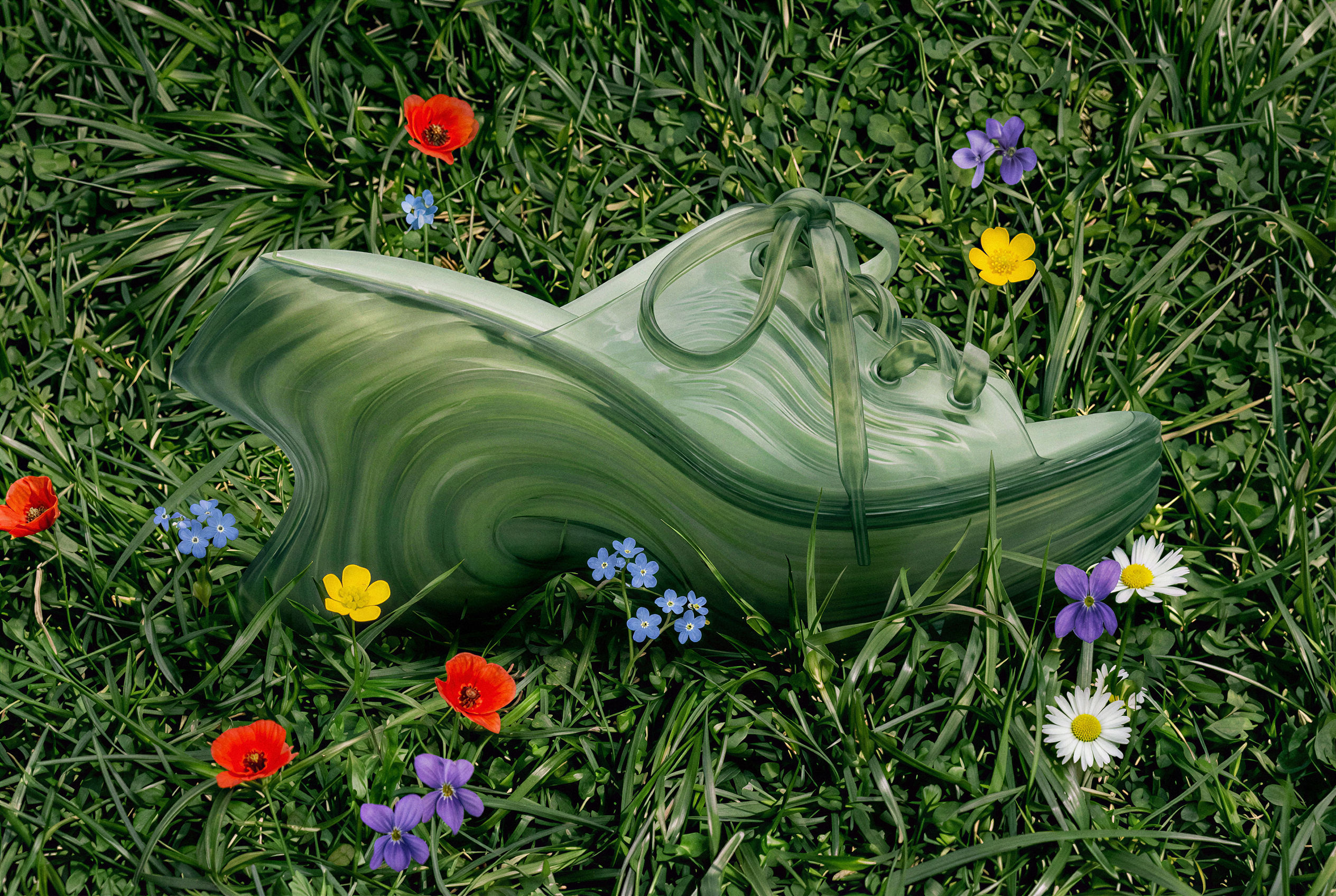 Image UpscalerUpscale any image to a higher resolution in one click.
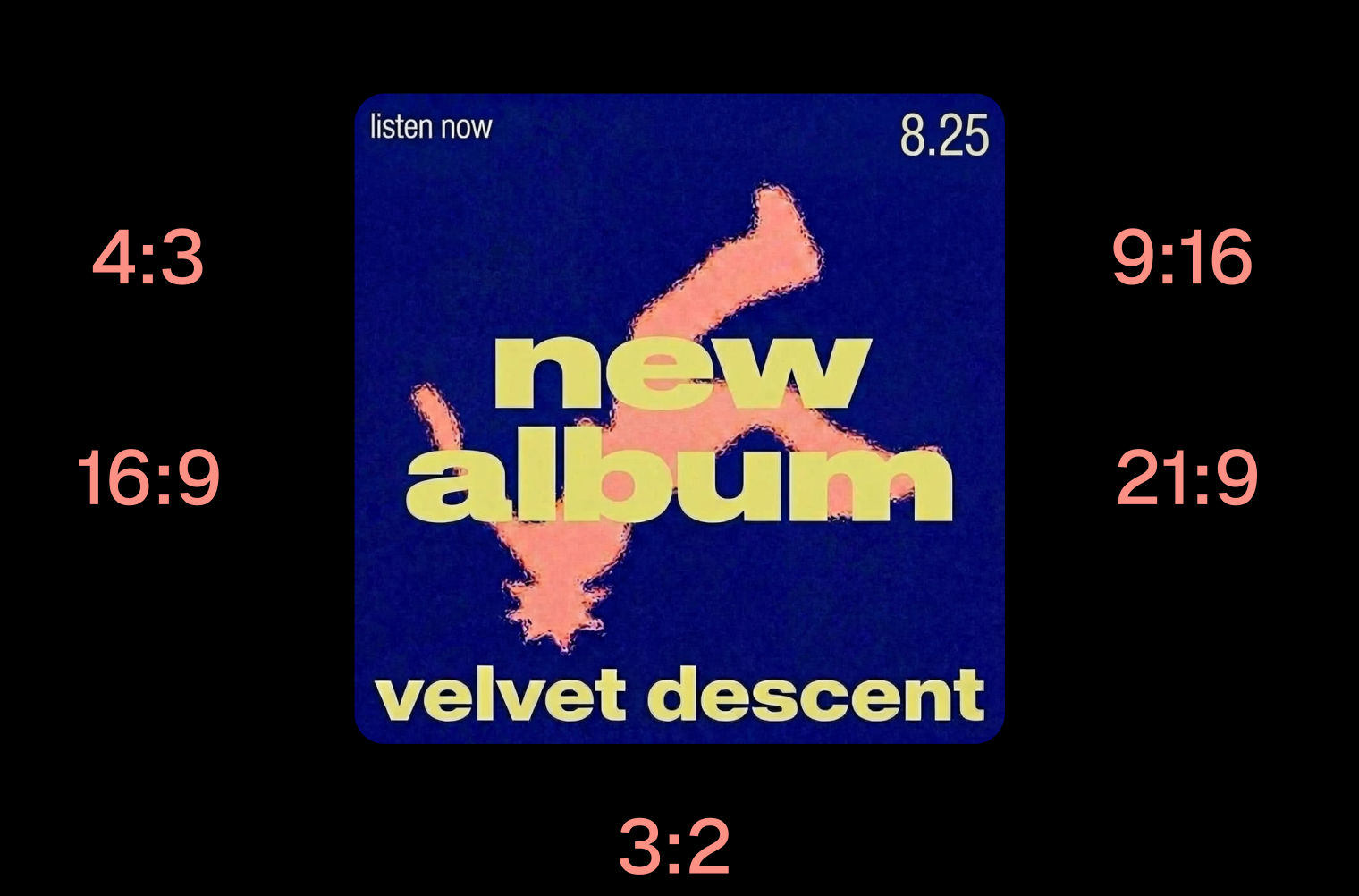 Layout ResizerResize layouts for any aspect ratio
 Prompt ExtractorReverse-engineers any image into a prompt
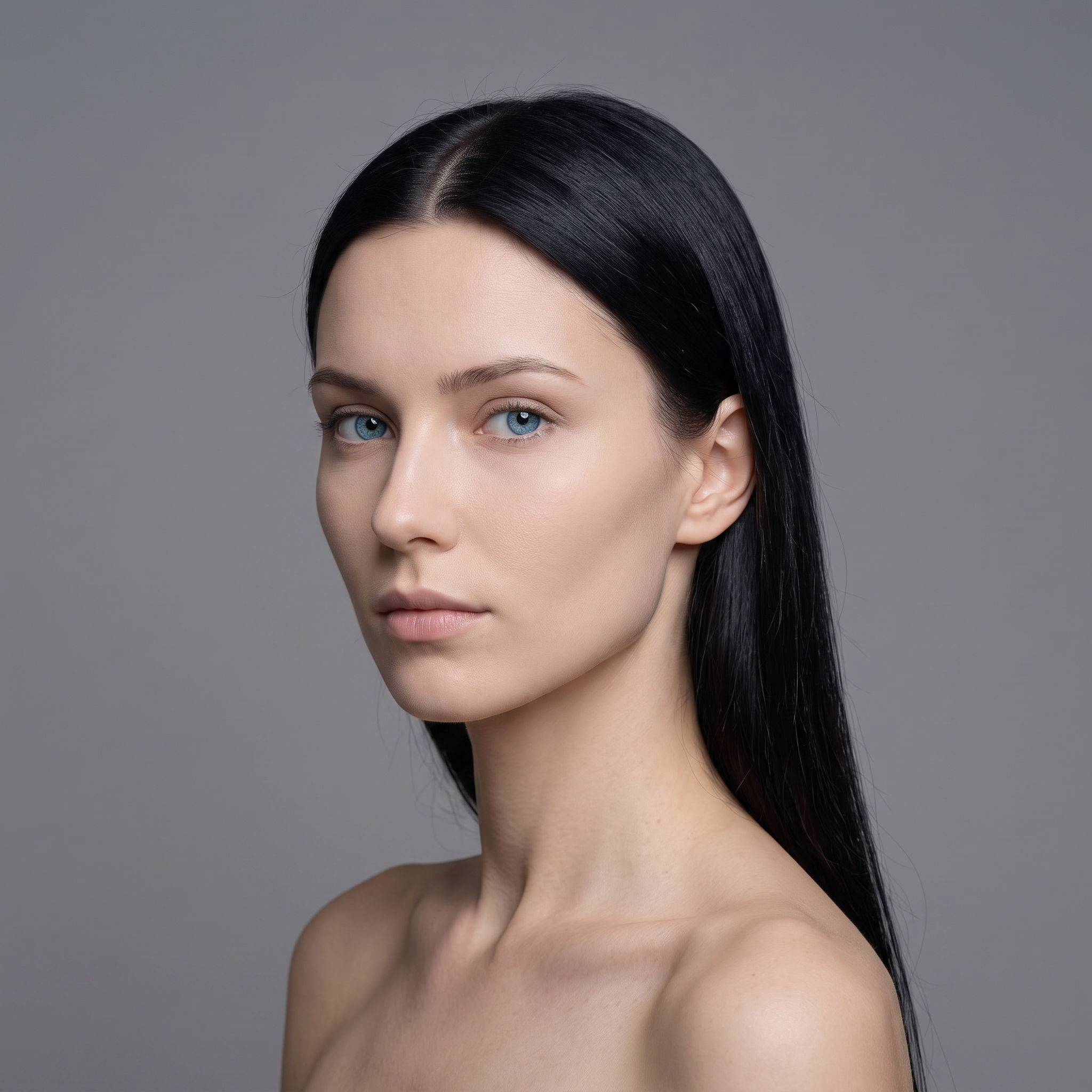 3 Angle ShootFront shot in, 45, 90, and 180 angle back
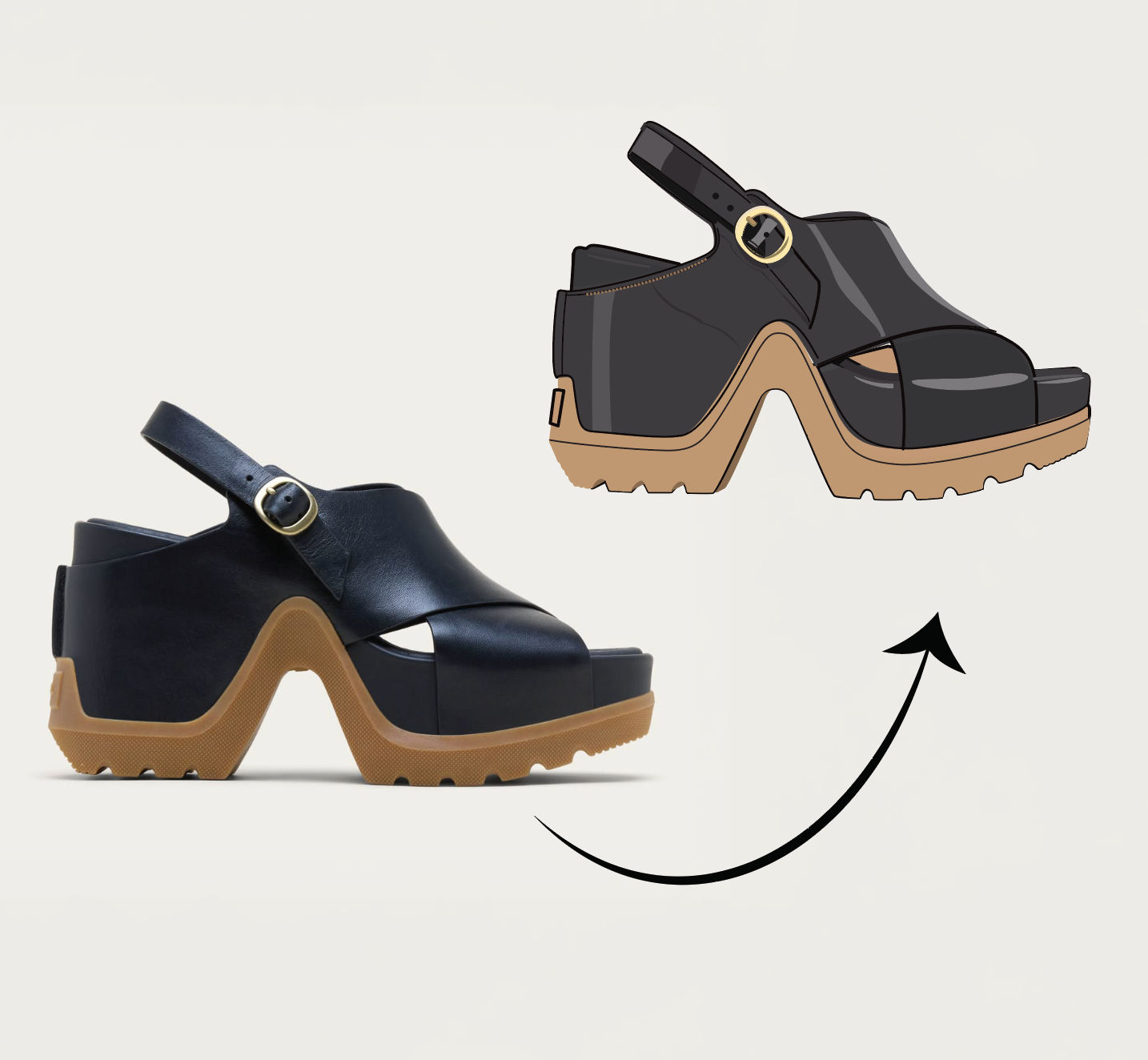 Anything to VectorTurn any image into a SVG vector illustration.
Use the AI Background Generator to Build Any Scene You Describe
Generate multiple backgrounds for your product or subject in one click.

FLORA