
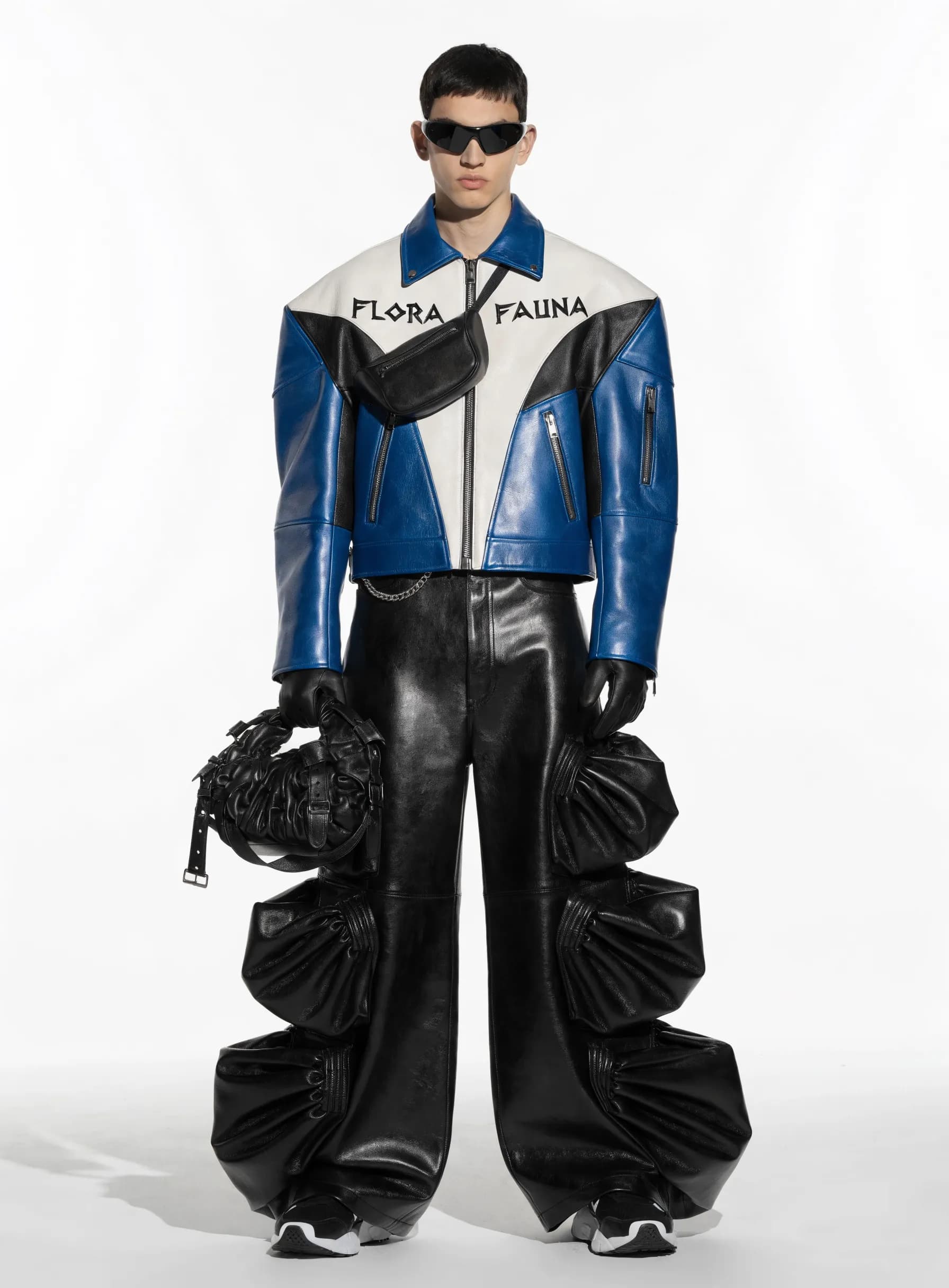
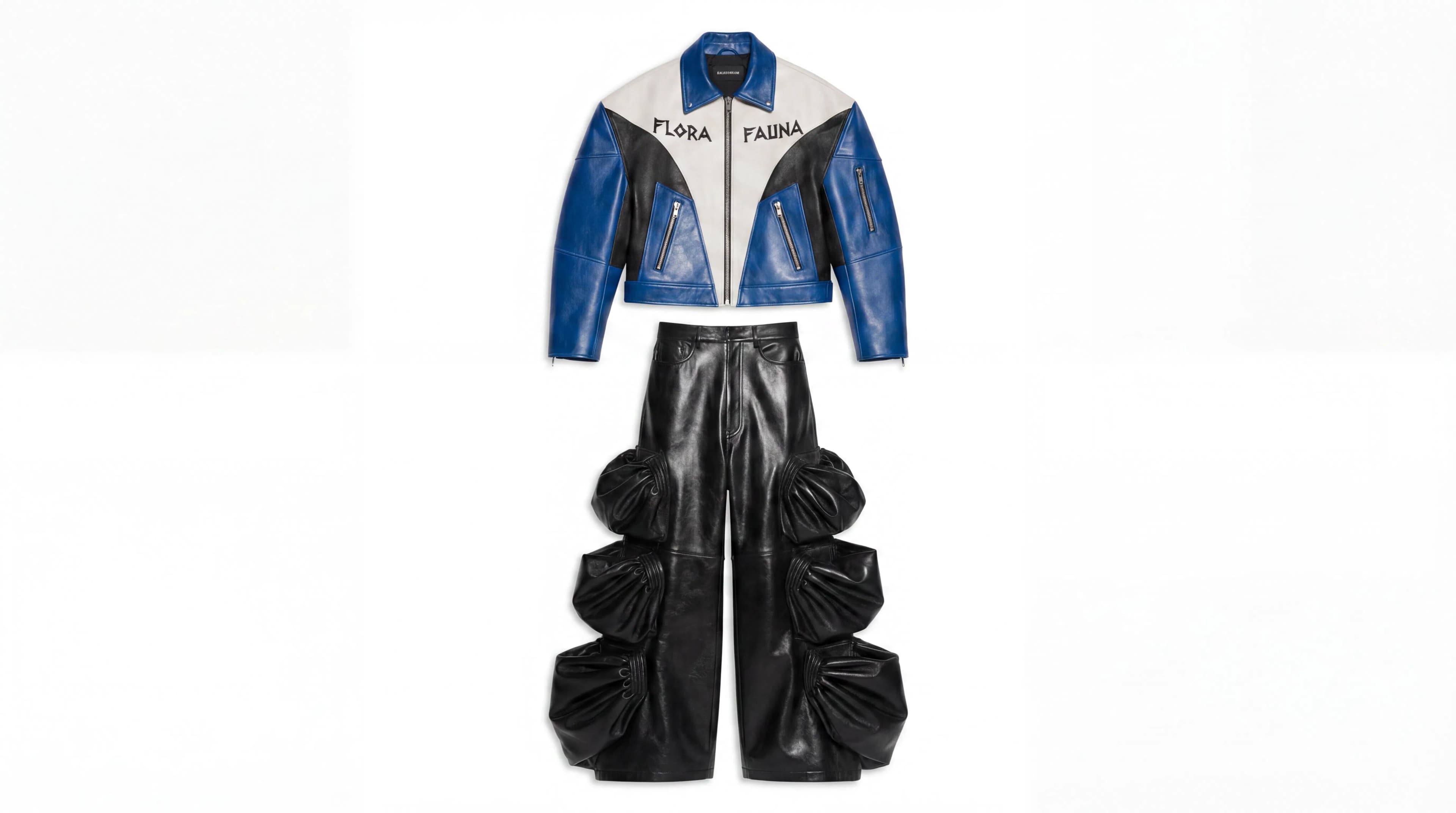
Flat lay from a look
Run the Garment Extractor technique on this outfit photo: media.flora.ai/…
Run the Garment Extractor technique on this outfit photo: media.flora.ai/…
You'll paste this URL into Claude in the next step.
In the Claude desktop app or claude.ai, open Customize → Connectors, then + Add → Add custom connector. Name it FLORA, paste the URL and click Add. It also works in Claude Code sessions in the desktop app.
Click Connect on FLORA and sign in, then open Claude with the prompt ready to extract a flat lay from your outfit photo.
Requires steps 1-2 completed first.
Optional: the prompts work without it. Unzip it into your agent's skills folder, or upload the zip to Claude.
FLORA is listed in the ChatGPT apps directory. Open the FLORA plugin in ChatGPT to install it.
Follow the prompts in ChatGPT to sign in to FLORA and connect.
Once connected, ask ChatGPT to create with FLORA. Try this prompt with a product image.
Optional: the prompts work without it. Unzip it into your agent's skills folder, or upload the zip to Claude.
Adds the FLORA marketplace, then the plugin with the MCP server and every FLORA skill.
Sign in, then ask Claude Code to extract a flat lay from your outfit photo.
Optional: the prompts work without it. Unzip it into your agent's skills folder, or upload the zip to Claude.
Drop this into ~/.cursor/mcp.json, or the project's .cursor/mcp.json.
Cursor signs in through the browser the first time it calls a FLORA tool.
Paste into Cursor’s chat.
Optional: the prompts work without it. Unzip it into your agent's skills folder, or upload the zip to Claude.
Two commands: add the server, then sign in through the browser.
The prompt points Codex at the skill, then at the job.
Paste into Codex’s chat.
Optional: the prompts work without it. Unzip it into your agent's skills folder, or upload the zip to Claude.
