Animation
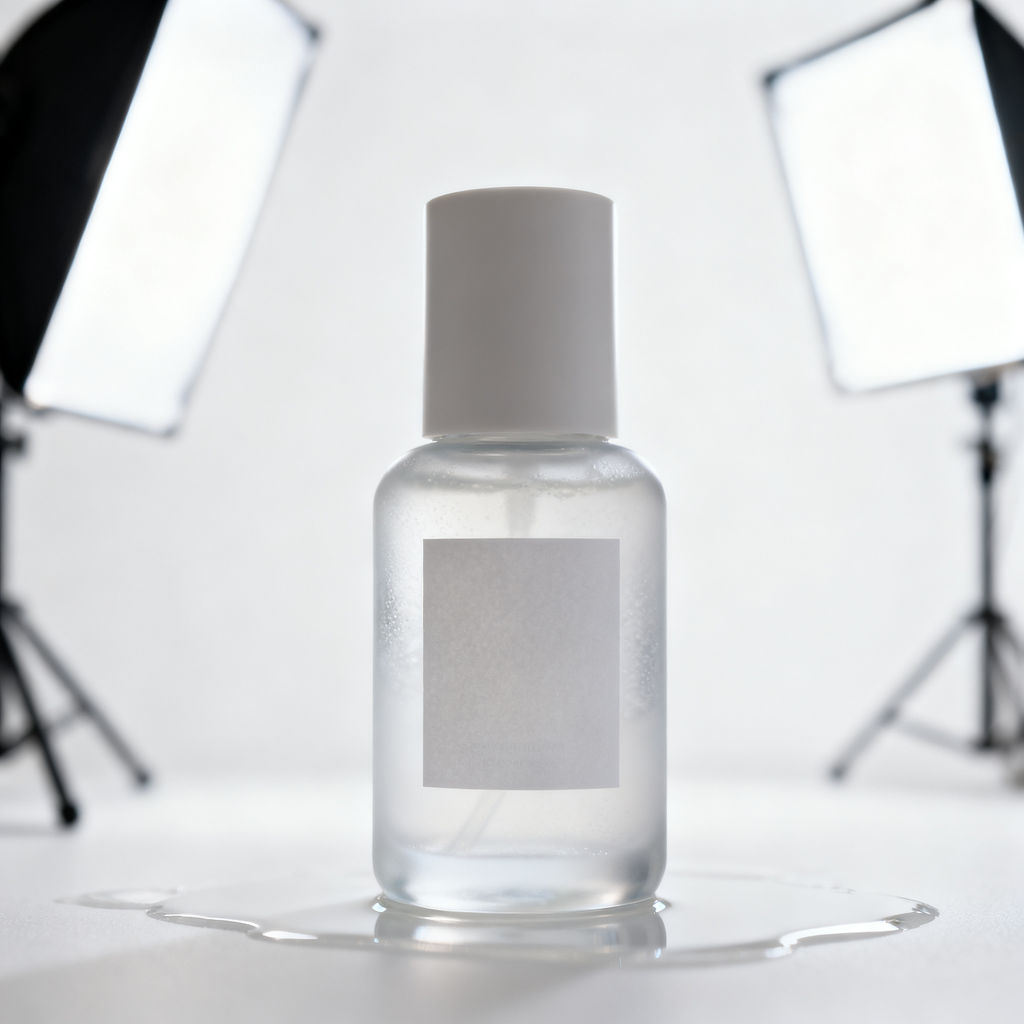
the studio light glides slowly across the glass, the liquid inside settles with a faint ripple, and the shallow puddle at the base shimmers almost imperceptibly
Subject
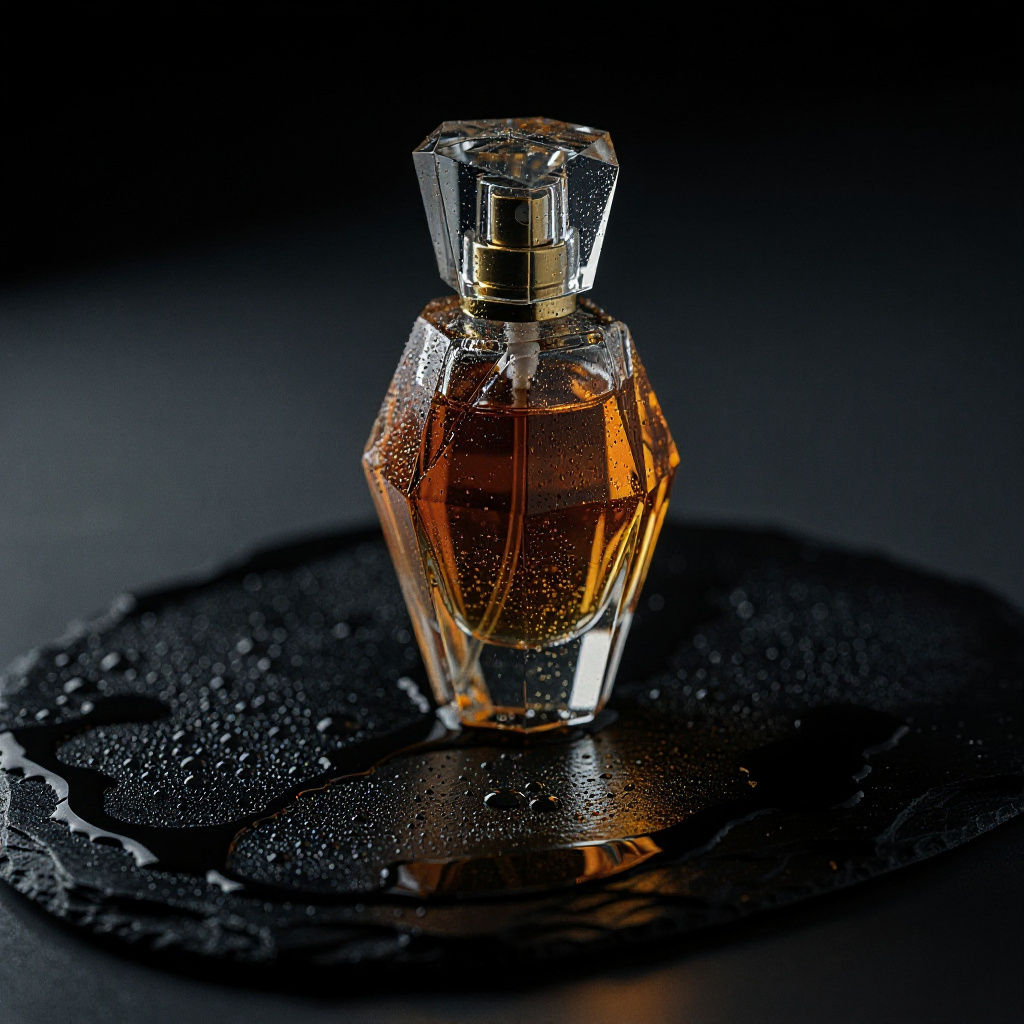
A single crystal perfume bottle on wet black slate, amber liquid glowing from within
Motion
the amber liquid swirls gently inside the glass, light refracts and dances across the bottle, a thin curl of vapor rises and dissolves
Upload a photo and describe the motion to get two video clips, a color-graded still, and an ambient audio track back.
Product Launch Visuals
Product teams use the Technique as an image to video generator, turning a single packshot into a slow, softly lit clip for launch pages and ads.

Social Media Content
Creators who have one strong still and need motion run an AI image to video pass, then post the clip with its matching ambient audio track.
Website Hero Motion
Web and brand teams take an existing hero photo from image to video, so a landing page gets movement without booking a new shoot.
How to use Techniques?
Discover how to utilize Image To Video AI for different scenarios.
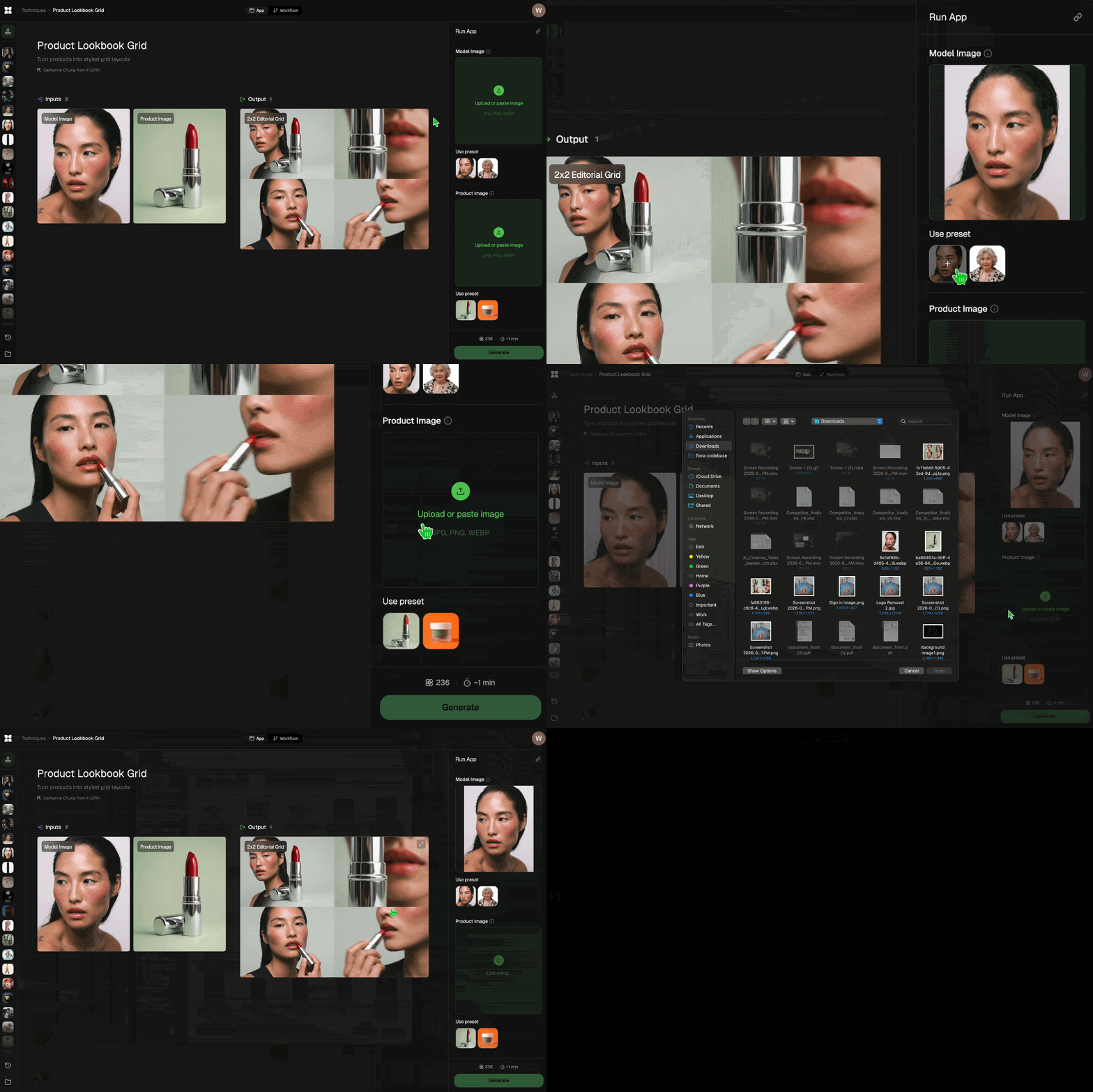
Add inputs
Upload images, videos, or type in the prompts to get started.
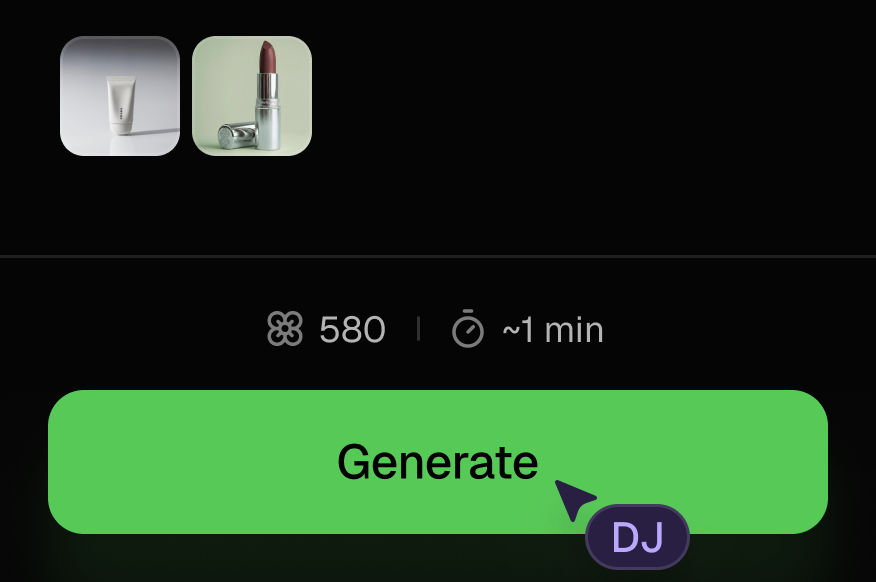
Generate outputs
Next, hit the "Generate" button to start generating your outputs.
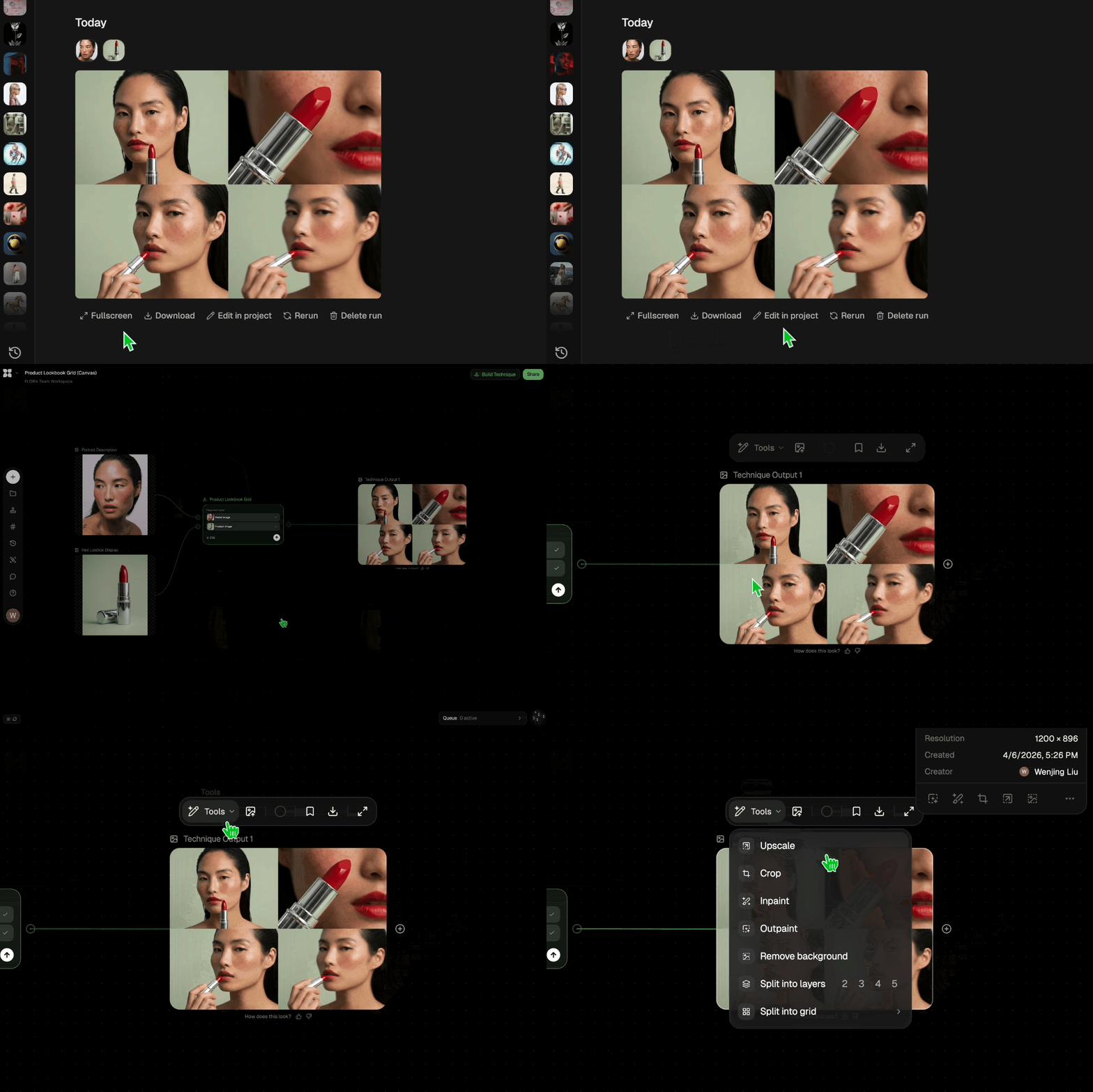
Edit and export
Refine your outputs on canvas, or download them directly.
Frequently asked questions
All you need to know about Image To Video AI
What image to video AI does with a single photo
Image to video AI takes a still photograph and generates a short video clip in which parts of that photo move. The model uses your image as the first frame and predicts the frames after it, working from the subject, the lighting, and a written description of the movement you want. Across a few seconds, the subject and its colors stay recognizably the same while things like light, liquid, fabric, smoke, or the camera position change.
In this Technique you upload one photo, write a line or two about how it should move, and get back two clips along with a color-graded version of the still and an ambient audio track. You can create a FLORA account to run it on one of your own images from the top of this page.
How the model decides what moves
For every frame it generates, a video model working from a photo is keeping some parts of the image identical to the frame before and inventing plausible movement for the rest. It relies mostly on the written prompt to tell which is which. If you write that the liquid swirls inside the bottle and the light glides across the glass, the model tends to hold the bottle's shape and label steady and put the movement into the liquid and the highlights.
When the prompt is vague or missing, an AI image to video model usually falls back on a slow zoom or a gentle drift across the whole frame. Clips like that are usable, although they could have come from almost any photo. A prompt that names the specific thing moving in the scene, and roughly how fast it moves, gives the model much more to work with.
Depth plays a part as well. Video models estimate which areas of a photo sit close to the lens and which sit further back, and they use that estimate when the camera moves, so foreground objects shift more than the background does. A photo with a clear subject in front of a readable background usually produces more convincing depth than a flat, evenly lit shot where everything sits on the same plane.
Why the Technique grades the still before animating it
Like most image to video tools, this Technique animates your photo as you uploaded it, and that result is the clip labeled Lane A. Alongside it, the Technique produces a Grade Pass still of the same frame with a deeper color grade and fine film grain, then animates that graded version into a second clip labeled The Money Shot.
The graded path exists because a video model carries the look of its first frame through the whole clip. If the source photo has flat color or low contrast, every frame of the video will have it too. Starting the second clip from a graded still gives the model a richer image to begin with, and the finished clip keeps that mood. With both clips side by side, you can compare your untouched photo in motion against the graded one and use whichever fits where the video is headed.
Social and product video often starts playing muted, and anyone who taps to unmute will expect to hear something. The ambient audio track gives you a quiet bed to pair with either clip, so you don't have to find a sound file separately.
Writing the Animation and Motion prompts
Movement in this Technique is described in two separate text inputs. Animation covers how your original photo moves in the Lane A clip, including any camera movement. Motion covers how the subject comes alive in The Money Shot. The two clips start from different frames, so giving each prompt a different job often works well, for example a slow camera push in one and movement inside the subject in the other.
Small physical changes are the easiest for the model to render convincingly from a single frame. Light sliding across a surface, steam rising from a cup, fabric moving in a light breeze, condensation running down a glass, and a slow push toward the subject are all good examples. Bigger actions, such as a person turning to face the camera or an object flipping over, ask the model to invent parts of the scene the photo never showed, and those clips are more likely to warp. If a result smears or distorts, try asking for movement in only one or two elements and describing it as slower.
You can also write down what shouldn't move. Adding a line like "the bottle and label stay perfectly still" tells the model which area to hold steady, and it lowers the chance of printed text or a logo bending during the clip.
The different ways people search for this
The same job gets searched for under several names. People who type image to video generator or image to video AI generator usually have a finished photo already and want motion from it without opening an editing timeline. A search for plain image to video is broader, and it also turns up slideshow tools that stitch several photos together, which is a separate task from animating what's inside one frame.
Searches like free image to video or free AI image to video generator are usually about cost. Creating a FLORA account is free, and new accounts get 1,000 starter credits that do not expire. The Free plan covers text and image models, so running this Technique, which generates video, needs a paid plan. Each run generates two clips, a still, and an audio track, so it uses more credits than a Technique that returns a single image. The exact cost is shown before you generate.
Preparing a source photo
The model has more detail to keep consistent from frame to frame when the source photo is sharp and well exposed. Soft or noisy images tend to lose even more detail once they start moving. If the only copy of a photo you have is small or heavily compressed, running it through the image upscaler first gives the video model a cleaner starting frame.
Some open space around the subject gives the model room for camera movement, so it doesn't have to invent new content at the edges of the frame. If a photo is cropped tightly or has the wrong aspect ratio for where the video will be posted, Quick Reframe can adjust the composition before you animate it. A busy background can pull movement away from the subject, and replacing it with something plainer using Swap Background usually gives a cleaner clip.
Where the clips go next
If you need more than one kind of motion from the same product, Product Animator and Product Motion are both built around product shots and can sit alongside these results. To join a clip to other shots in a longer sequence, Seamless Transition handles the cut between them. The AI video generator page covers text-to-video and the other ways FLORA generates video beyond starting from one photo.
Every output from this Technique can also be opened on the FLORA canvas, where the clips, the graded still, and the audio sit with the rest of a project and can be run through other image and video models. The best AI video generators roundup compares the major video models available now if you want to see how they differ.
Related techniques
 Video Scene BuilderCompose video scenes from still assets
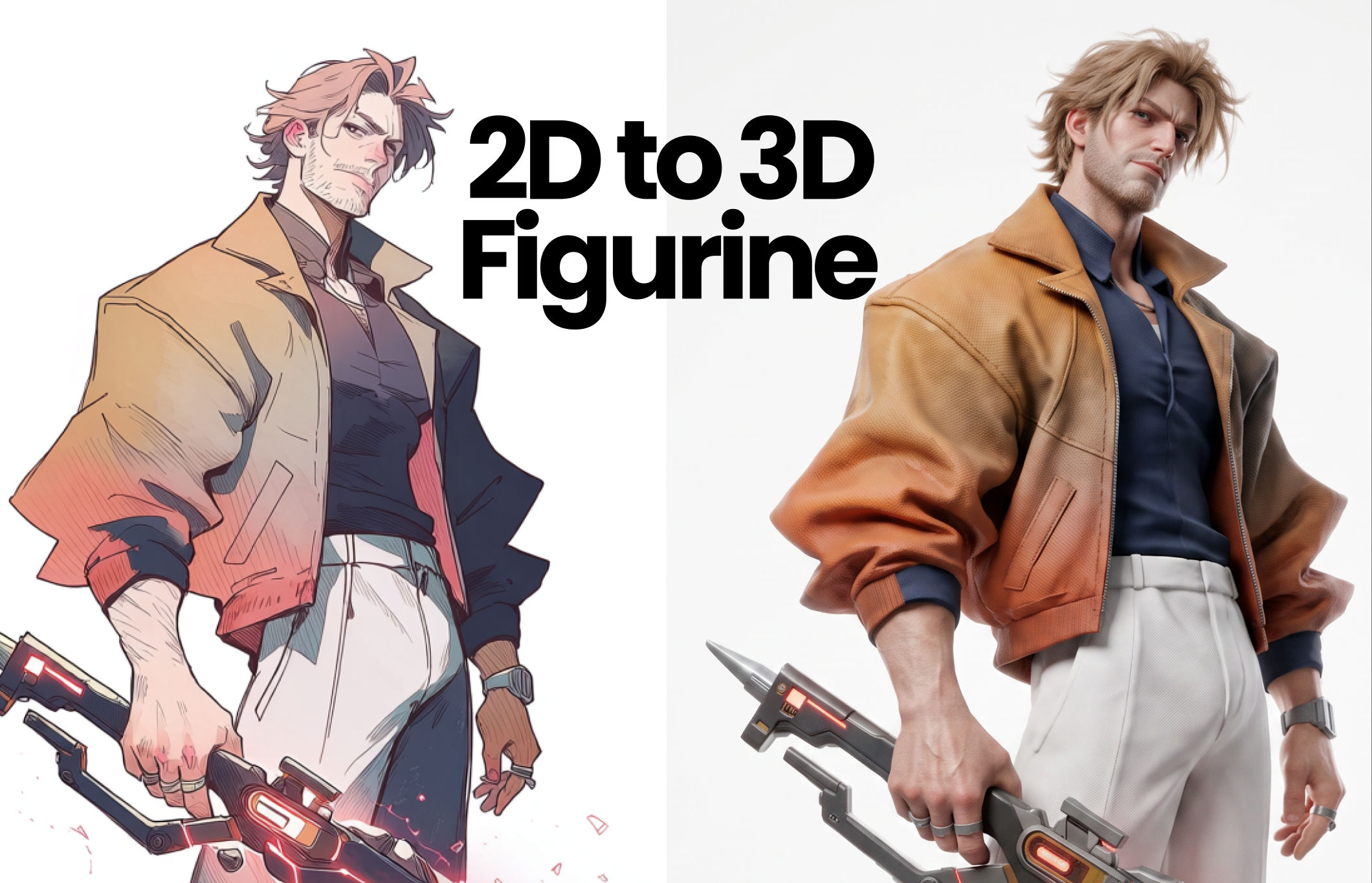 2D to 3D FigurineTurns 2D character art into a hyper-realistic 3D CGI collectible figurine studio-lit, PBR materials, and premium detail, with original colors, pose, and design exactly preserved.
 Album Art VisualizerMake a cool looping video based on your album art image
 Blake Ridder's Cinematic PlateCreate a video in Blake Ridder's Cinematic Style
 Cinematic Sizzle Reel CreatorMake a cinematic fast paced reel out of multiple videos. Technique built by DJ Kim
 DreamscapeCreate dreamy realism images and loop animation backgrounds for tech and SaaS hero sections.
Turn One Still Photo Into a Cinematic Clip With Image to Video AI
drop in one still photo, get a living, cinematic clip back. Useful for: marketers, product teams, and creators who have ONE great photo and need motion — a hero shot that breathes, a product that comes alive, a still that scrolls.

Louis Anderson