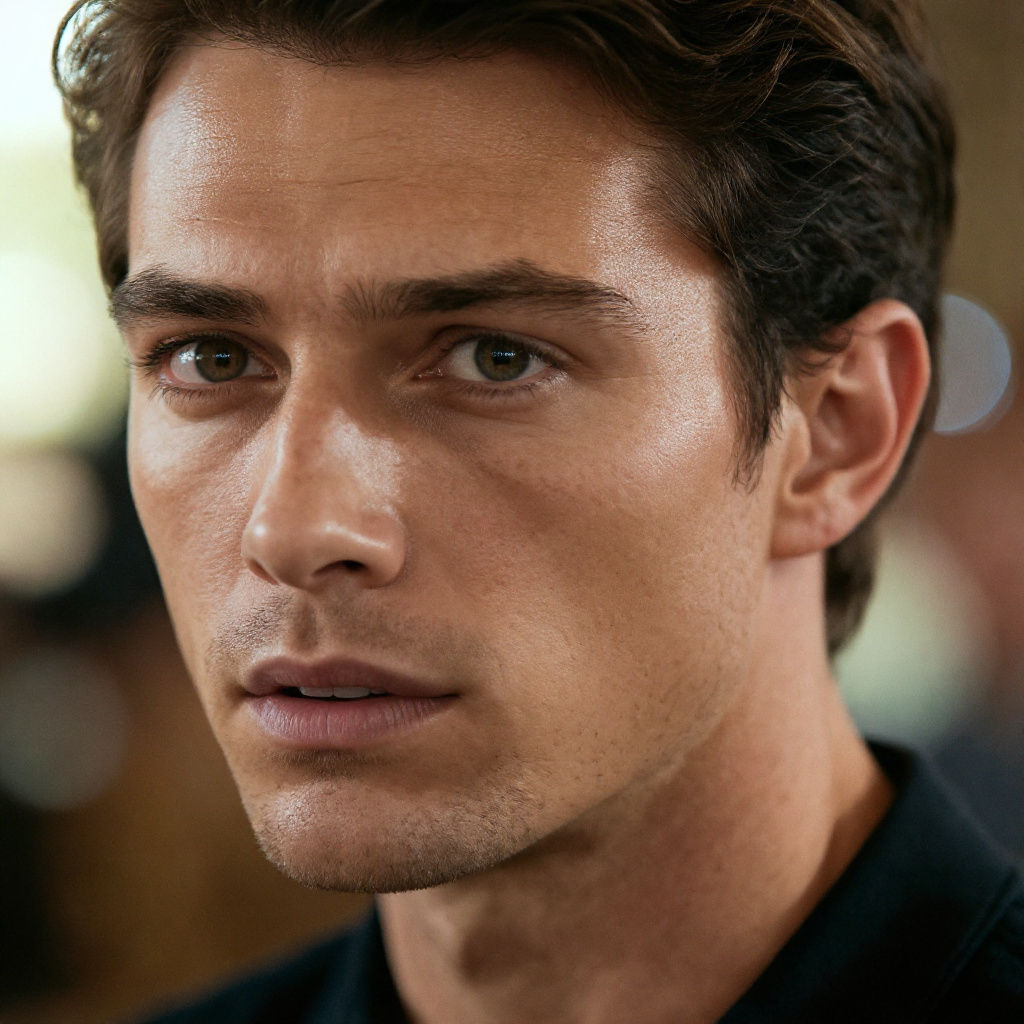
Detail
individual hair strands, eyelashes, fabric weave, skin pore texture, and crisp catchlights in the eyes
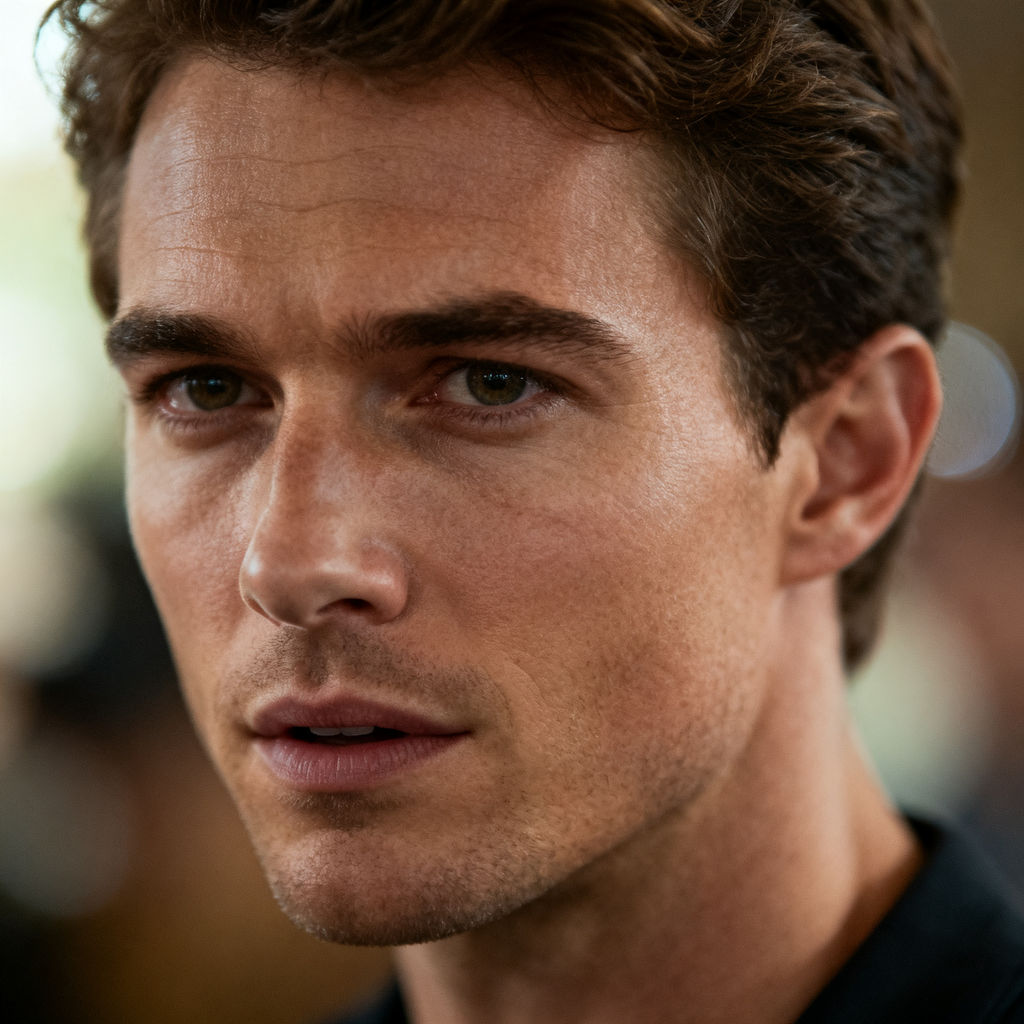
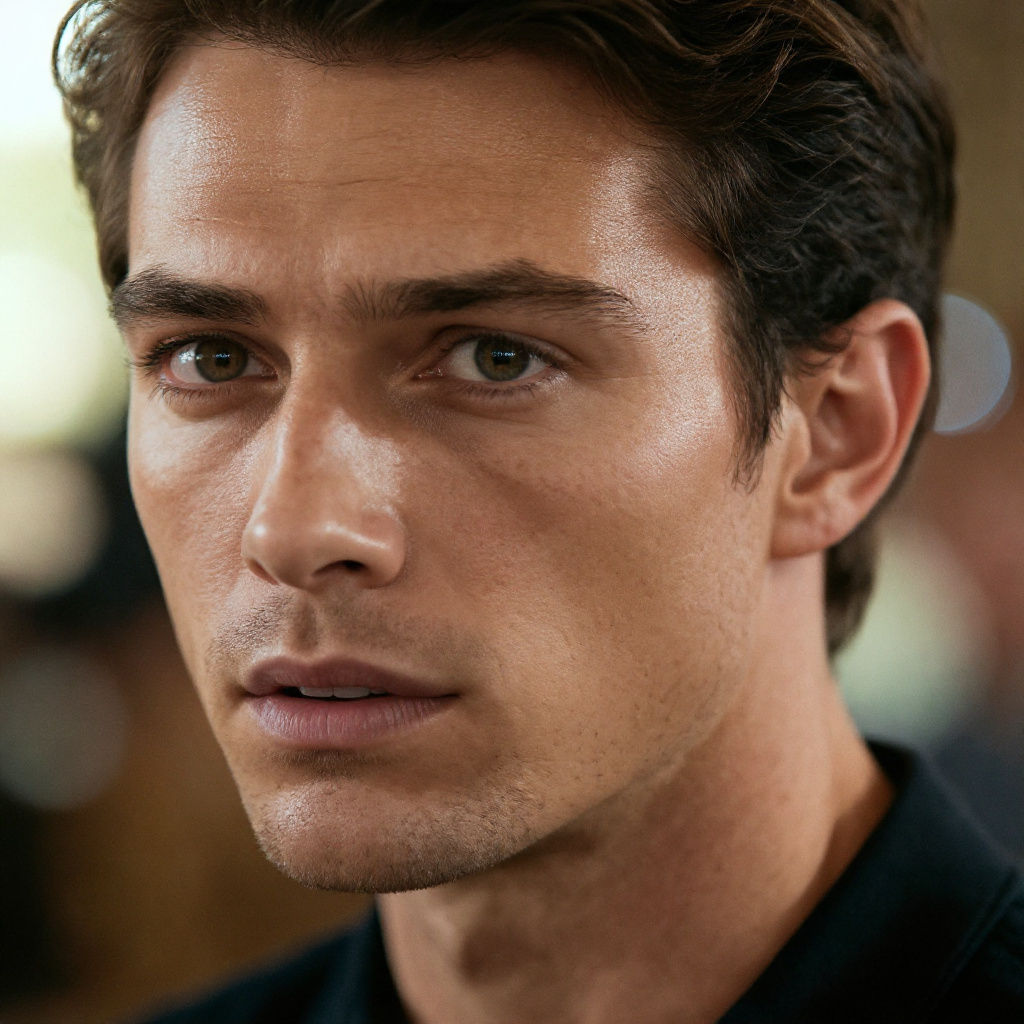
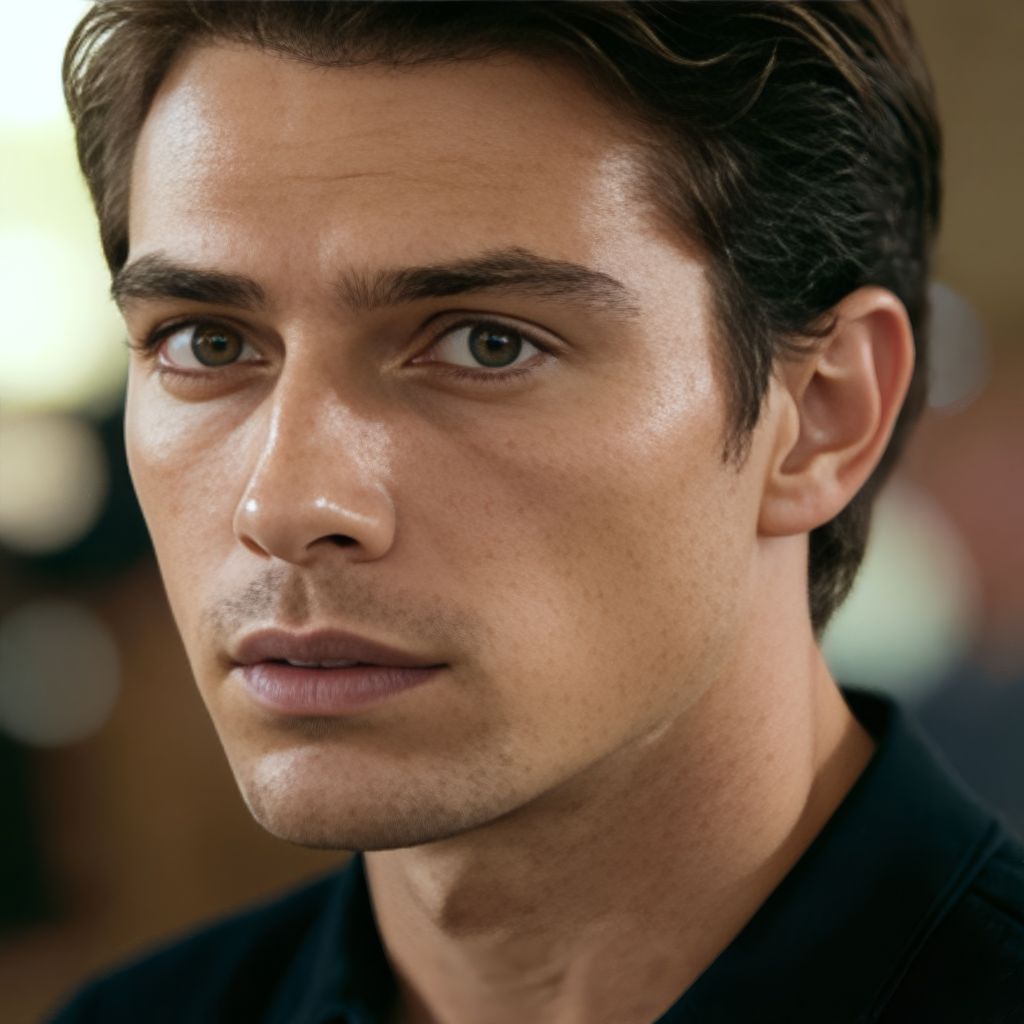
Upload a soft or motion-blurred photo and get back a tack-sharp version plus a high-res master, detail by detail.

Portrait Photography
Photographers run the free image sharpener on portrait keepers to recover individual hair strands, eyelashes, and crisp catchlights instead of booking a reshoot.

E-Commerce Product Shots
Sellers sharpen soft product photos to bring back fabric weave and surface texture, so listing images hold up when a buyer zooms all the way in.

Social Content Teams
Social teams rescue low-res phone grabs from a camera roll, turning a slightly out-of-focus frame into something post-ready without going back for a reshoot.
How to use Techniques?
Discover how to utilize Image Sharpener for different scenarios.
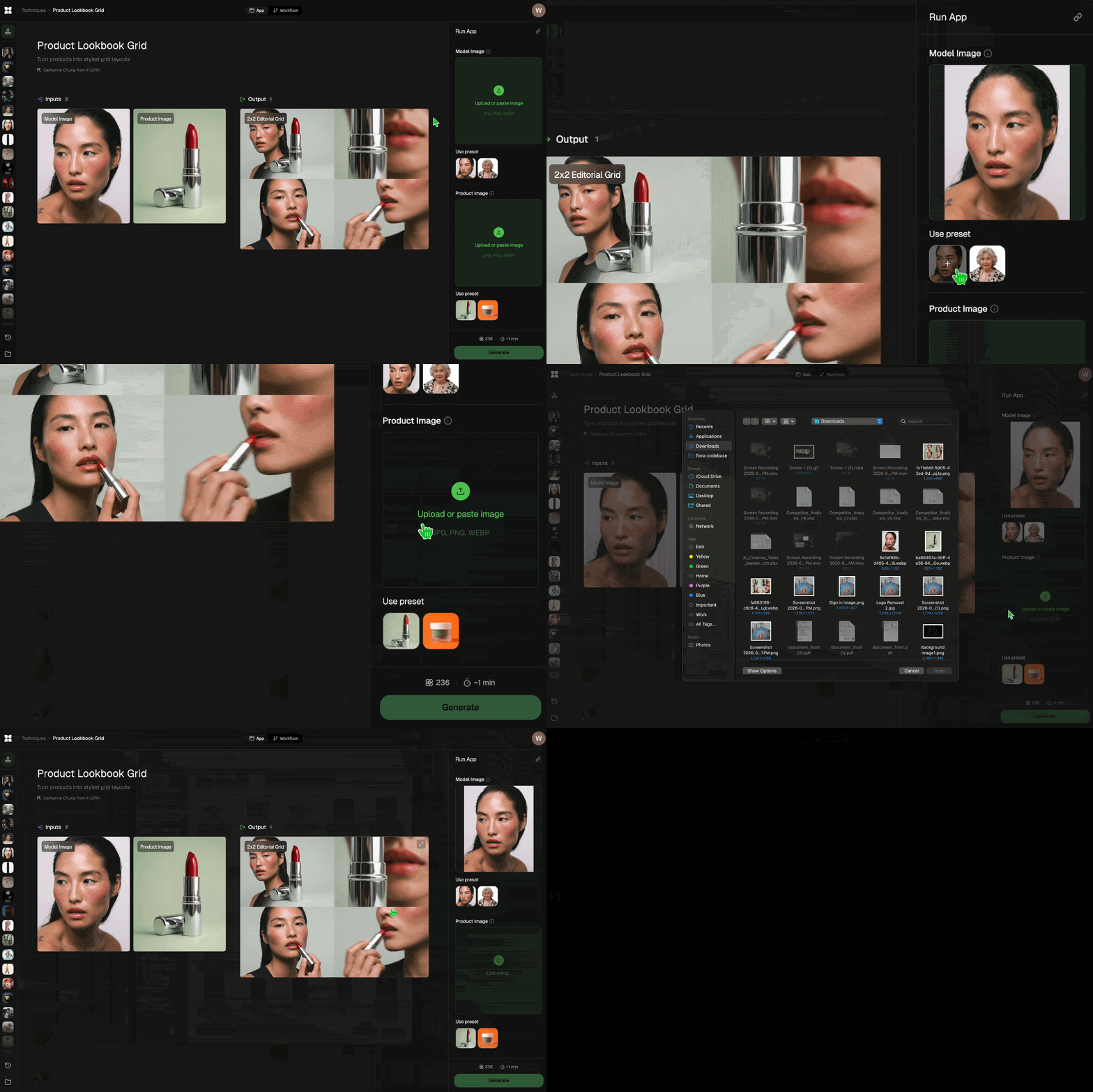
Add inputs
Upload images, videos, or type in the prompts to get started.
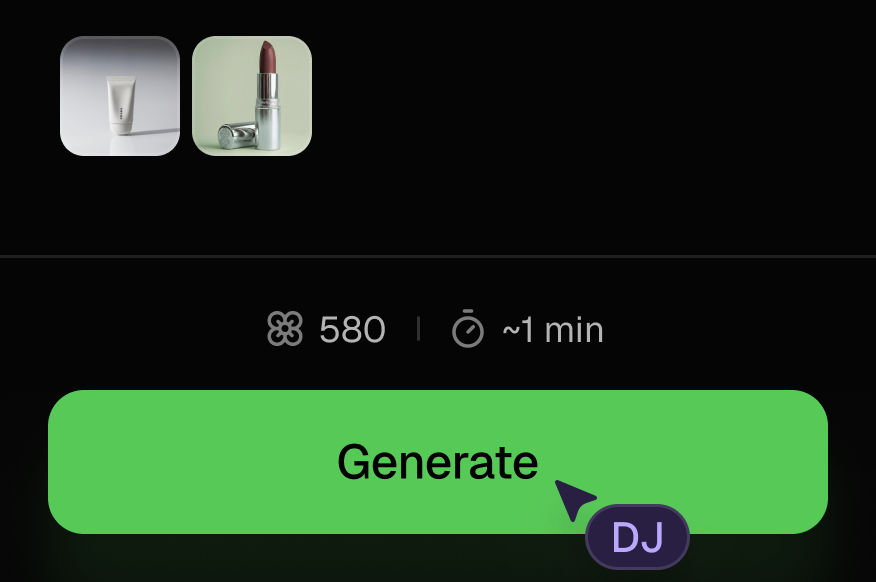
Generate outputs
Next, hit the "Generate" button to start generating your outputs.
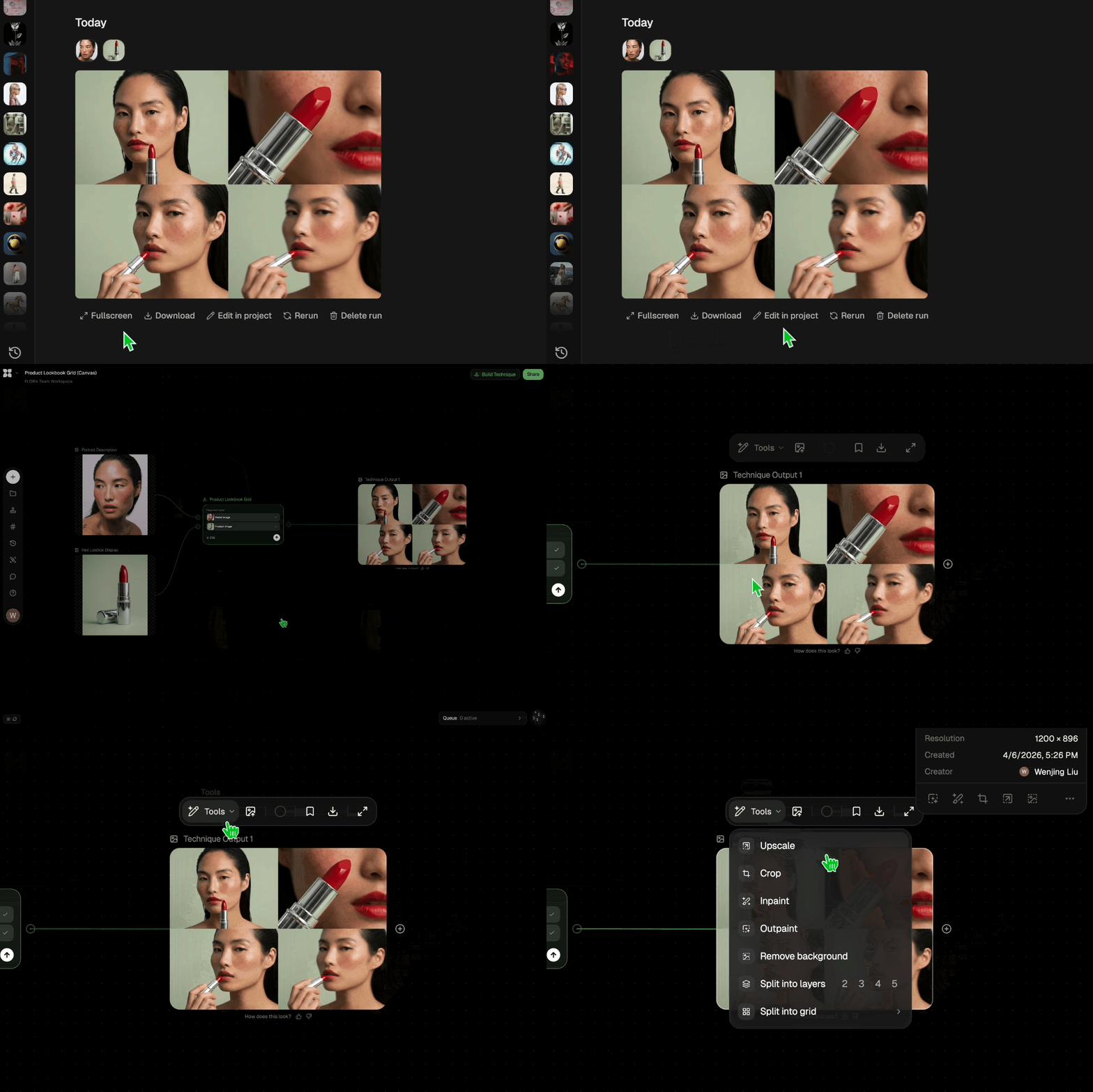
Edit and export
Refine your outputs on canvas, or download them directly.
Frequently asked questions
All you need to know about Image Sharpener
What an image sharpener actually does to a blurry photo
An AI image sharpener reconstructs detail your camera almost captured. It runs on a model trained on millions of sharp photographs, which gives it a working sense of what a soft patch of pixels was most likely meant to be. The sharpening slider in a photo editor has no such reference, and that gap is why the two produce such different results on the same file.
The slider boosts local contrast at the edges it can already find. Your picture reads sharper even though nothing new has been added to it, which is what produces halos and crunchy skin when you push it too far. A model works on the structure underneath. Given the soft edge of an eyelash or the blurred weave of a linen shirt, it identifies the pattern and redraws it at a fidelity the original file never held. Run a frame through it and the difference lands first on hairlines, fabric, and catchlights in the eyes.
Why some soft photos come back and others don't
Whether a photo can be rescued was mostly settled at the moment of capture, though the outcome isn't obvious from looking at a thumbnail.
Photos respond well when the detail is present but faint. A portrait focused slightly behind the eyes still holds eyelash information, just smeared across a few extra pixels. The same goes for a handheld shot taken a stop too slow, or an old file that got downsized for the web and now needs to run at full width. There's signal in there for a model to work backwards from.
Resistance comes from photos where the detail was never recorded. Think of a long motion streak across a moving subject, or a badly missed focus pull. Heavy compression causes its own version of this, flattening texture into blocks that no longer describe anything. A model will still clean those files up, and the result usually looks tidier than the original, but at that point it's inventing. On faces, invention shows.
One practical consequence: start from the largest, least-processed version of the file you have. A screenshot of a photo, or a copy that's been through a messaging app twice, gives a model far less to read than the original export.
Sharpening and upscaling are different jobs
The two get conflated constantly. They overlap in practice, but they answer different complaints.
Sharpening deals with definition. Your photo is already the size you need, it just isn't crisp at that size. Upscaling deals with dimensions, where the photo looks fine as-is but falls apart the moment you print it or run it across a full-width hero. A shot that's both soft and small needs the two together, which is why decent detail recovery hands back a larger master alongside the corrected frame. If resolution is your real problem, the Image Upscaler is a more direct route.
Worth knowing before you sign anything off: fine repeating patterns are where sharpening most often goes wrong. Small text, herringbone weave, halftone dots in a scanned print. A model can read those as noise and rebuild them into something confidently incorrect, so they're worth a proper look at 100%.
The same job, a dozen different names
The label shifts depending on who's describing the problem. Photographers talk about rescuing a soft frame, retouchers about detail recovery. Plenty of people skip the vocabulary entirely and go looking for an image sharpener online that takes an upload and hands something usable back, without a subscription screen in between.
Cost often leads the conversation. Marketplace sellers and students search for a free image sharpener well before they care which model sits underneath. Teams considering this as a standing part of their process ask a narrower version of the same question: whether the image sharpener free tier stretches far enough to run a whole shoot through it.
Where sharpening fits into the rest of the edit
Detail recovery is rarely the only thing a photo needs. A few fixes that tend to surface in the same pass:
- Object Remover for the stray element in the corner that no amount of sharpening will fix
- Quick Reframe when the crop, not the focus, is what's holding the shot back
- Studio Blur for the opposite problem, where a busy background is competing with the subject and needs to fall away
- Glam Shots for portraits where the goal is an art-directed finish, past correcting what the camera missed
- AI image generation when the honest answer is that the frame can't be saved and needs to be made
On FLORA's canvas none of these are separate errands. The sharpened frame becomes a node you can pull into the next step, park beside the original for comparison, or branch into several versions with the source file untouched. That takes out the export-and-reupload loop between steps, which is usually what turns a two-minute fix into an afternoon.
Related techniques
 Color Palette ExtractionExtract color palettes from any image
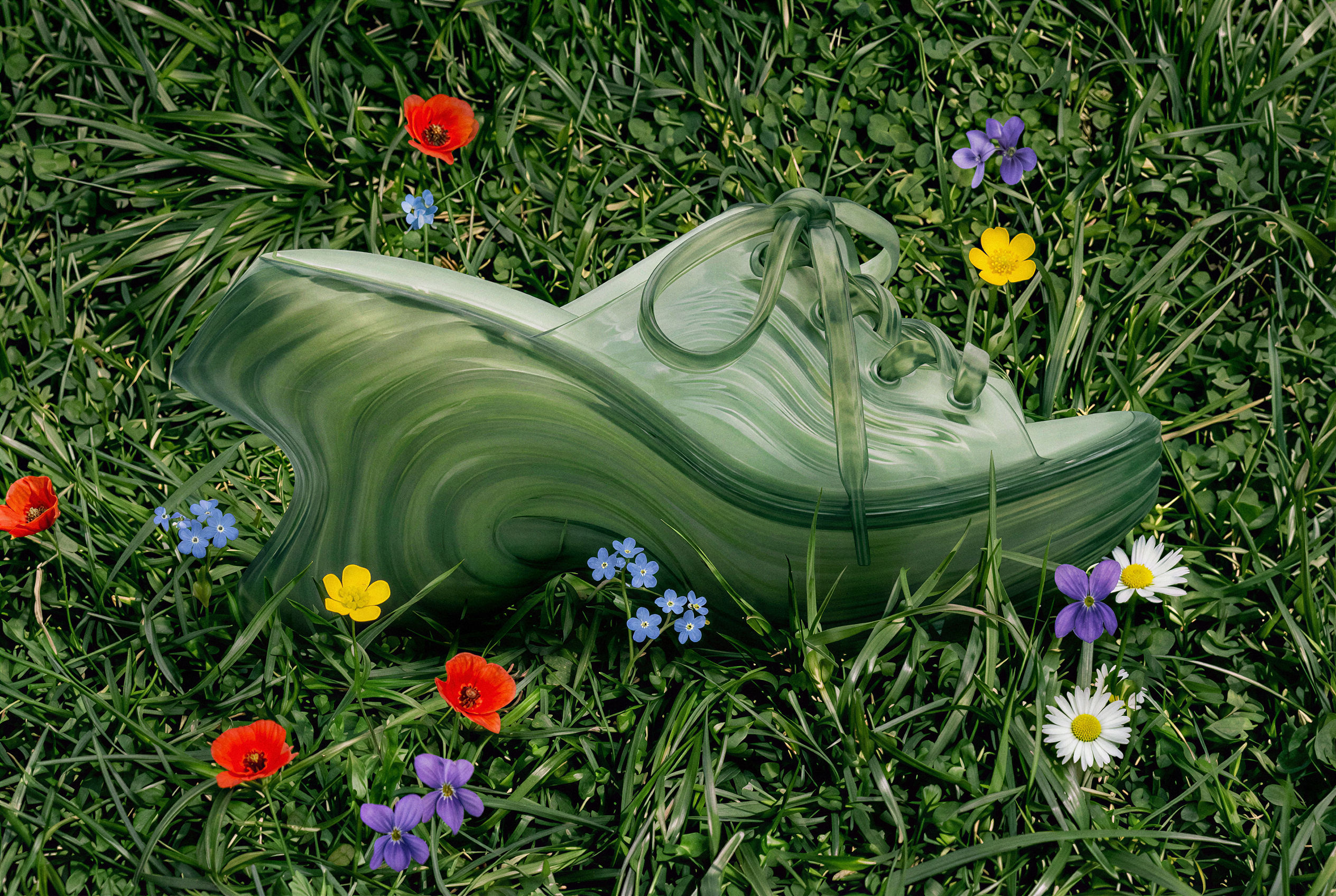 Image UpscalerUpscale any image to a higher resolution in one click.
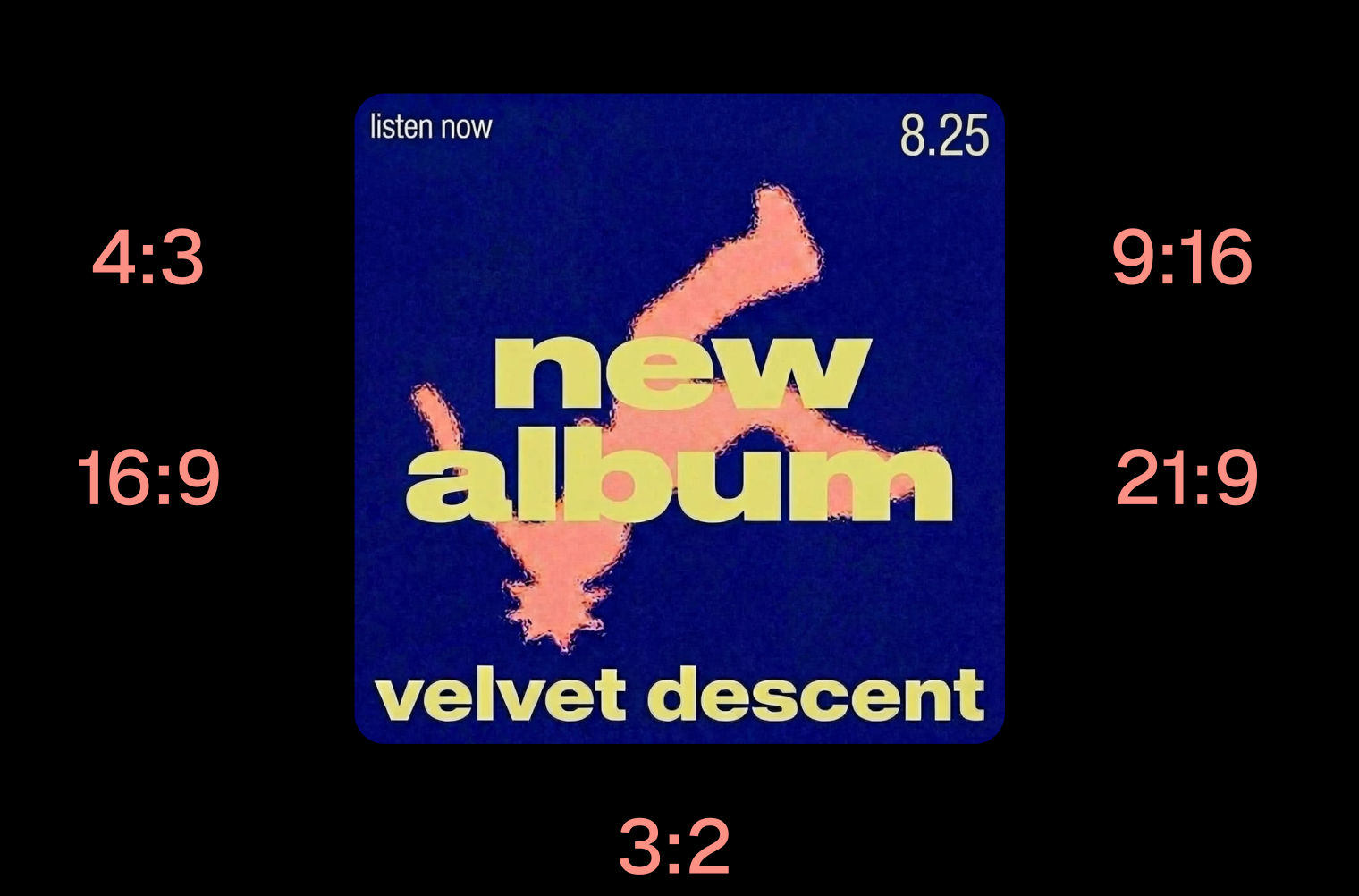 Layout ResizerResize layouts for any aspect ratio
 Prompt ExtractorReverse-engineers any image into a prompt
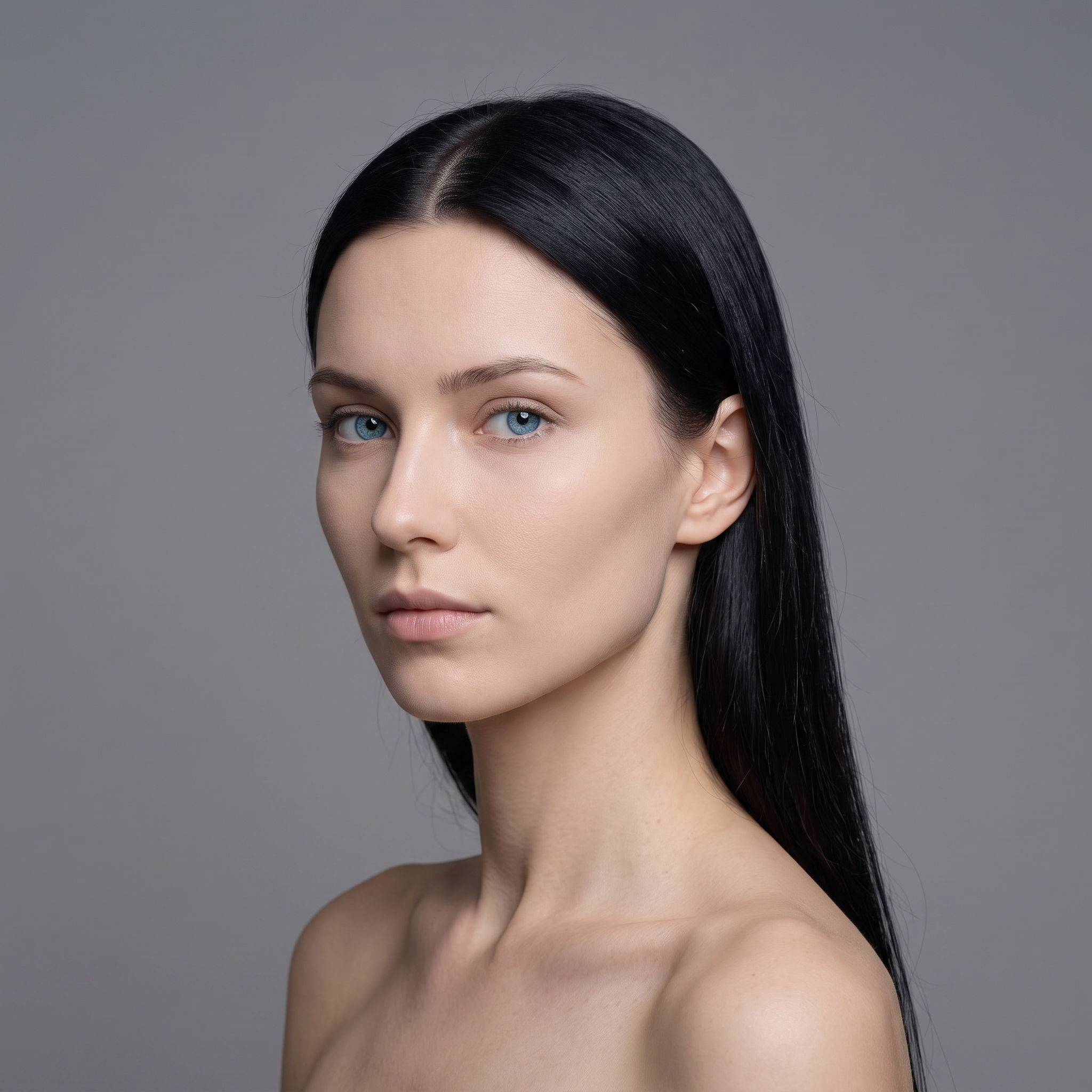 3 Angle ShootFront shot in, 45, 90, and 180 angle back
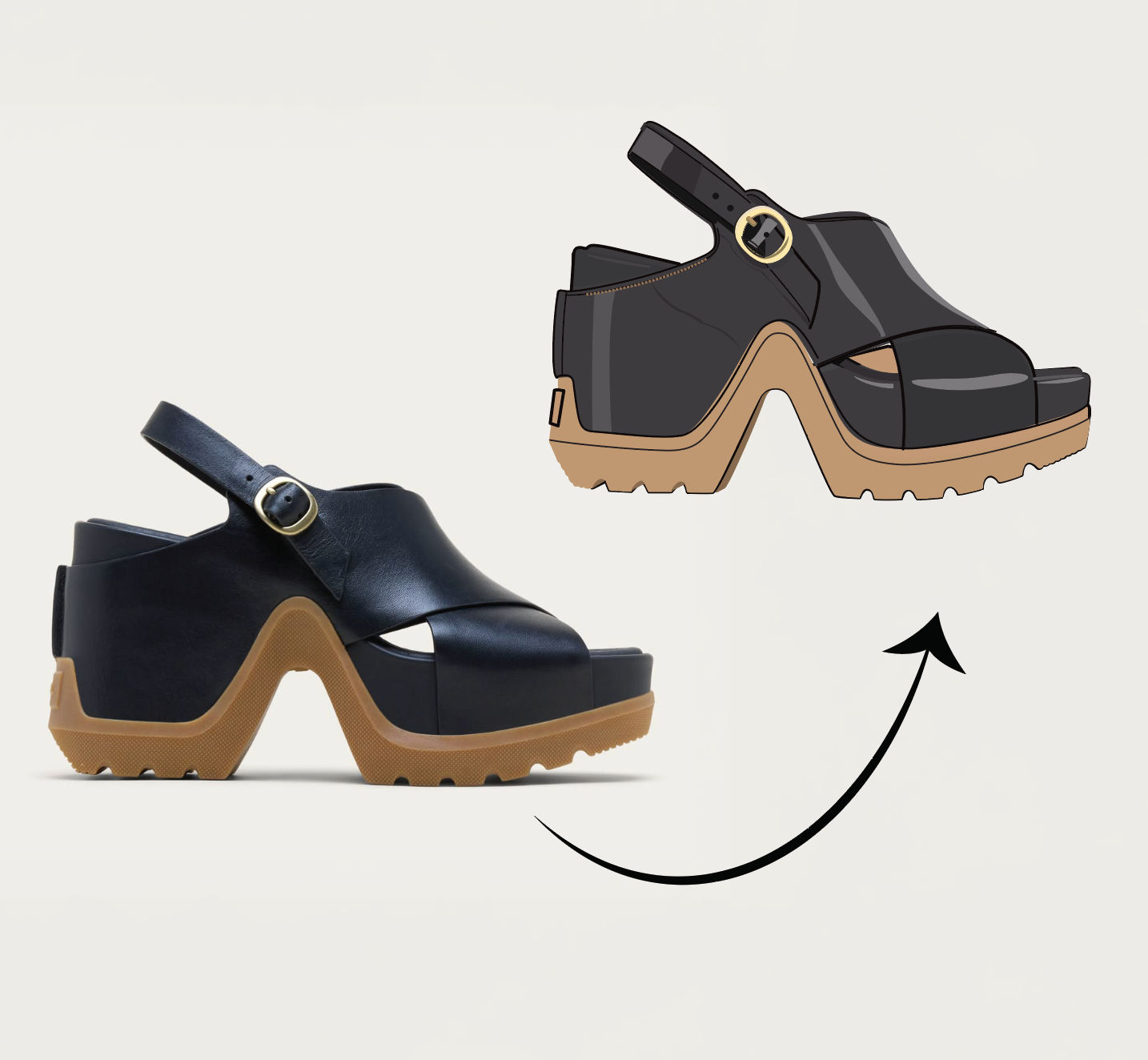 Anything to VectorTurn any image into a SVG vector illustration.
Sharpen Blurry Photos in One Click with the Image Sharpener
turn a soft, motion-blurred phone shot into a crisp, tack-sharp image. Useful for: photographers, e-commerce sellers, and social teams rescuing slightly out-of-focus or low-res keepers instead of reshooting.

Louis Anderson