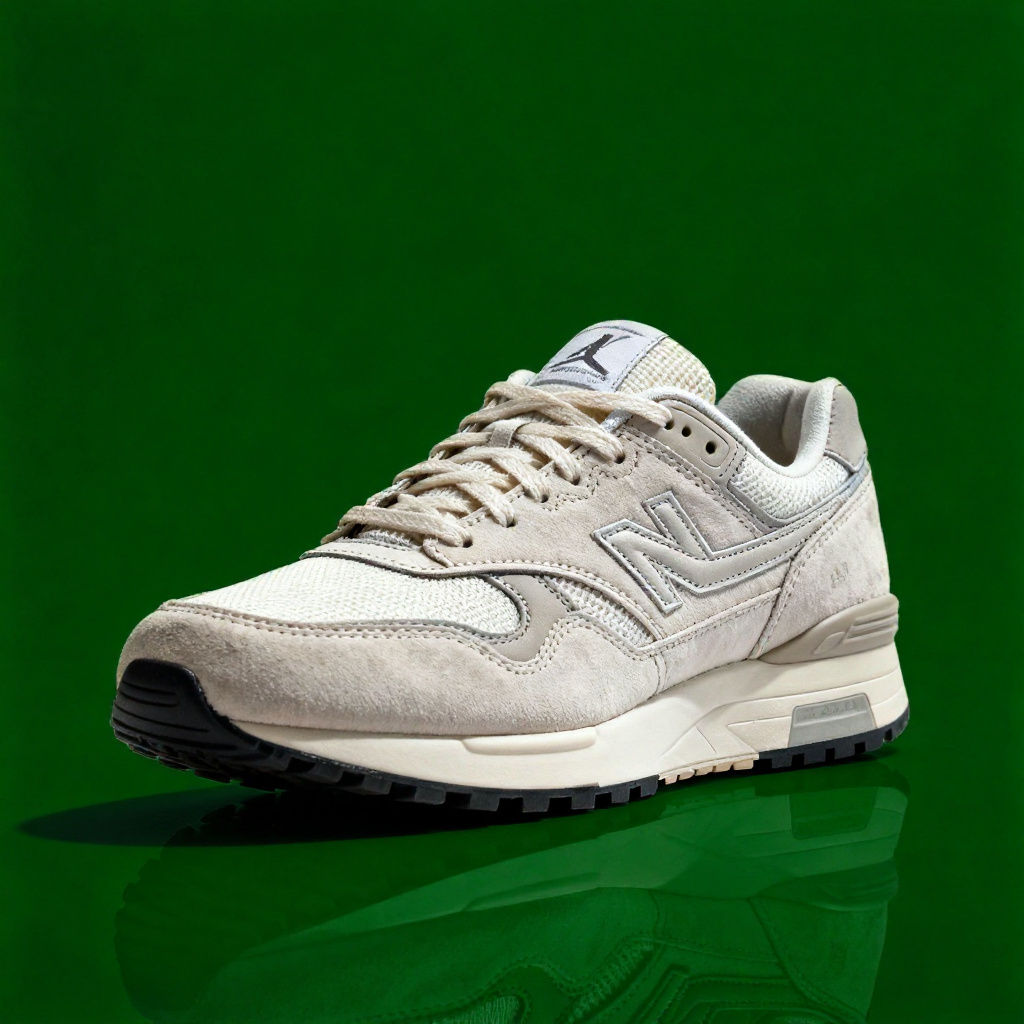
Product
a single white leather low-top sneaker
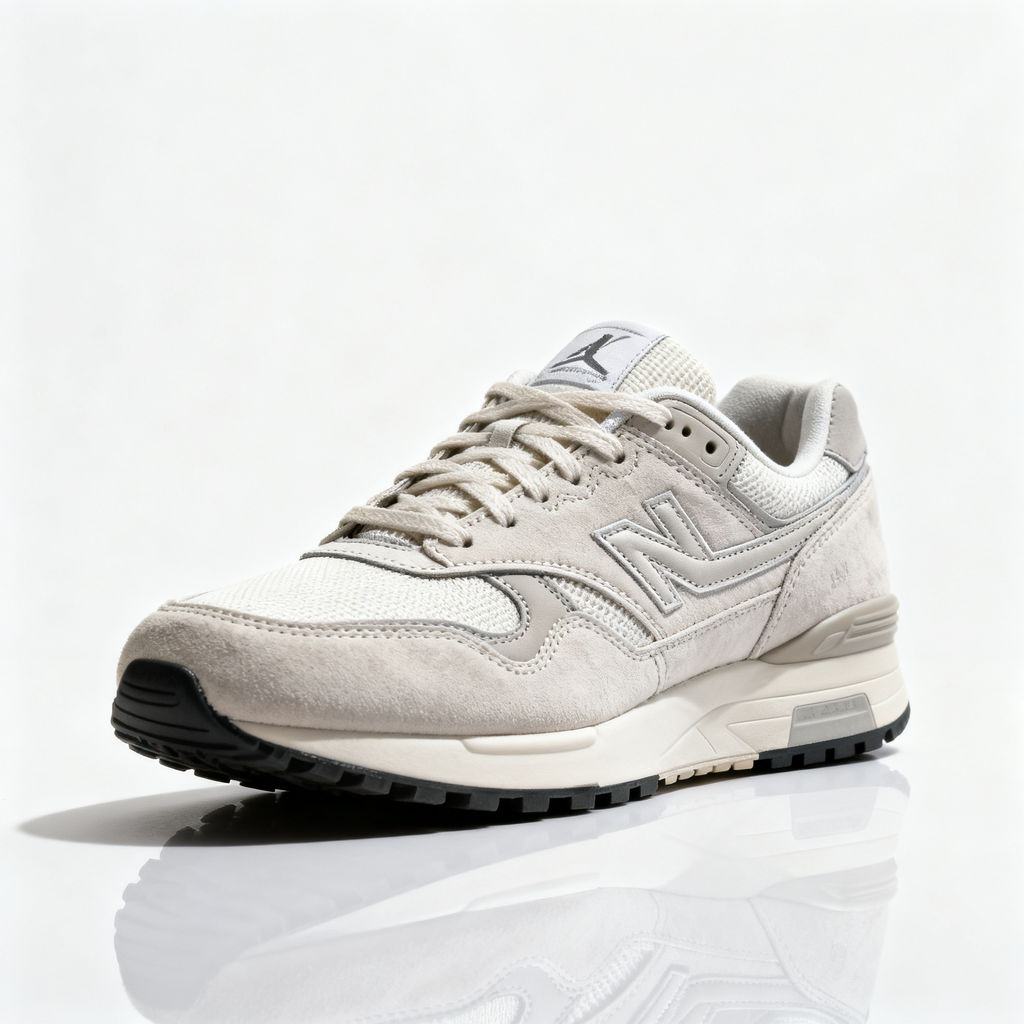
Color
a deep forest green (#1F3D2B)
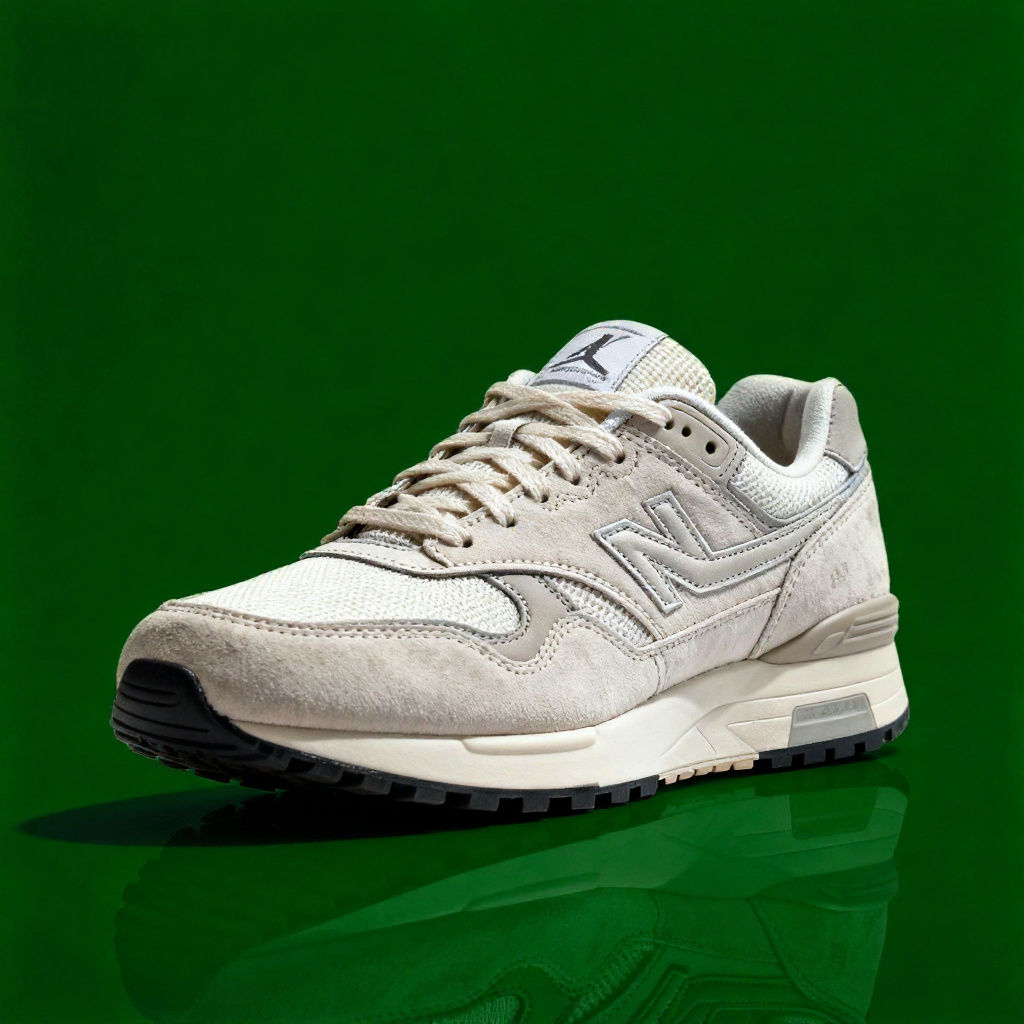
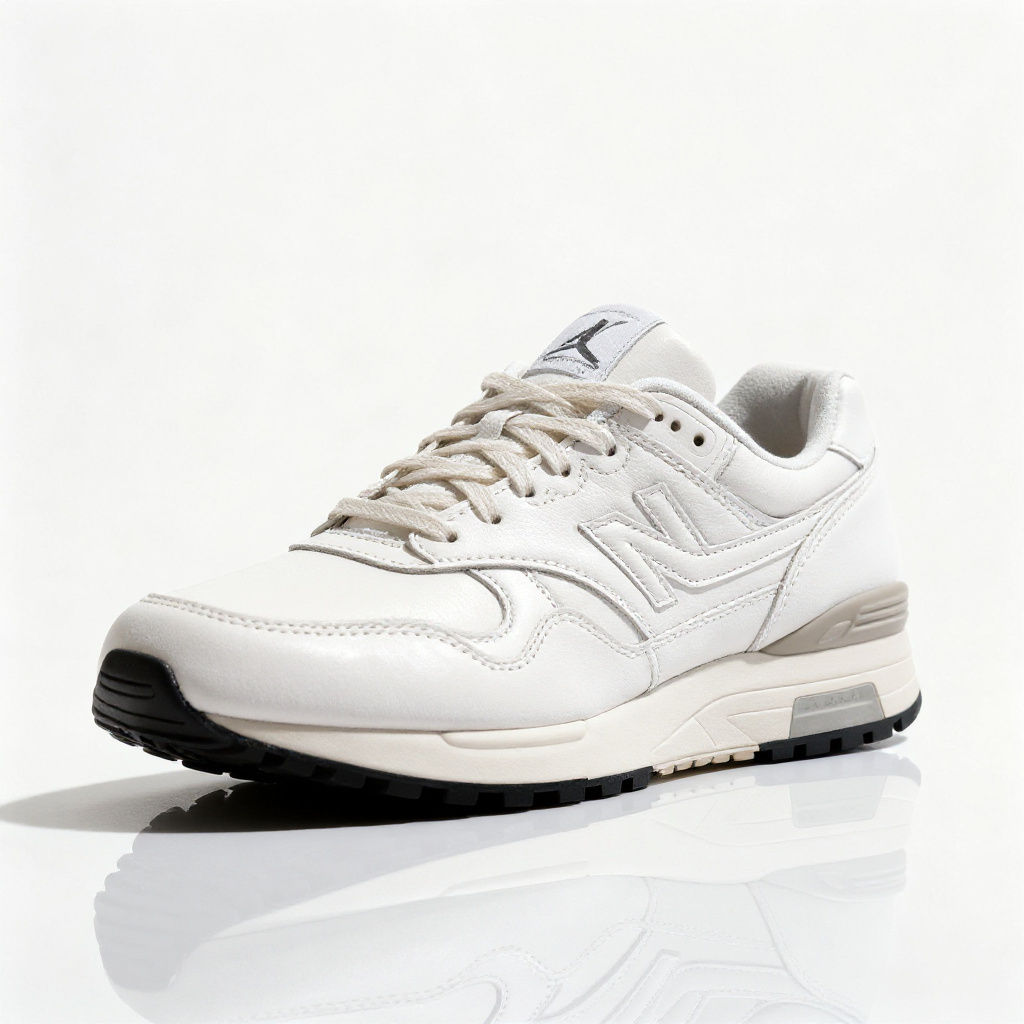
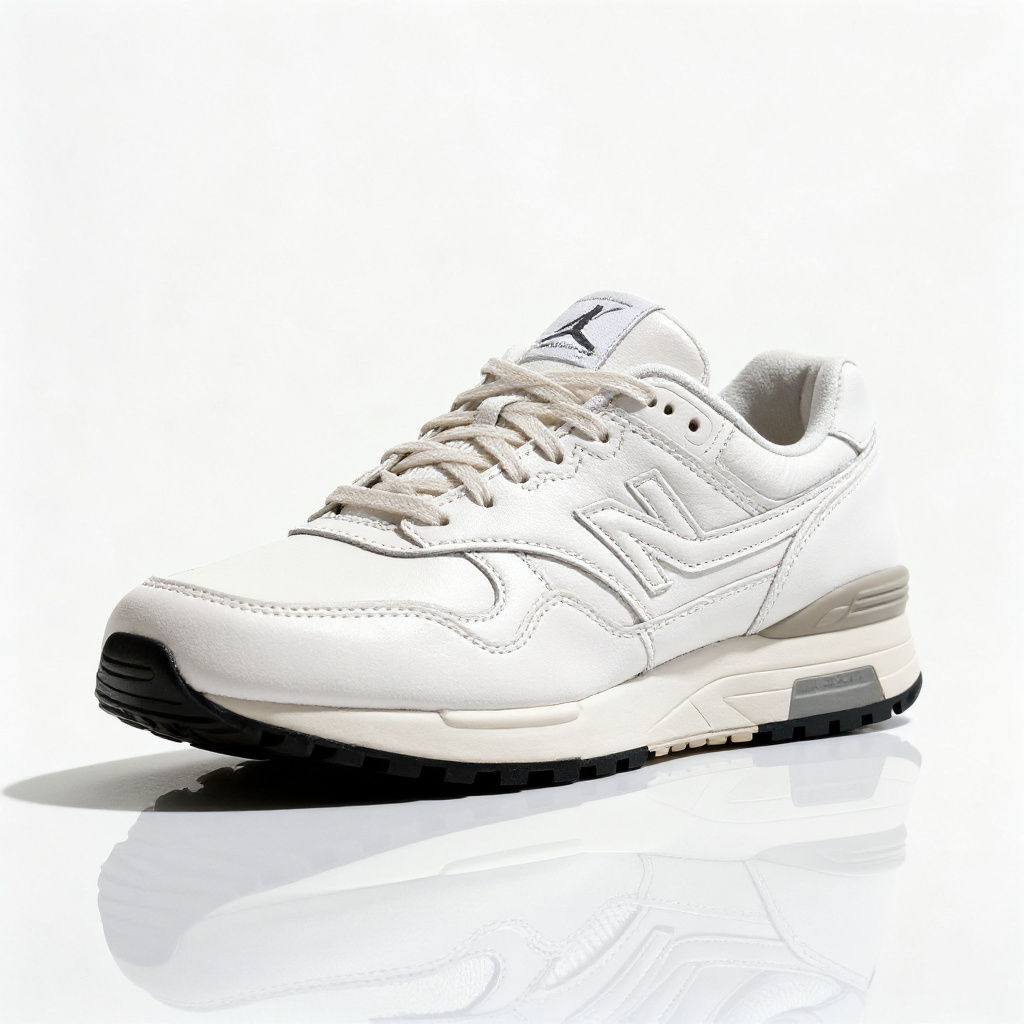
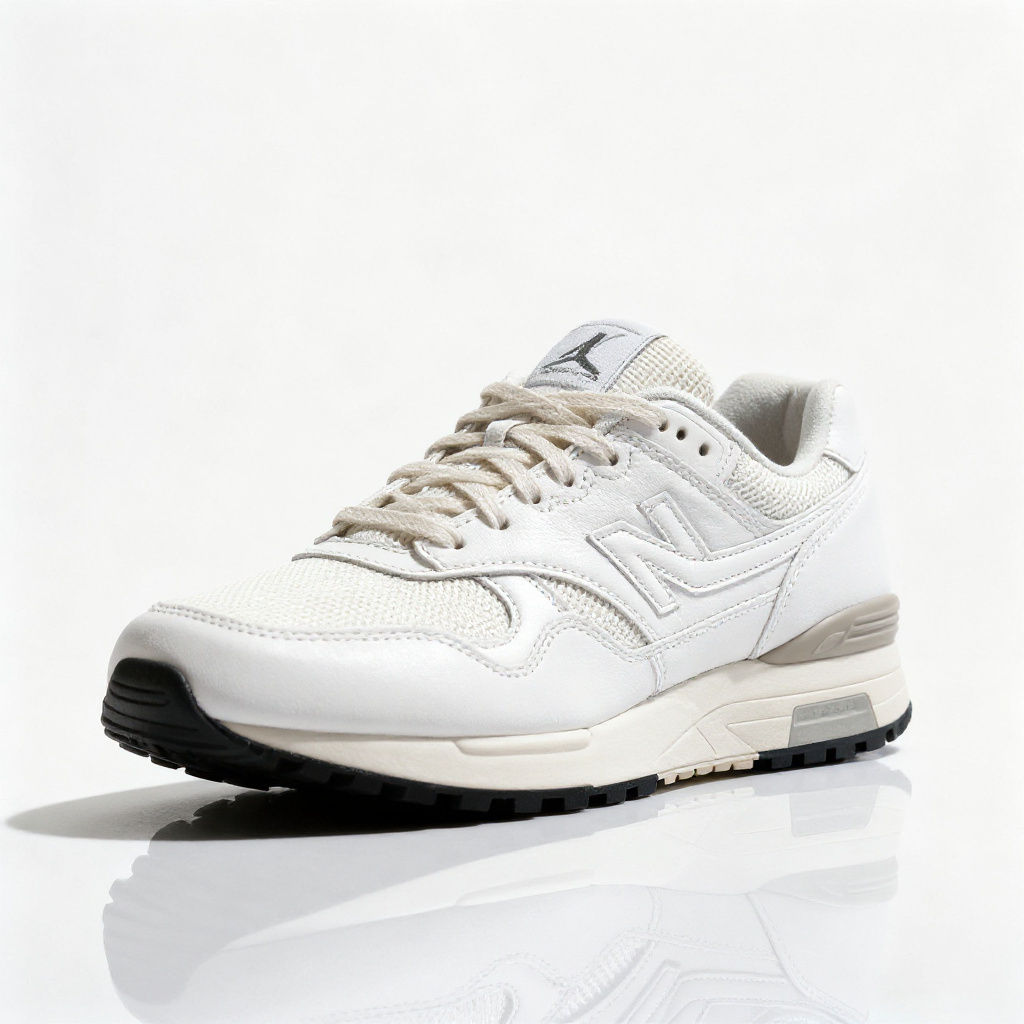
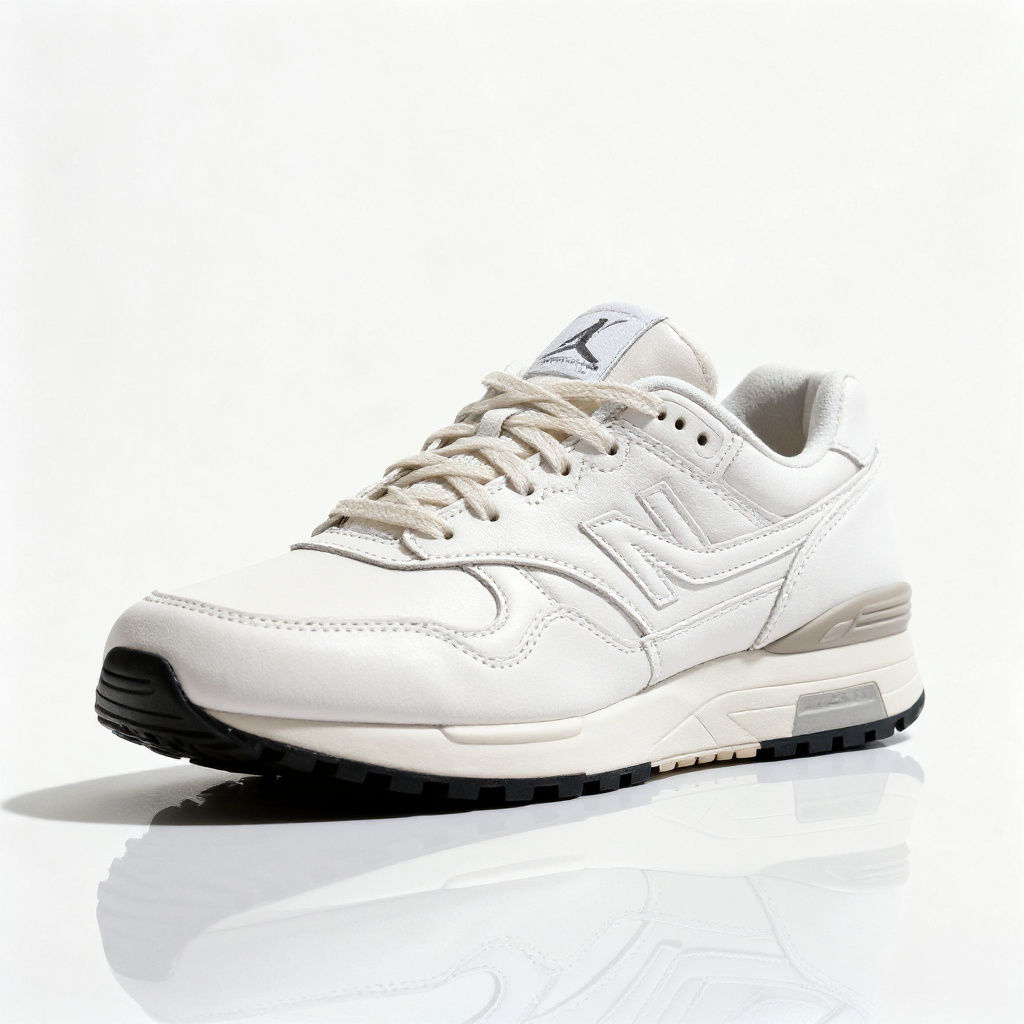
Replaces the existing background with any color you specify, producing a clean image ready for product shots, headshots, and brand assets.

Web and Social Imagery
Content creators add background color to image assets for social posts, web banners, and digital ads, matching campaign palettes without a re-shoot.

E-Commerce Listings
E-commerce teams change picture background color across product listings to match marketplace standards and brand-aligned templates.

Brand Assets and Updates
Marketing teams change photo background color in seconds for refreshed brand guidelines, seasonal campaigns, and quick proof of concepts.
How to use Techniques?
Discover how to utilize Change Background Color for different scenarios.
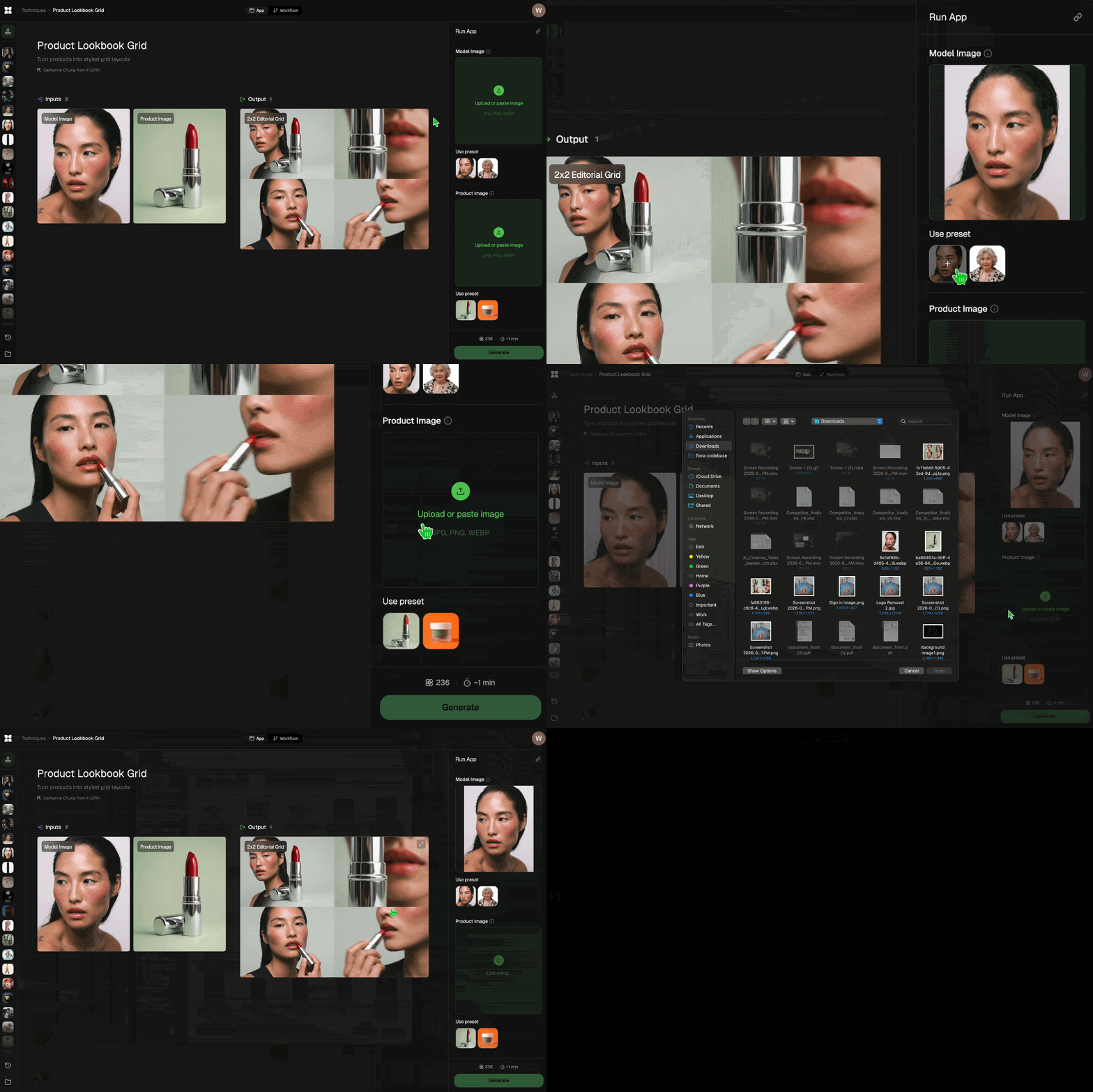
Add inputs
Upload images, videos, or type in the prompts to get started.
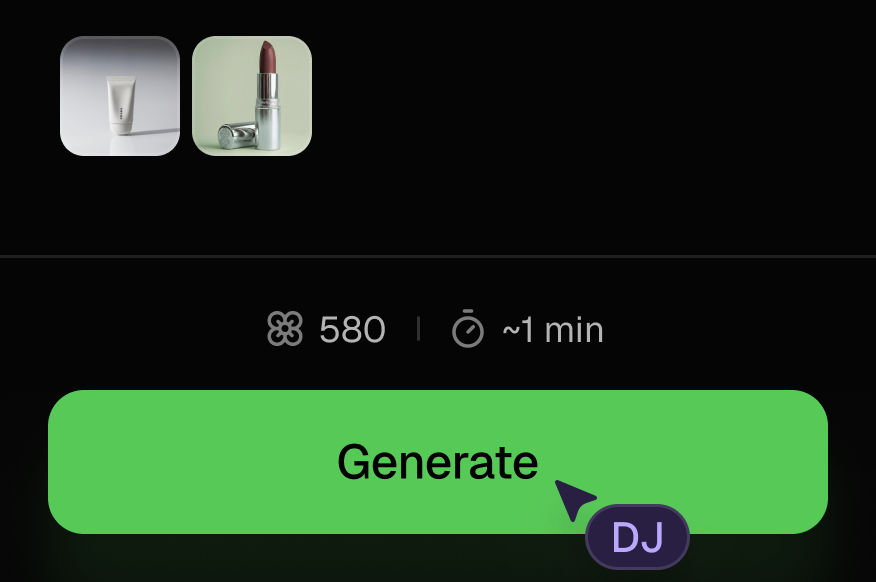
Generate outputs
Next, hit the "Generate" button to start generating your outputs.
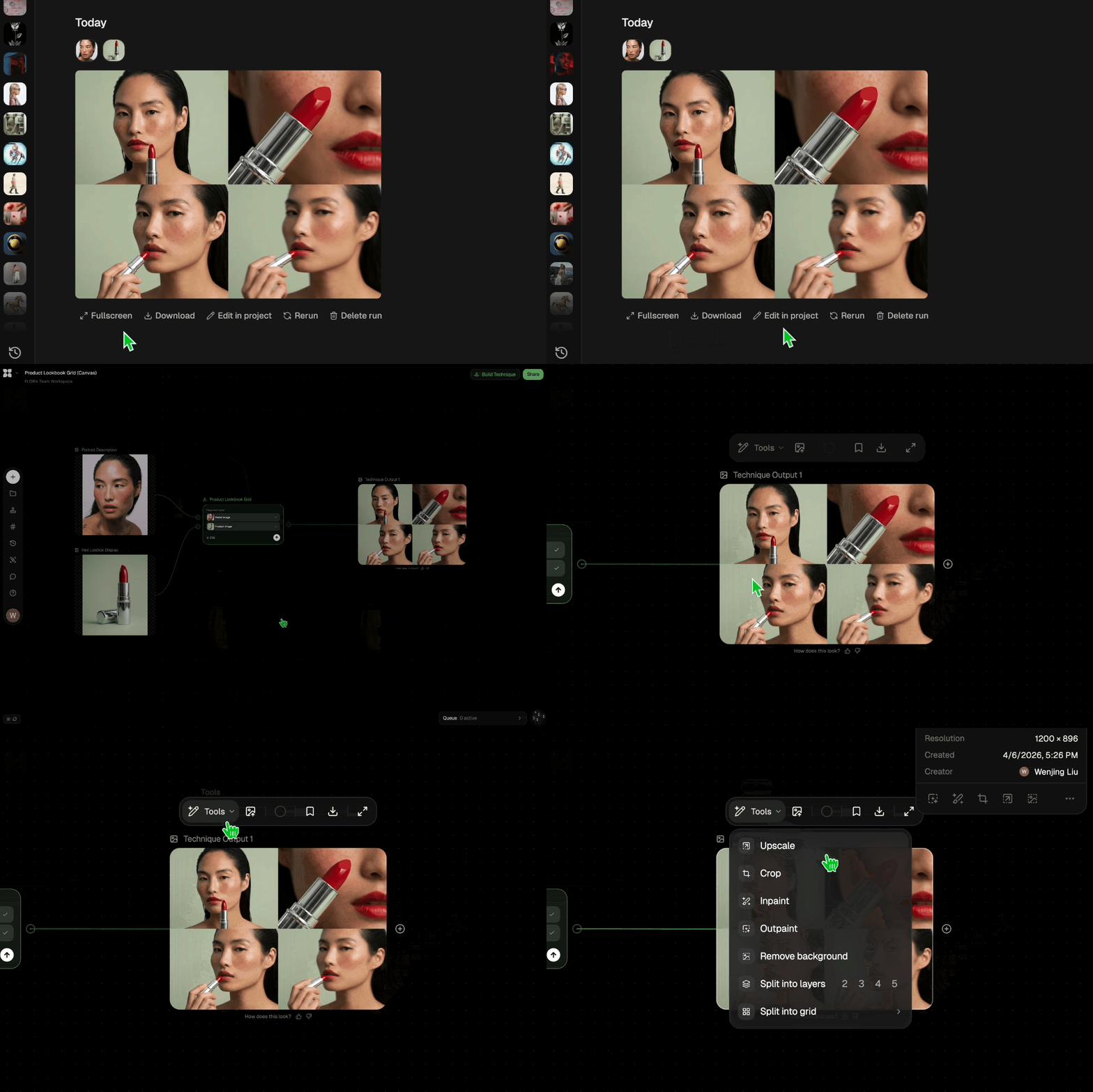
Edit and export
Refine your outputs on canvas, or download them directly.
Frequently asked questions
All you need to know about Change Background Color
What it means to change background color, and how AI does it
When you change background color, you keep your subject exactly as it is and replace only the space behind it with a flat, even color you choose. The AI separates the subject from its background, then fills that background with your color, so a headshot, a product, or a logo sits on a clean, deliberate backdrop instead of whatever was there before. On FLORA this runs on an infinite canvas, where the recolored image can move straight into the rest of your workflow. You can try FLORA free and change background color online right in your browser.
The reason to change background color of image assets is almost always consistency. A single controlled color makes a product grid look like a set, keeps a team page uniform, and holds your brand palette across every channel. It is the difference between photos that happen to share a subject and photos that clearly belong together.
A color swap is not a new scene
There are three related but different jobs, and knowing which one you want saves time:
- Change background color keeps a solid, flat color behind the subject. This is what you want for catalogs, profile pictures, and brand assets.
- Generate a brand-new background or swap the background replaces the backdrop with a full scene, like a studio set or a lifestyle location.
- Drop to a plain white background or a specific solid color background when a marketplace or template calls for an exact shade.
If your image already has a transparent cutout, you are really looking to add background color to image files: place your chosen color on the layer behind the subject. If it still has its original backdrop, the tool removes that first, then recolors.
How the AI keeps the edges clean
The hard part of any background color editor is the edge. Recolor the space behind a person with wispy hair or a product with a soft shadow, and a weak tool leaves a halo or a hard cutout line. A trained model handles it in a few passes:
- Detects the subject and separates it from the backdrop.
- Builds a precise mask, including hair, fur, and semi-transparent areas.
- Fills the background with your chosen color, matching the edge so nothing looks pasted on.
That precision is why you can change photo background color on a detailed image and still get a result that holds up at full size.
The many ways people ask for this
It is one job with a dozen names. Whether you want to change picture background color for a profile photo, or you are figuring out how to change background color of photo for a store listing, or you just need to change background color of image online for a quick social post, you are asking for the same thing: subject untouched, backdrop recolored. You can change background color free in the browser, then keep editing on the same canvas.
For related cleanup, pair it with recoloring the subject itself, or explore the full FLORA AI image generator to see what else fits into the same flow.
Related techniques
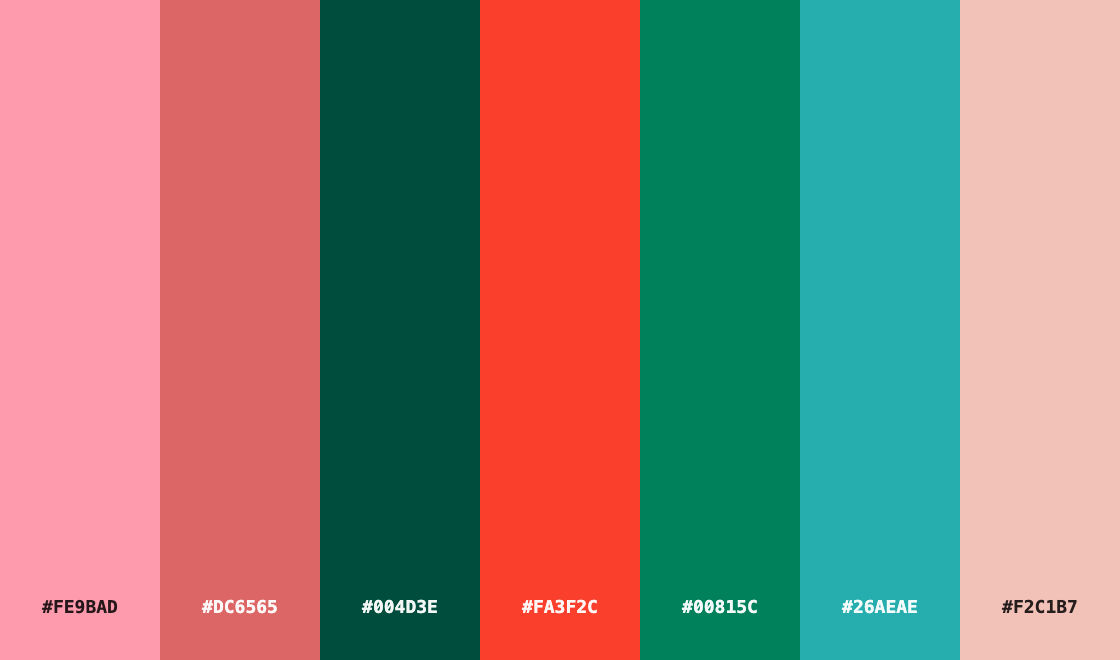 Color Palette ExtractionExtract color palettes from any image
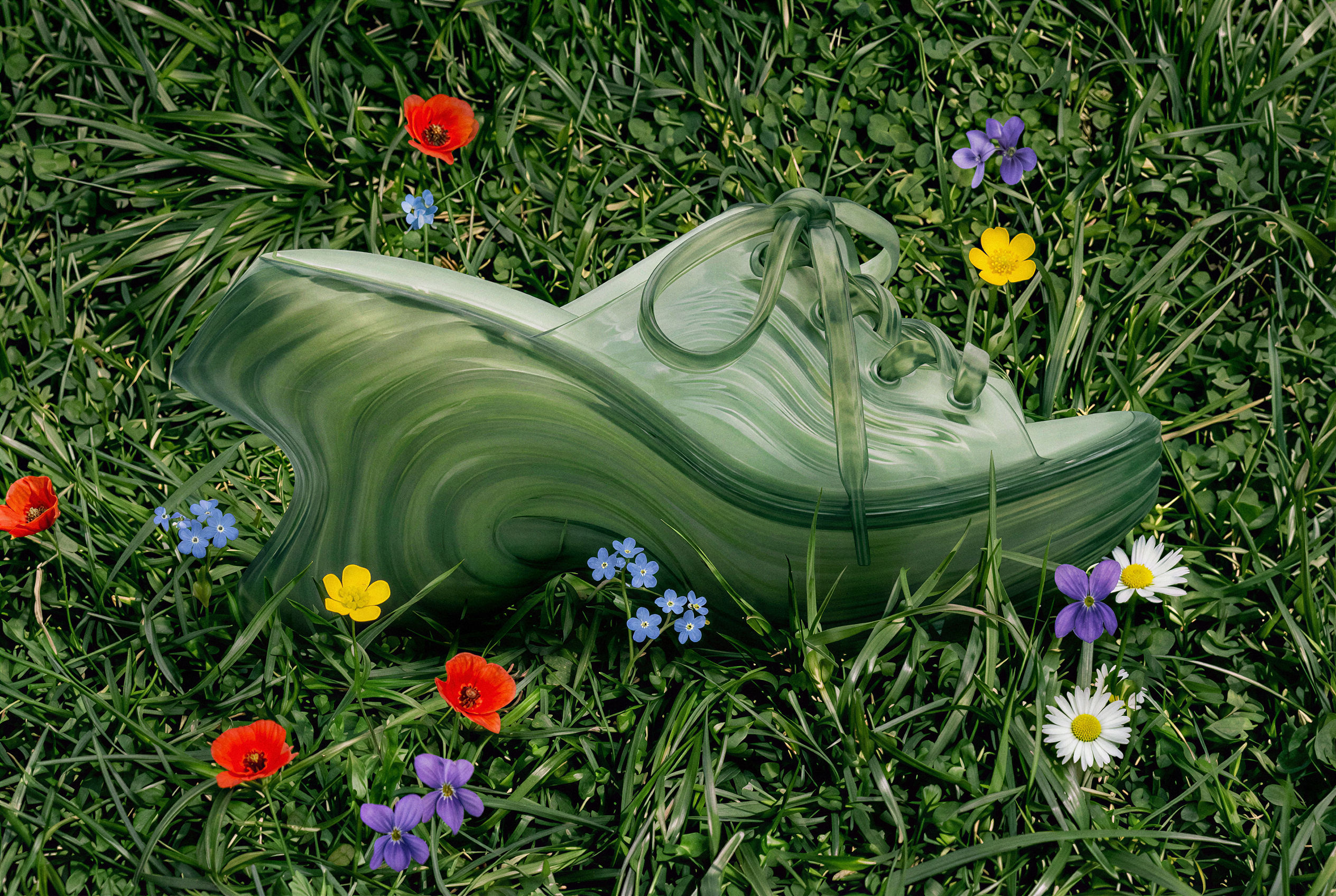 Image UpscalerUpscale any image to a higher resolution in one click.
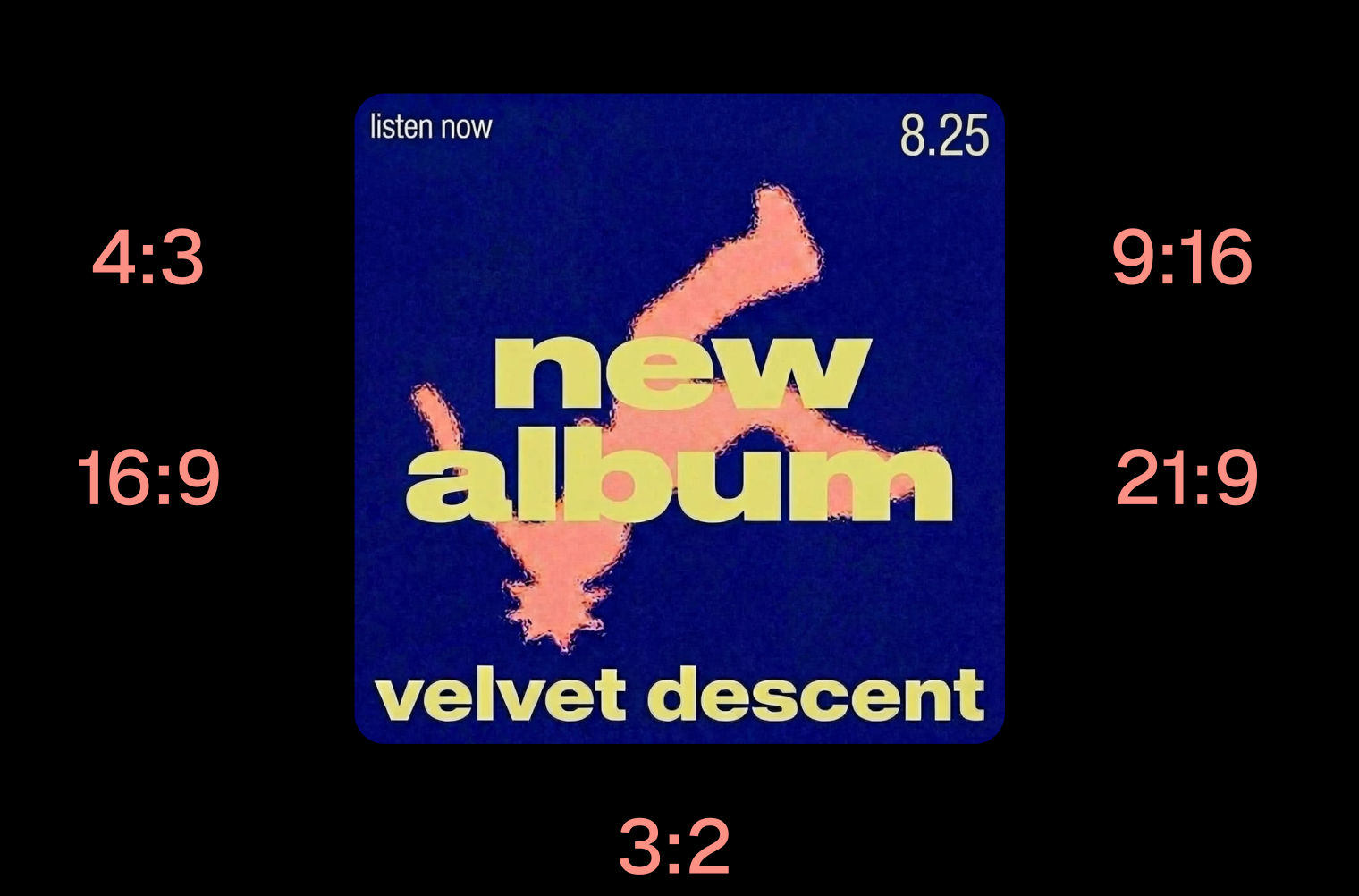 Layout ResizerResize layouts for any aspect ratio
 Prompt ExtractorReverse-engineers any image into a prompt
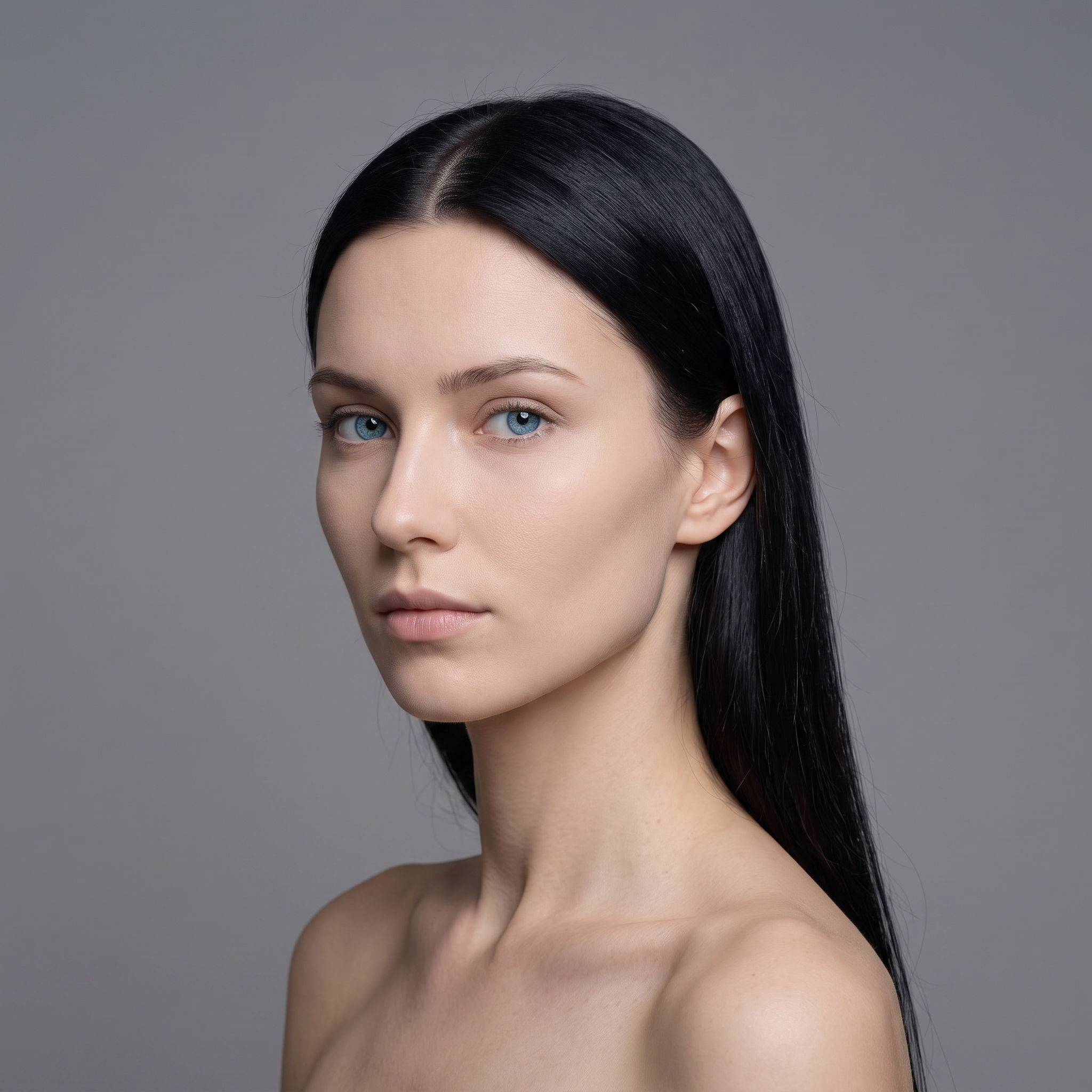 3 Angle ShootFront shot in, 45, 90, and 180 angle back
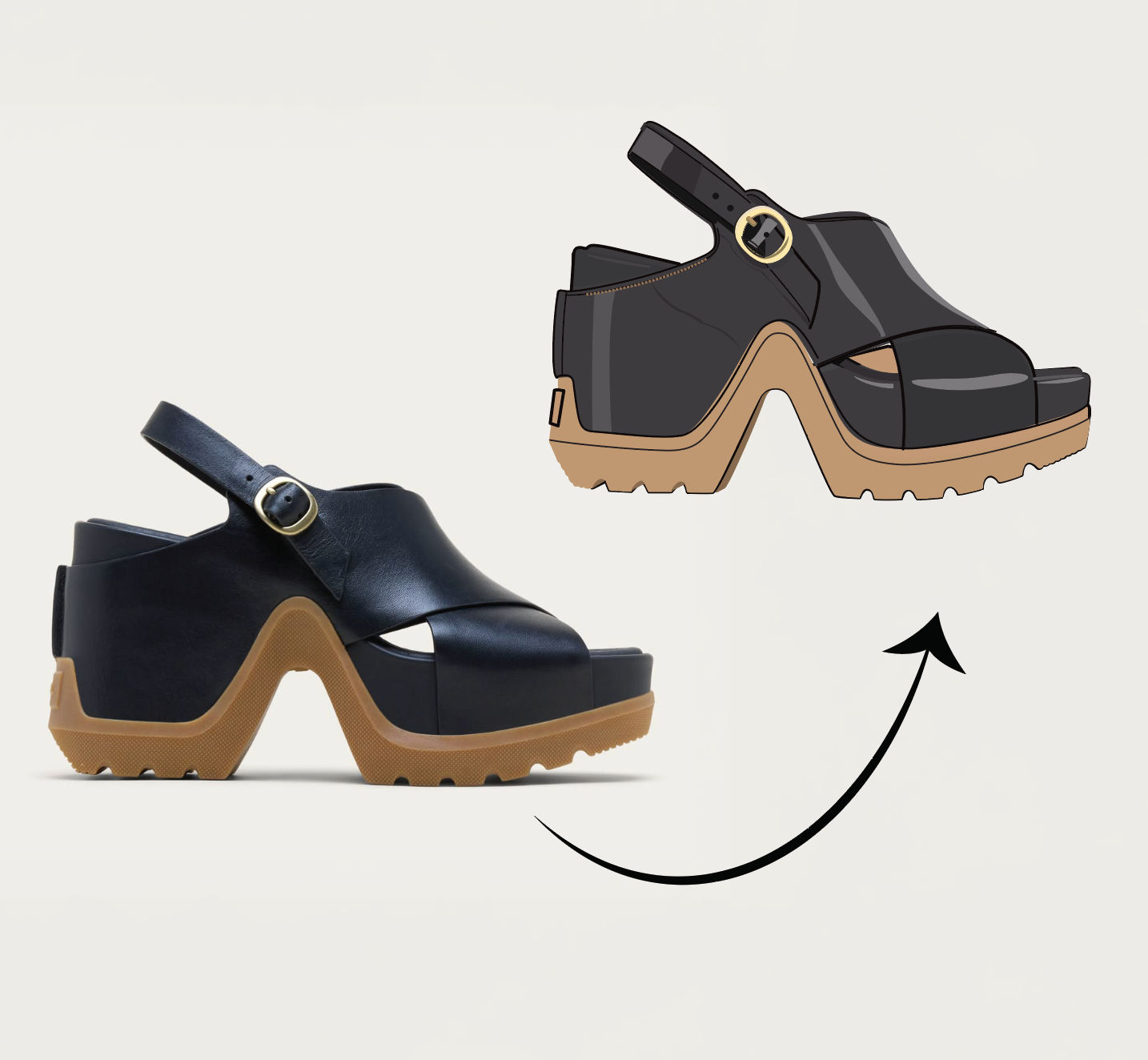 Anything to VectorTurn any image into a SVG vector illustration.
Change Background Color on Any Image in One Click
recolor the backdrop behind a product while keeping the product itself pixel-identical. Useful for: e-commerce / brand teams who need one hero shot in every seasonal or category background color (site swatch, campaign palette, A/B test) without a reshoot or a manual Photoshop mask.

Louis Anderson