Product
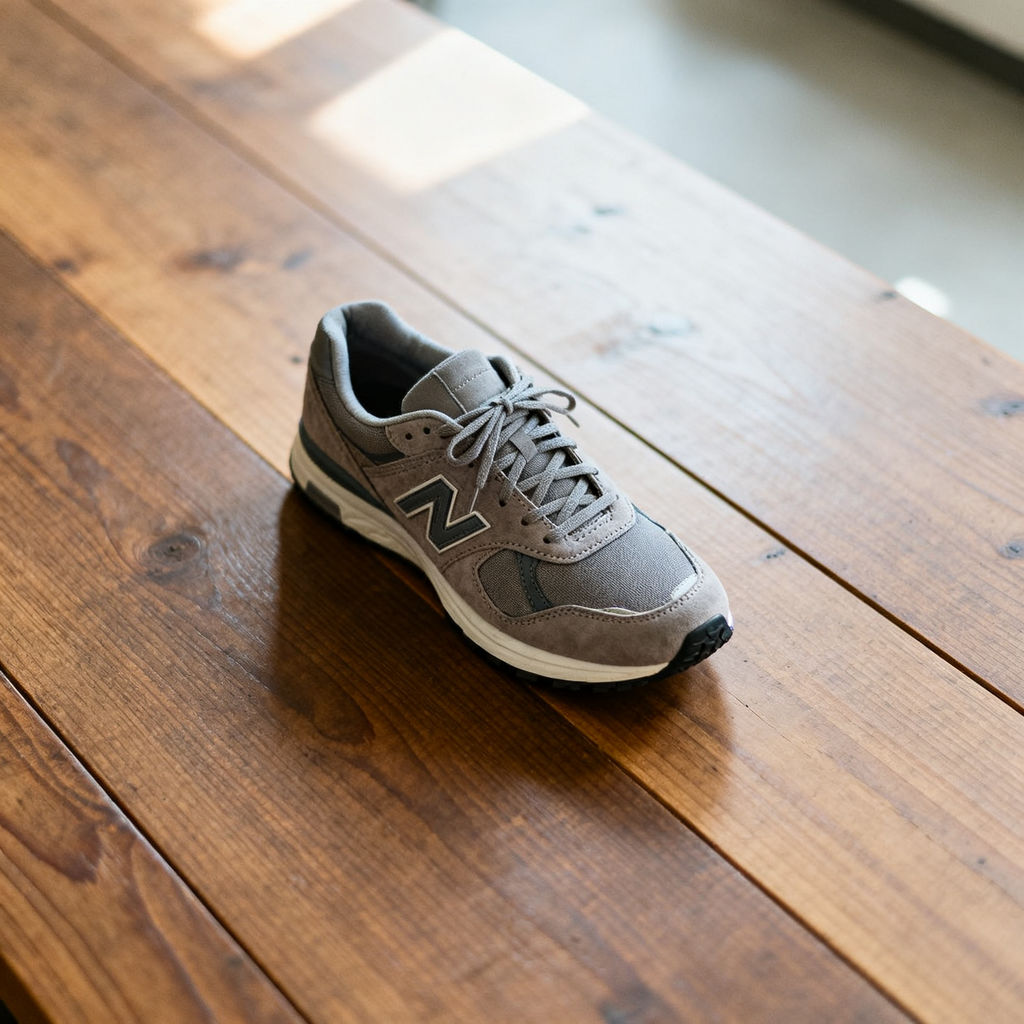
a grey suede-and-mesh retro running sneaker — its exact silhouette, panel layout, stitching, flat grey laces, cream midsole and dark side logo
Colorway
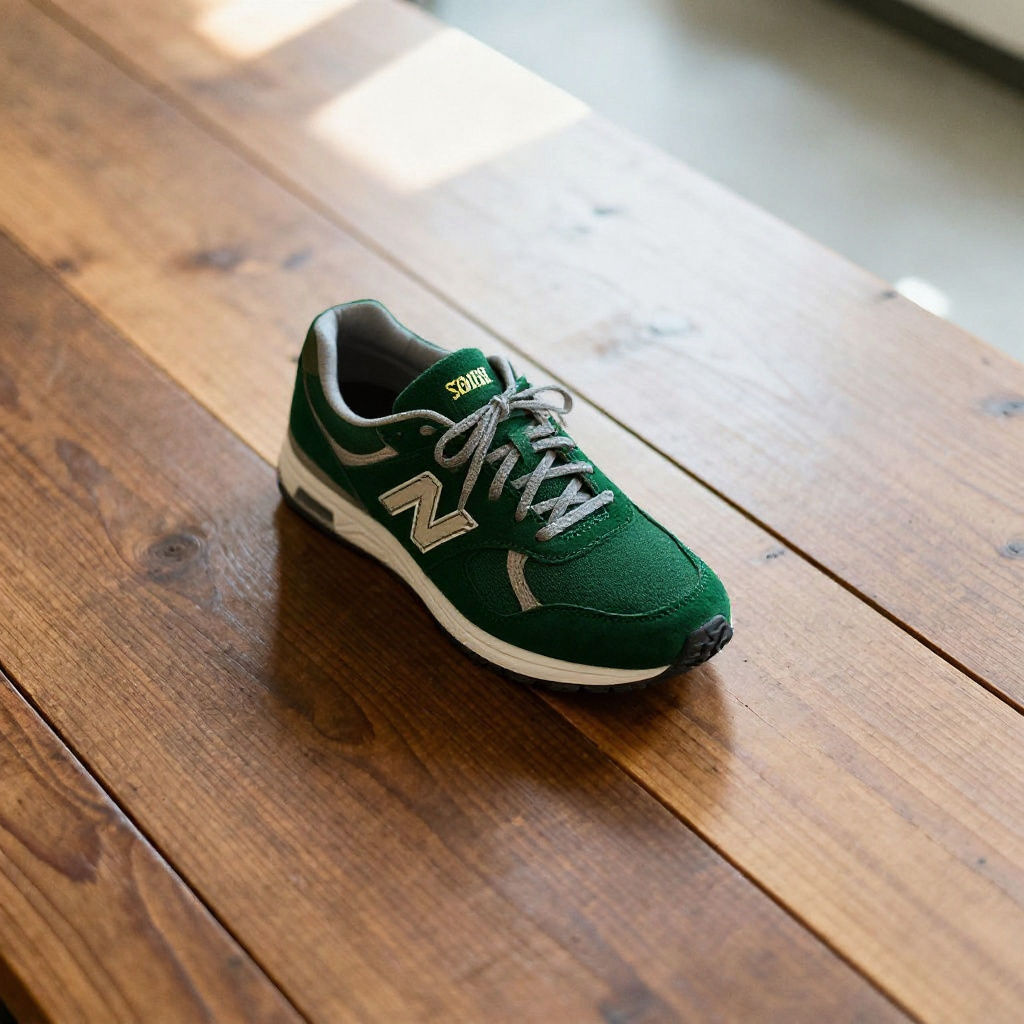
deep forest green suede with cream midsole and gold-foil logo
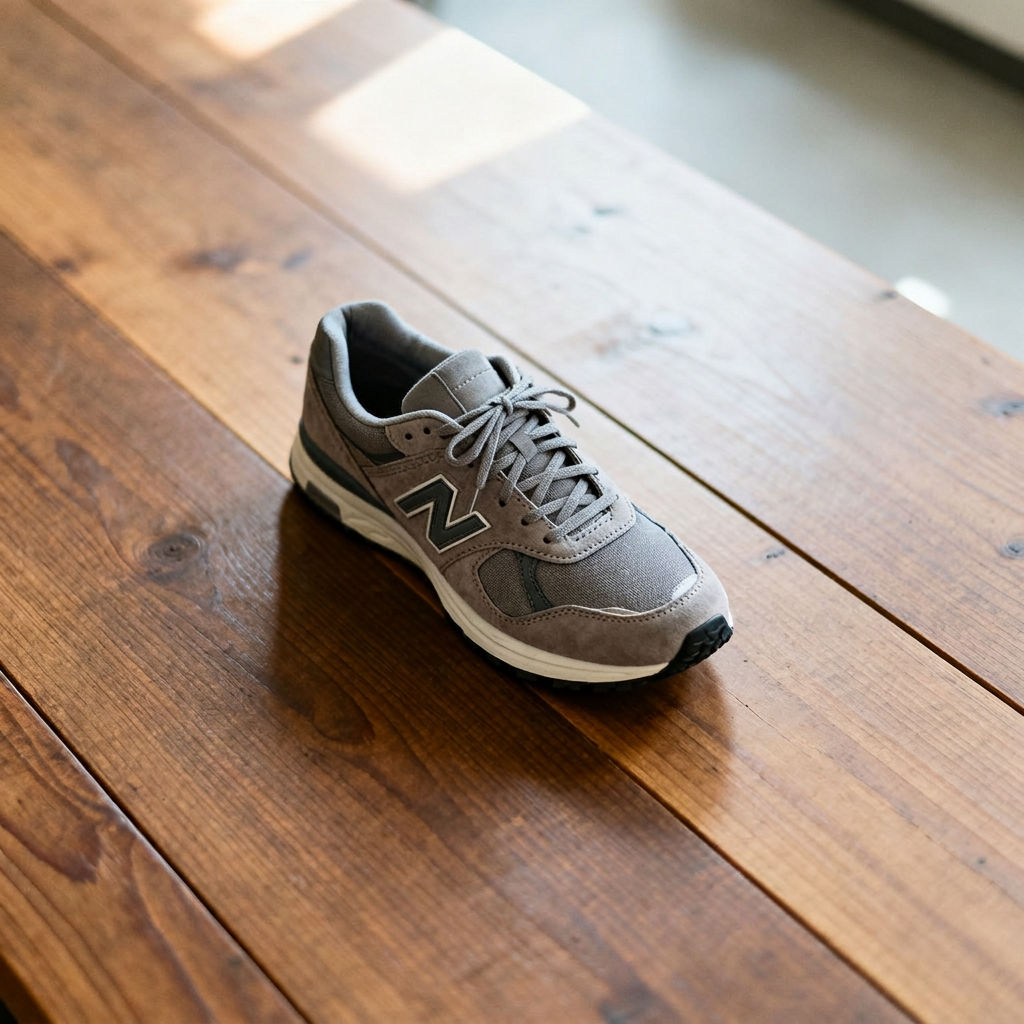
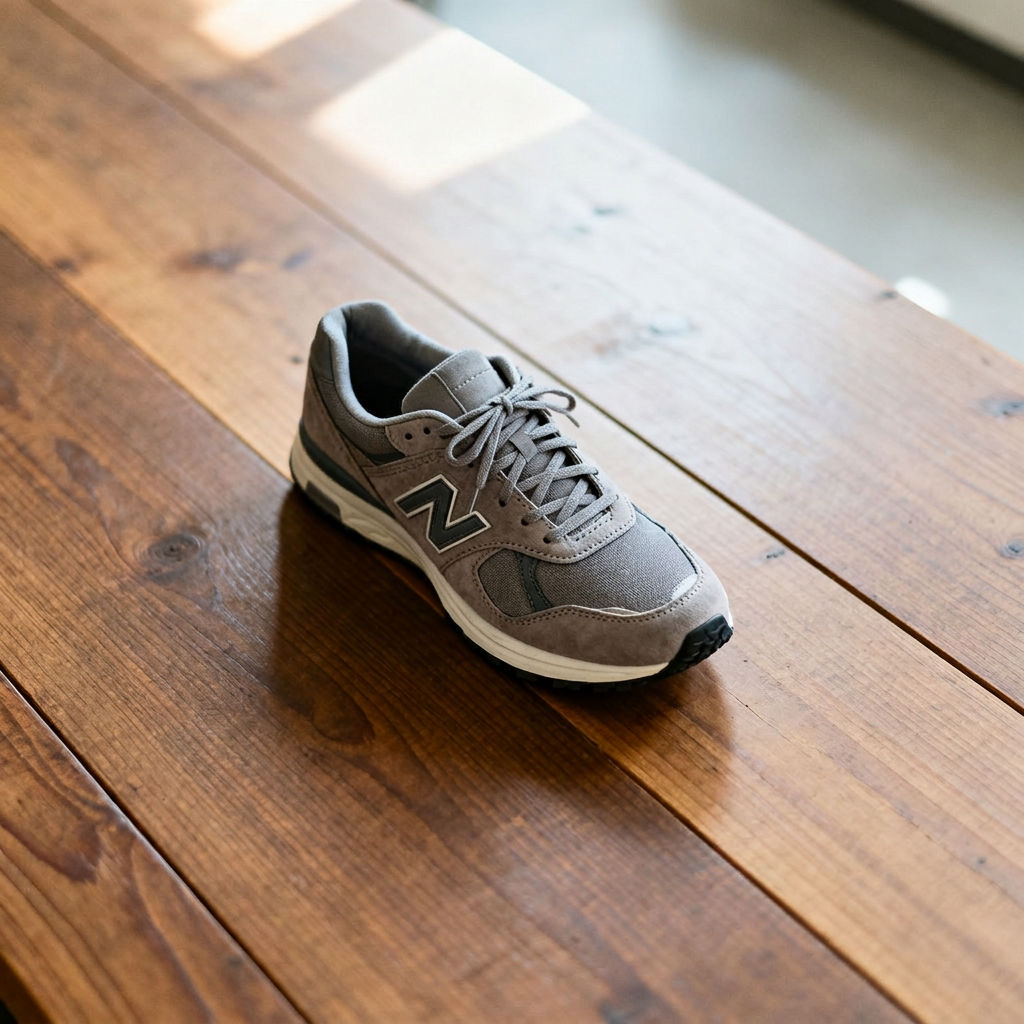
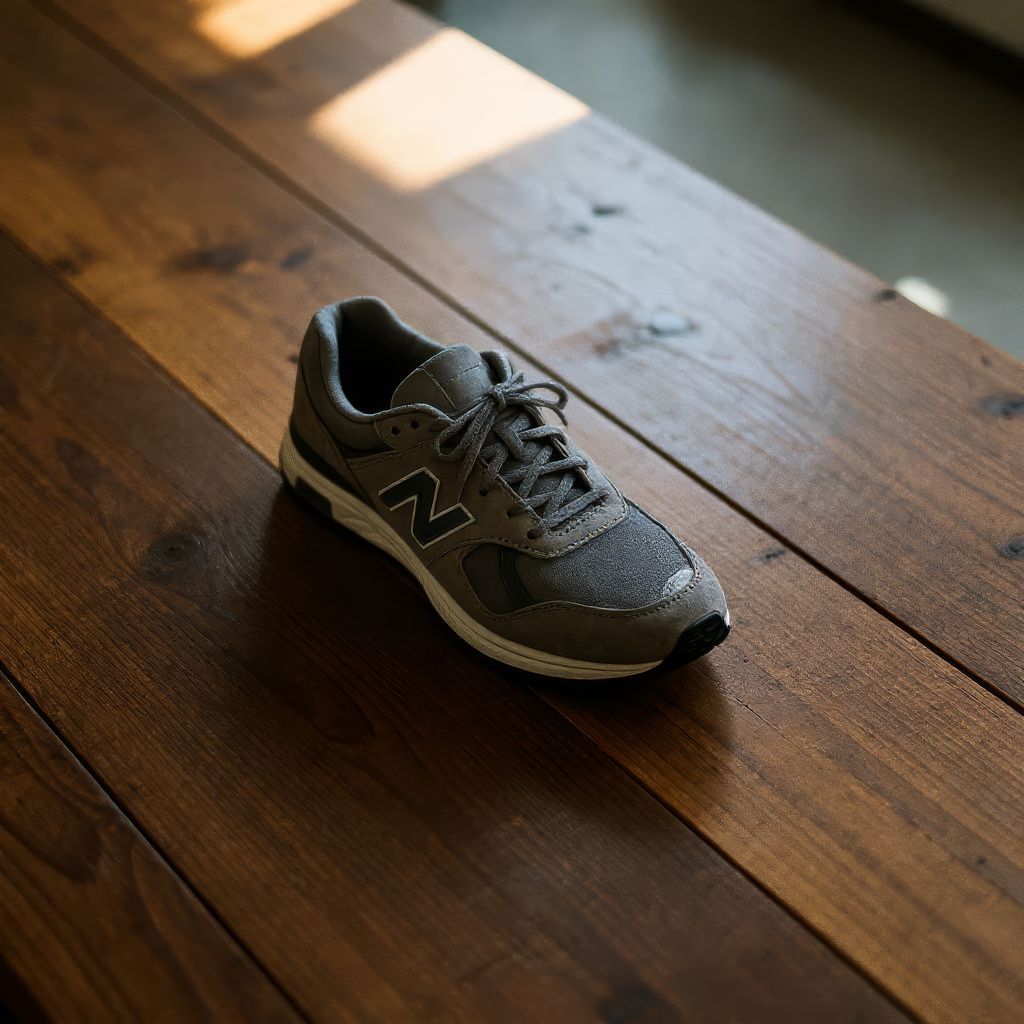
This image to image AI takes one product photo and returns a new scene, colorway, angle, upscaled version, and short motion clip.

Creative Production
Design teams use this AI image to image generator to turn a single product shot into a new scene, a fresh angle, and an upscaled hero image without booking another shoot.

Marketing Content
Marketing teams run the image to image AI generator on an existing campaign photo to get a new colorway and a short motion clip for social posts and ads.

Product Visualization
E-commerce teams use the Technique as an AI image generator from image, producing lifestyle and alternate-angle views of a product from a photo they already have.
How to use Techniques?
Discover how to utilize AI Image Generator From Image for different scenarios.
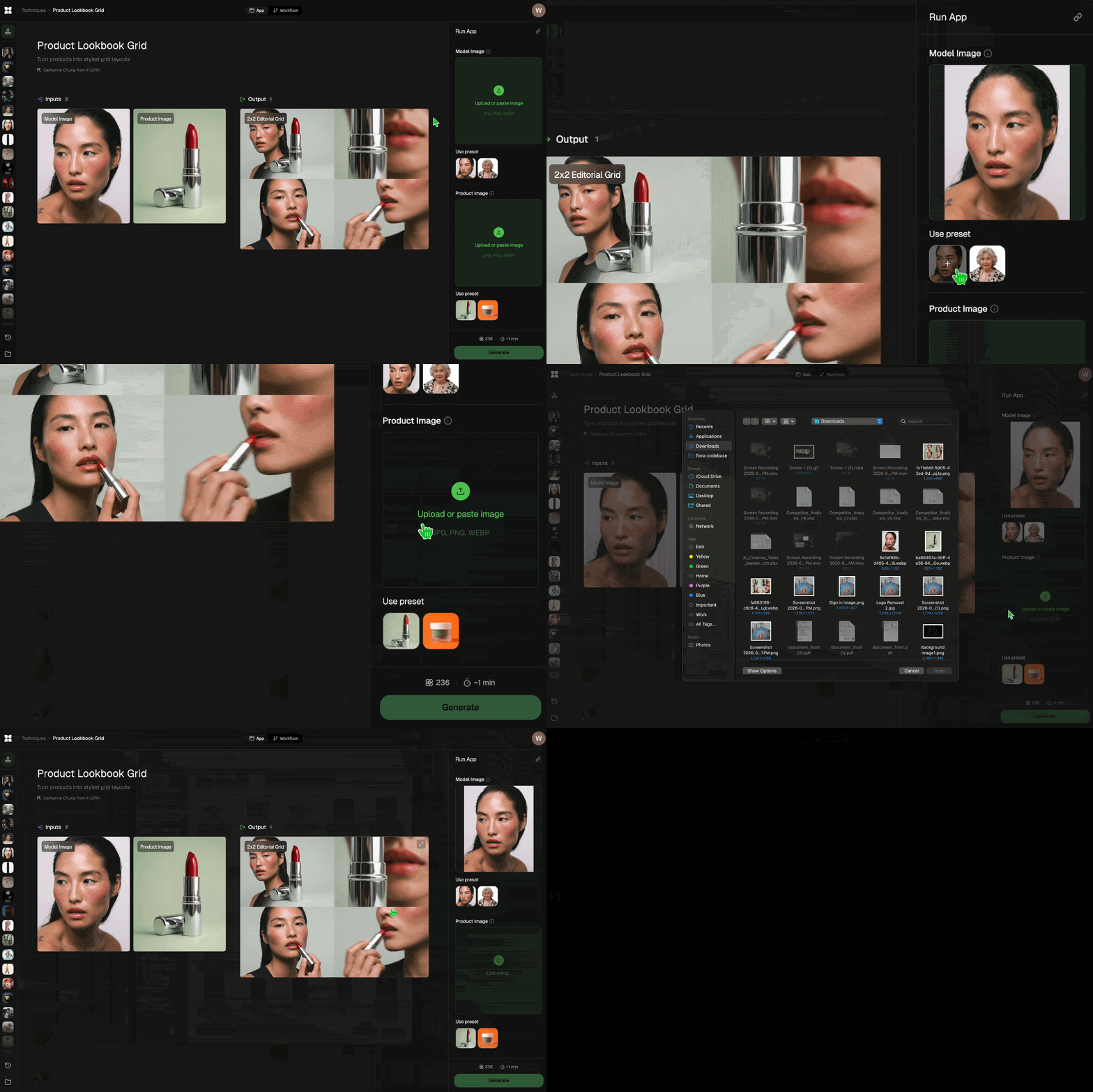
Add inputs
Upload images, videos, or type in the prompts to get started.
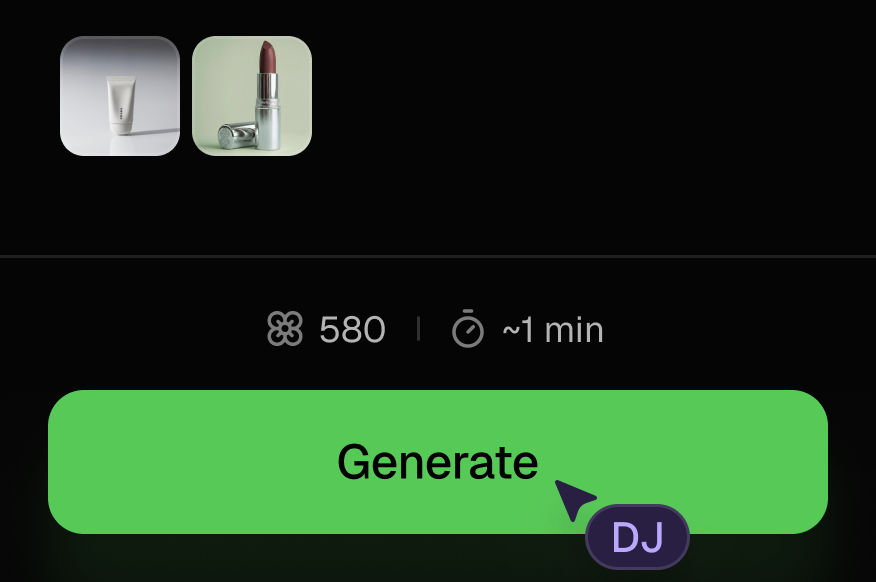
Generate outputs
Next, hit the "Generate" button to start generating your outputs.
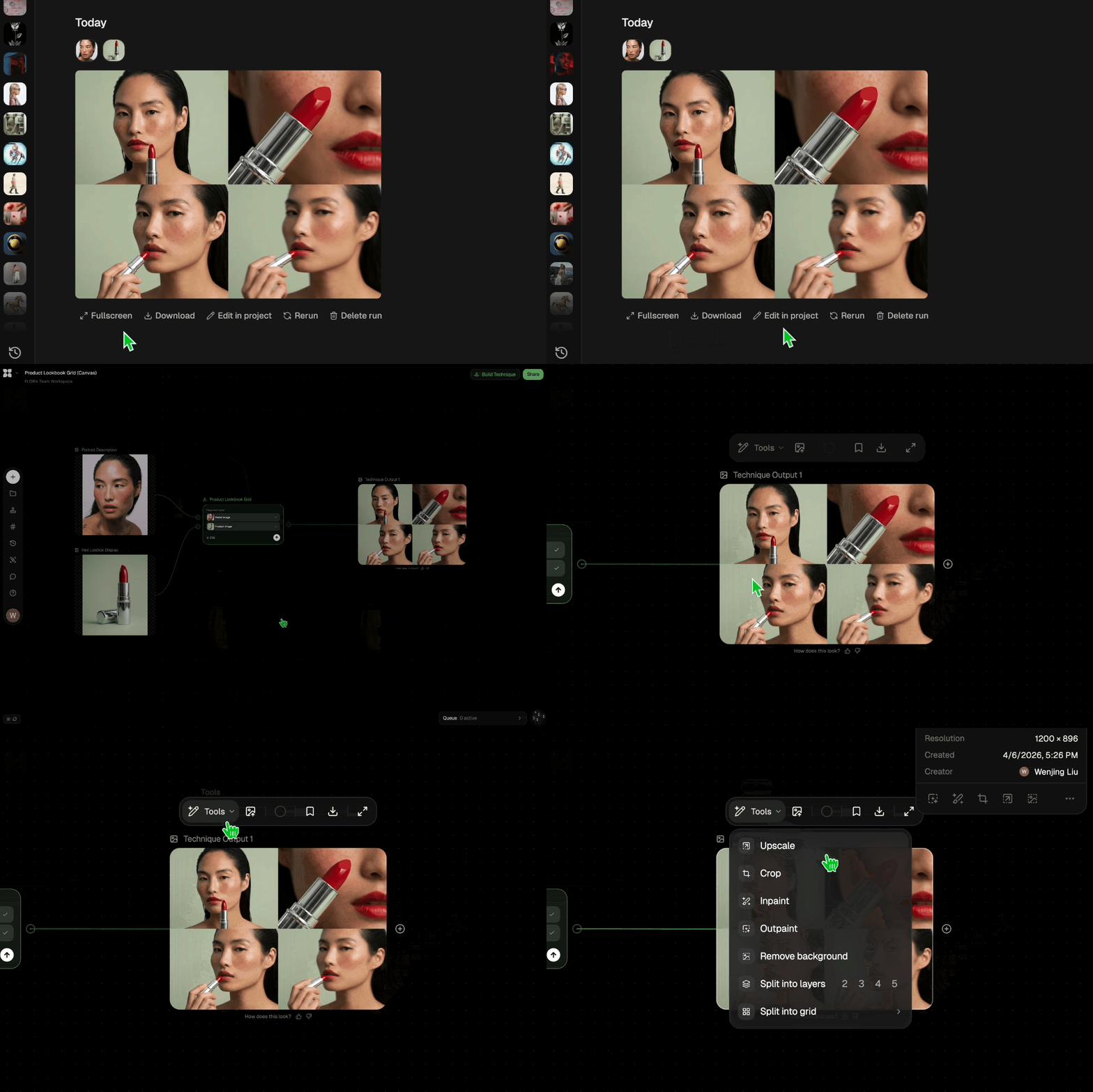
Edit and export
Refine your outputs on canvas, or download them directly.
Frequently asked questions
All you need to know about AI Image Generator From Image
How an AI image generator from image works
An AI image generator from image takes a picture you already have and produces new pictures based on it. Here, the starting picture is a product photo. Along with the photo, the Technique reads two short text descriptions (one for the product and one for the colorway you want) and returns a new scene, a recolored version, a different angle or lifestyle shot, an upscaled copy, and a short motion clip. You can create a free FLORA account and try it on one of your own product shots in the browser.
Starting from a photo gives the models details that are hard to describe in words, like the exact outline of the product, where its seams and panels sit, and how the logo is placed. Because those details are already in the image, the models can keep much of them in place while changing the setting or the color around them.
Image to image AI compared with text-to-image generation
A standard AI image generator works from a written prompt alone. You describe a scene, and the model invents everything in it, including the product. For concept art and mood images that's usually fine. When the image has to show a real product that people will buy, a sneaker or bottle generated from text will usually differ from the one you sell in small ways, and customers tend to notice once the order arrives.
With image to image AI, the model begins from your photo. In most diffusion-based models, the source image is encoded, partly covered in noise, and then rebuilt by the model with a text prompt guiding it. The amount of noise decides how far the result can move away from the original. With a small amount, the composition stays close to the source photo. With a larger amount, the model has more room to build a new scene around the product, and it usually gives up some accuracy to the original in the process.
You don't set noise strength or prompt weights inside this Technique. Its workflow already has those settings chosen, and each of the five outputs is set up for a different kind of result. If you'd like to adjust them yourself, open an output on the FLORA canvas, where you can choose models and add your own steps around it.
Why the product description matters
What you type in the Product field affects every output. The preset text on this page describes a running sneaker by its silhouette, panel layout, stitching, laces, midsole, and logo placement. A description at that level of detail tells the models which features belong to the product and should stay the same across the outputs. If you enter something short like "shoe," the models have to fill in the gaps themselves, and you may see stitching that wasn't there or a sole that changes shape between outputs.
It helps to write the Colorway field with similar detail. The preset names the material and finish along with the color ("deep forest green suede with cream midsole and gold-foil logo"), which gives the models a clearer target than a single color word. If the recolored version still comes back a little off, you can run it through the Product Recolor Technique or make edits on the canvas.
Choosing a source photo that works
Most problems with an AI image generator from image can be traced to the source photo, so it's worth checking a few things before you upload.
- Keep the whole product inside the frame. If an edge is cropped off, the model has to invent the missing part, and the result often won't match the real item.
- Use even lighting without hard reflections. On glossy materials, the model can read glare as part of the surface pattern and copy it into the new versions.
- Choose a plain or uncluttered background, since busy surroundings can blur into the edges of the product. If your only shot has a messy background, you can clean it up with the Background Remover first and upload that result as your source.
- Make sure the resolution shows the details you care about, like stitching or printed text. Image models often struggle with small lettering, so check any fine type in the outputs before the images go live.
The many ways people search for this
People looking for this kind of tool describe it in many different ways. In most cases they want to start from a picture they already have and get new pictures back. Common versions of the search include:
- image to image AI generator
- AI image to image generator
- AI image to image
- free AI image to image generator
- image to image AI generator free
- AI image generator from image free
The people behind these searches don't all need the same thing. Some want a general editor that can restyle any photo in any direction. Others want a set of usable assets for one product from a single reference photo, which is the job this Technique is designed for. If you're comparing image to image AI generators, work out which of those you need before you start testing tools side by side.
Free image to image AI and what unlimited means
A lot of people search for image to image AI free unlimited. Fully unlimited free generation is uncommon across tools like this, since every image or clip a model produces costs compute to make. Tools that advertise unlimited use usually put a limit somewhere else, often on resolution or on which models you can use.
On FLORA, new accounts start with free credits. Each run of this Technique uses some of those credits, and you can see the credit cost before you press generate. You can use the free credits to try image to image AI free on a few of your own product photos and decide whether the results work for your catalog before you look at paid plans.
Where the outputs go after a run
You can download any output or open it on the FLORA canvas to keep working on it. Several other Techniques work well with the files this one produces.
If you plan to use the upscaled result for print or large banners and have other images from the same shoot that need to match its size, the Image Upscaler can handle those separately. If you want more movement than the single motion clip gives you, Product Motion is built for animating a product shot. When you have several new scenes of the same item, you can arrange them in a Product Lookbook Grid for a campaign page or a marketplace listing.
If you only want to change the setting and keep the product exactly as photographed, the New Background Generator handles that single change. To see how other tools handle image generation, FLORA's roundup of the best AI image generators compares the main options.
Related techniques
 Texture Pack ExtractorExtracts the main material of an object in an image and transforms it into usable textures for 3D projects
 BeadifyTurn any object or 3D render into a physical Perler bead mosaic. Upload a photo — get back a beaded version of it
 Cover to Capsule CollectionTurn any magazine cover into a 12-piece capsule collection.
 Dieline to 3D PackageTurn any flat package dieline into a production-ready 3D package render.
 Rosé RamblerMake your own custom Cannes Character, presented by Red Antler x FLORA
 Sketch to Photorealistic Product RendererUpload any product sketch and a style reference.
Get 9 photorealistic renders — rare angles, texture
close-up, top, bottom and underside shots.
Any product. Label-free. Production-ready.
Sketch to Photorealistic Product RendererUpload any product sketch and a style reference.
Get 9 photorealistic renders — rare angles, texture
close-up, top, bottom and underside shots.
Any product. Label-free. Production-ready.Create New Product Shots With an AI Image Generator From Image
turn ONE photo you already have into a whole set of new AI images. Useful for: anyone with a single product shot, headshot, or reference who wants variations, new scenes, new colorways, and a print-ready hero — without reshooting. This is the image-to-image search intent exactly.

Louis Anderson