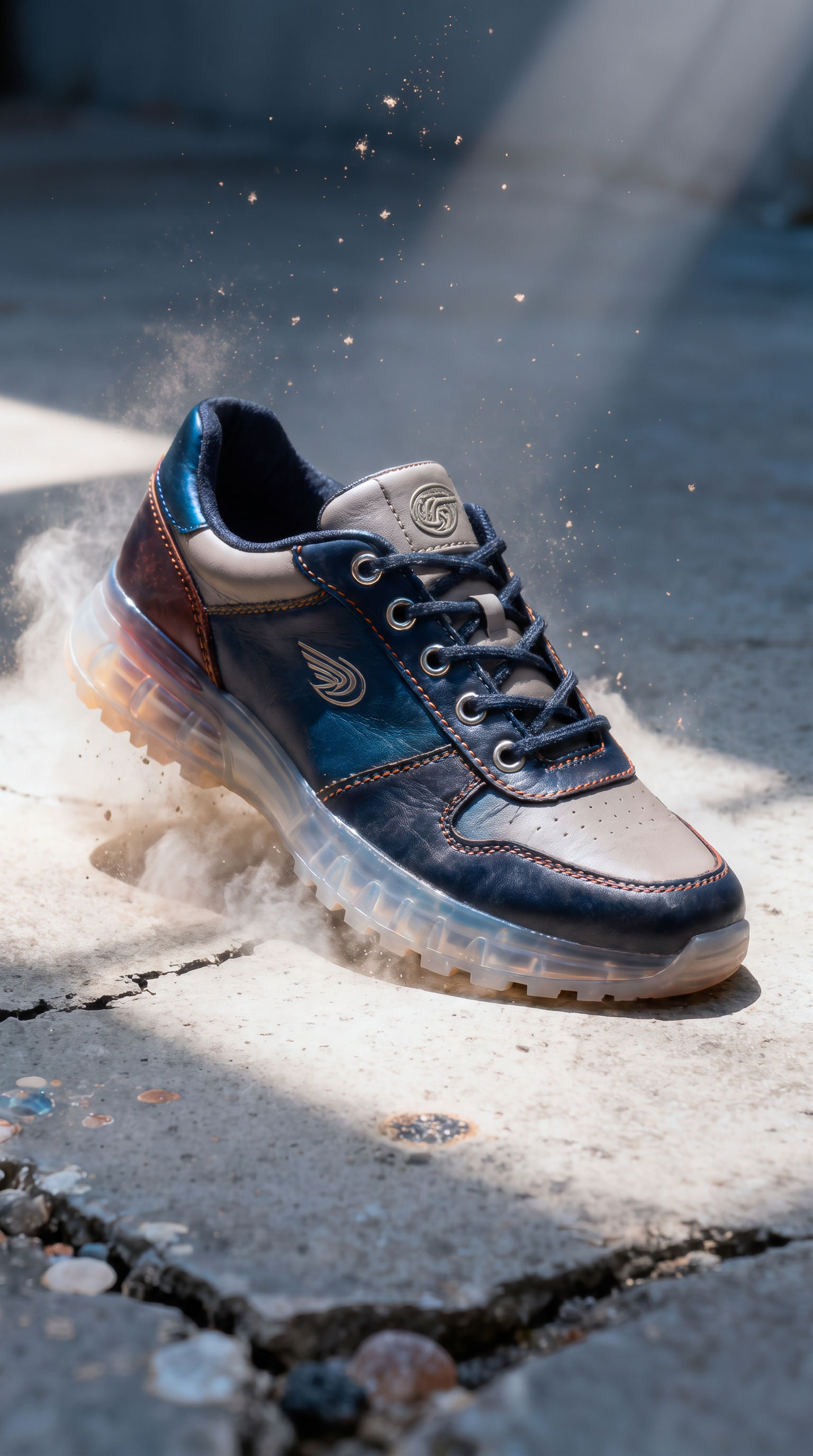
Subject
a navy-blue and bone-white leather sneaker with orange contrast stitching, a small silver wing logo and a clear air-bubble outsole, caught mid-drop with a puff of pale dust kicking up behind it
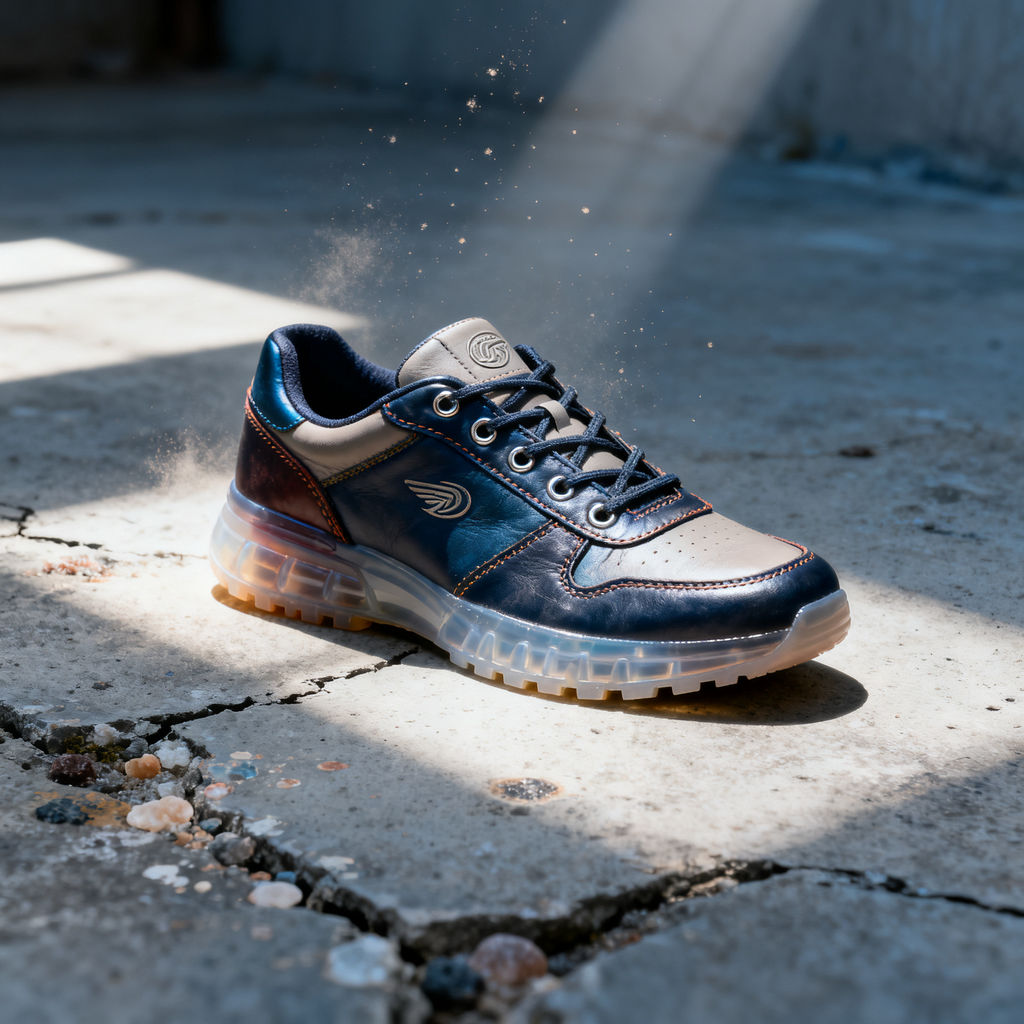
Scene
a cracked, sun-bleached concrete slab with exposed aggregate and hairline fissures, hard midday sun raking in from the upper left with crisp-edged shadows, a blown-out pale wall and its hard diagonal shadow soft-focused behind, fine dust drifting in the light
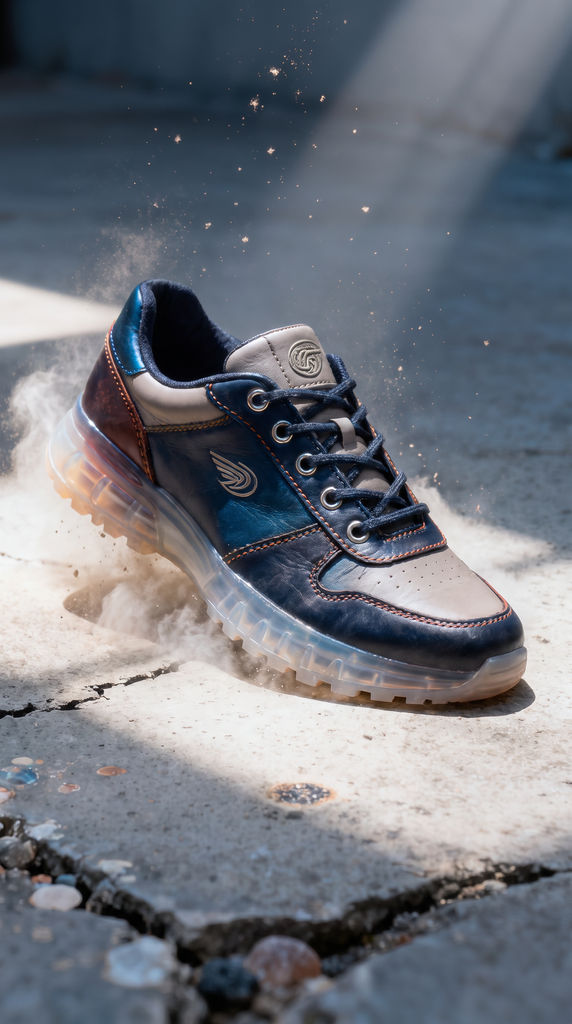
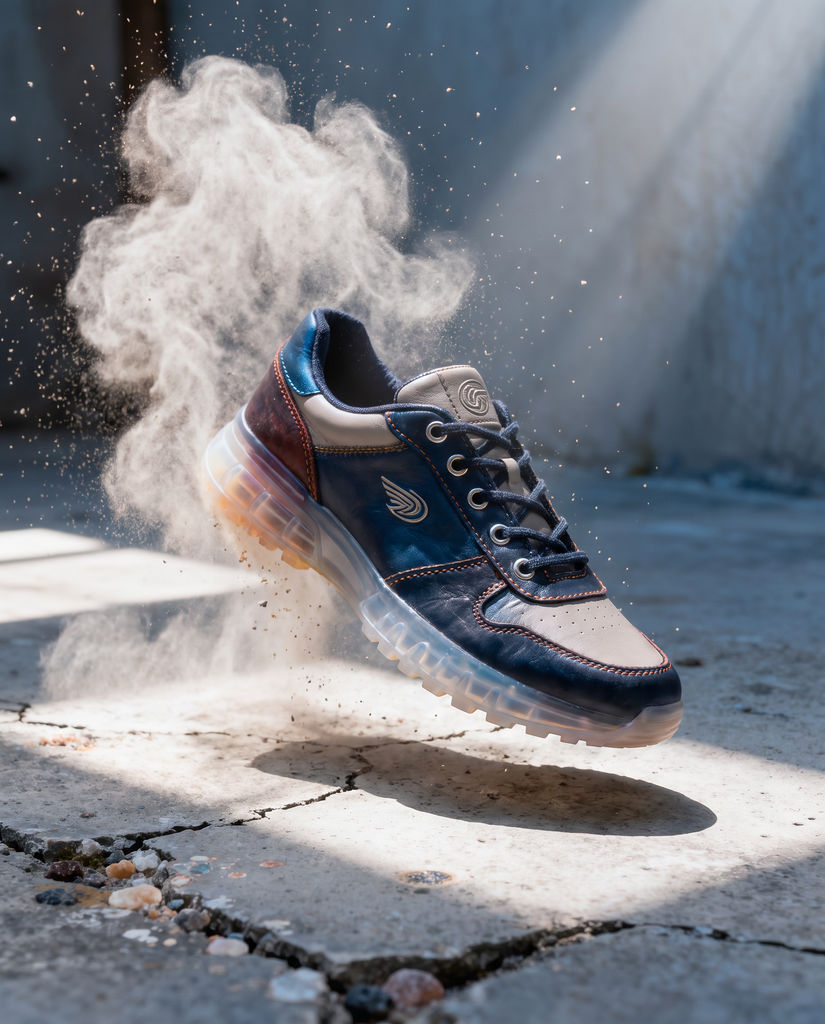
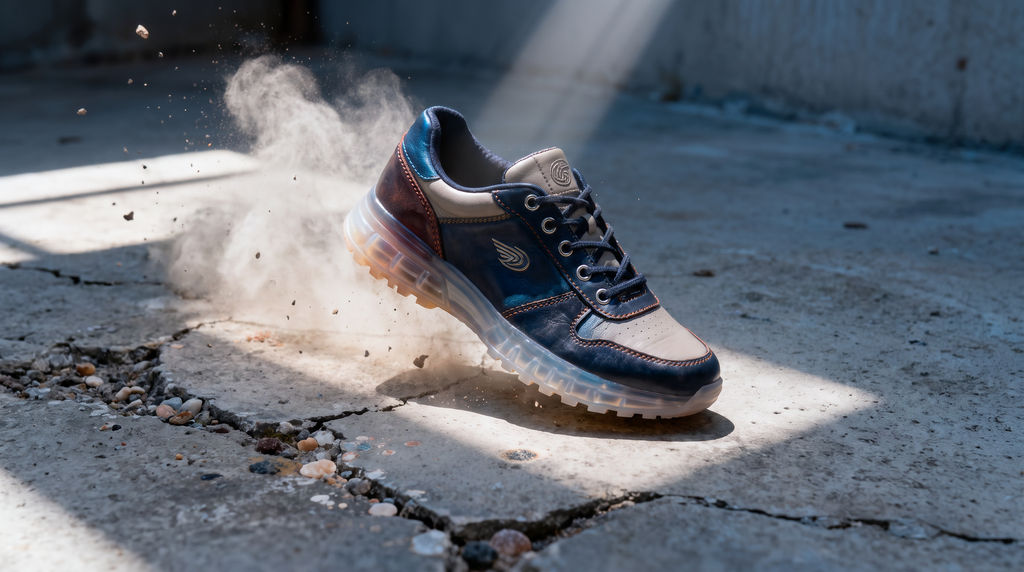
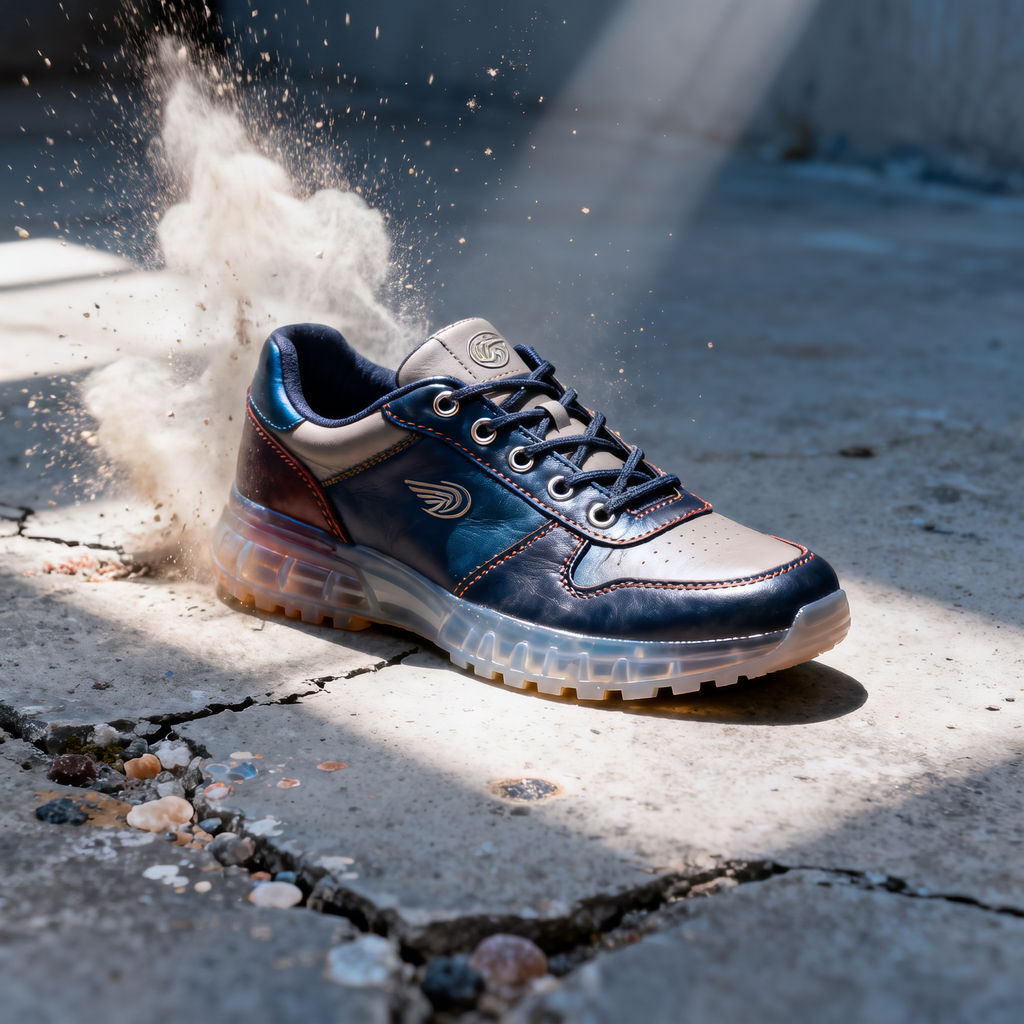
Upload one image and the Technique extends the frame outward into vertical, square and widescreen versions. No center crop, no black bars.
Social Campaign Delivery
Social teams run one hero shot through the aspect ratio converter and come away with Reels, Stories, feed and banner versions without reshooting for each placement.
Performance Marketing
Paid media teams use the Technique as an aspect ratio changer for ad variants, extending the frame so the product and the copy space survive every placement.

Design Handoff
Designers deliver a full size set from a single master image, with the edges filled in generatively instead of lost to a center crop.
How to use Techniques?
Discover how to utilize Aspect Ratio Converter for different scenarios.
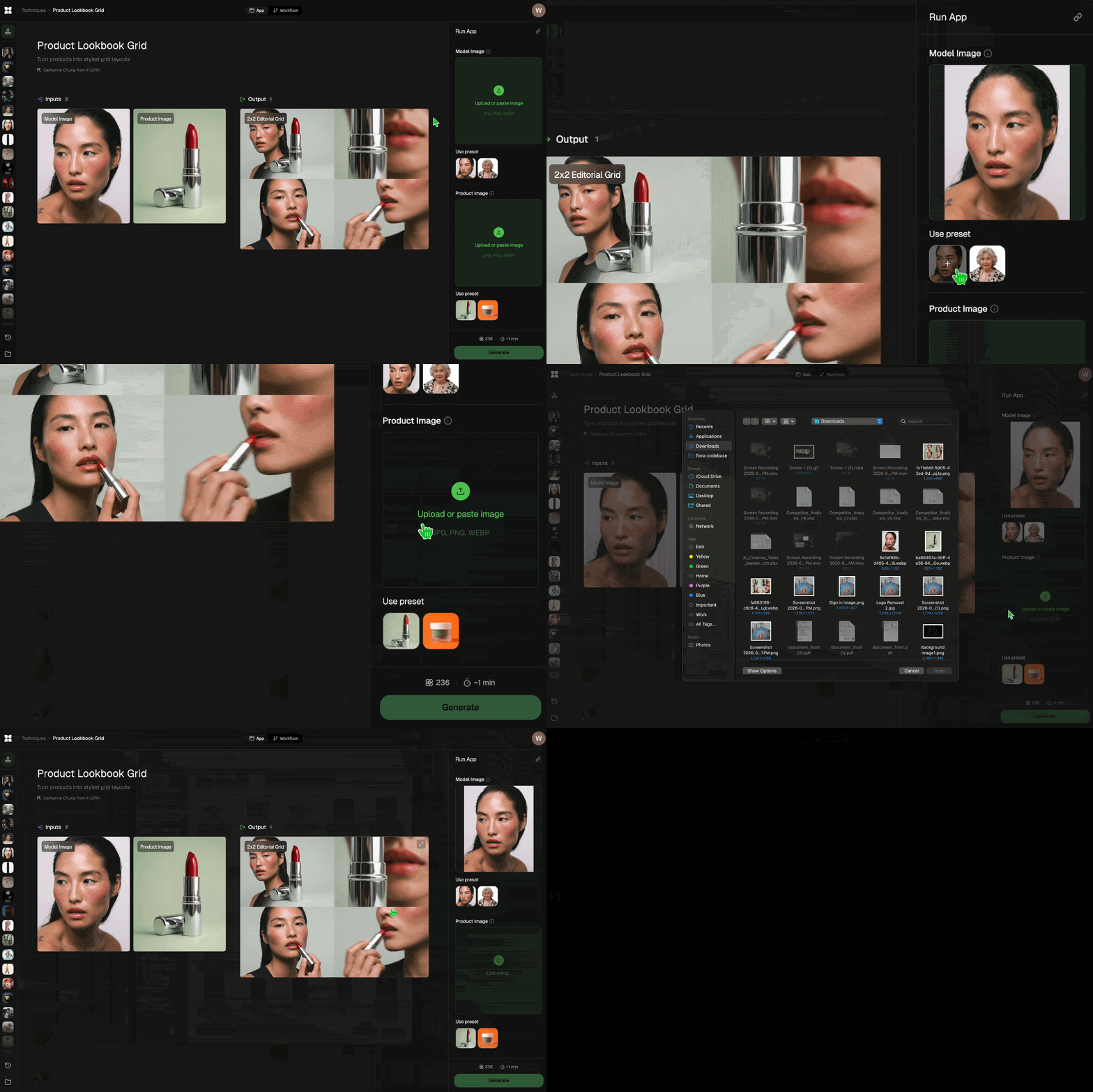
Add inputs
Upload images, videos, or type in the prompts to get started.
Generate outputs
Next, hit the "Generate" button to start generating your outputs.
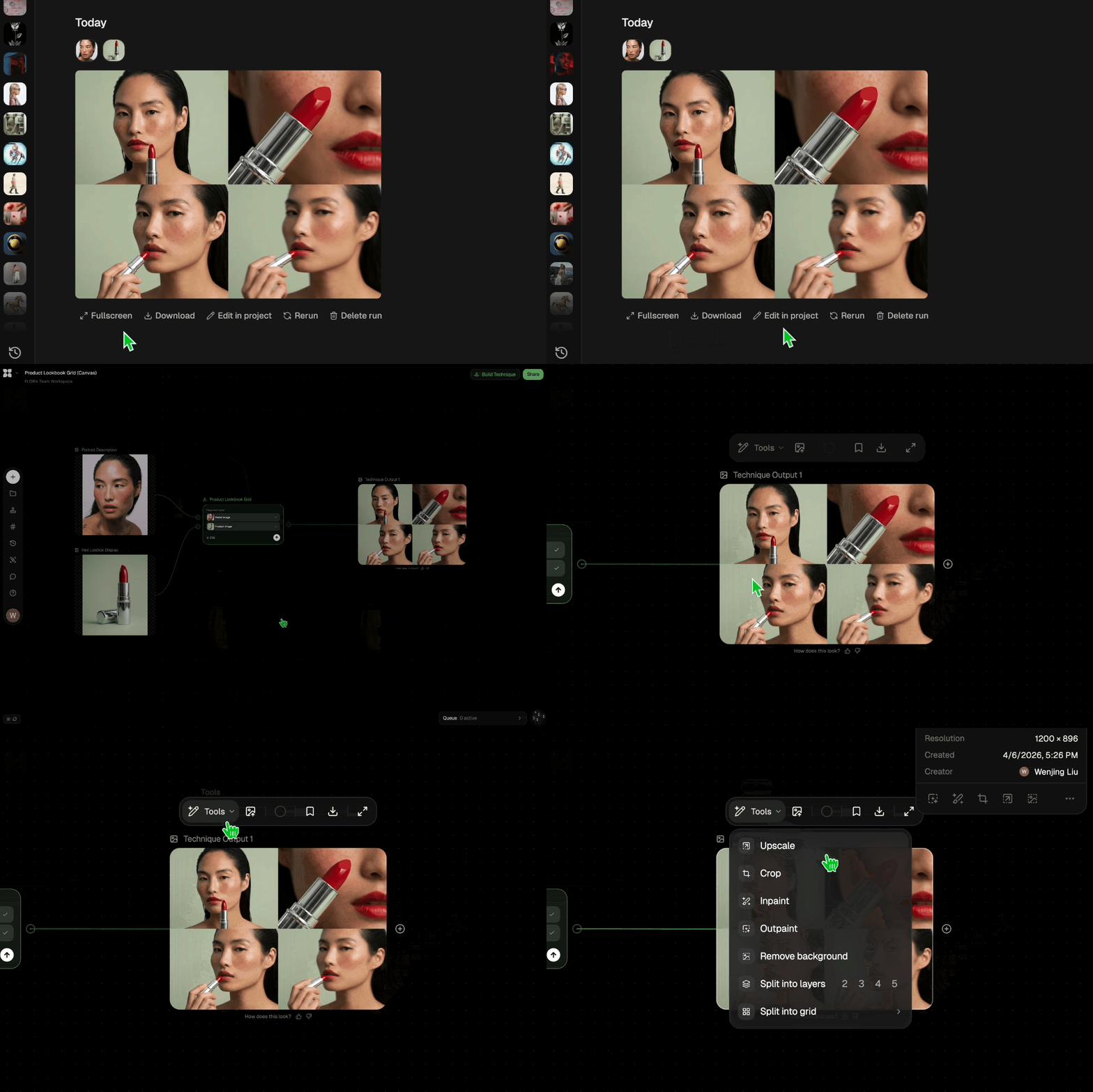
Edit and export
Refine your outputs on canvas, or download them directly.
Frequently asked questions
All you need to know about Aspect Ratio Converter
What an aspect ratio converter actually changes
An aspect ratio converter changes the shape of the frame around your image. Aspect ratio is an image's width measured against its height, written as two numbers: 9:16 is tall, 1:1 is square, 16:9 is wide. Every feed, ad unit and video player is built for one of them. Send the wrong shape and the platform crops it for you, pads it with bars, or serves it smaller than the placement allows.
The old fix was to cut pixels away. FLORA's Aspect Ratio Converter grows the frame outward, generating new image area past the original edges, so the shot you approved survives inside a shape it was never composed for. It sits on the FLORA canvas with the rest of your image work, and you can pick it up at app.flora.ai/sign-up.
The four shapes most campaigns are working against
9:16 is the full-screen vertical behind Reels, TikTok and Stories. It's the hardest conversion to pull off, because a horizontal original has to gain a lot of height above and below the subject before it fills the screen.
4:5 is the tall feed post. It buys noticeably more vertical space than a square without committing to full-screen, which is why plenty of paid social teams treat it as their default.
1:1 is the square. It still anchors grids, carousels and a large share of ad inventory, and it's usually the safest shape to approve first, since it reads acceptably almost everywhere.
16:9 is the widescreen shape used by YouTube, link previews and site banners. Converting into it means adding width to a vertical capture, which is the reverse of the problem most social teams have.
A shoot that produces only one of these leaves the other three to be improvised, usually by whoever is cropping in a hurry the day the campaign ships.
Not all of the new space is usable
Worth knowing before you sign off on a vertical: the platform lays its own interface over your image. A 9:16 post carries a caption block, a profile row and often a CTA button across the bottom portion of the frame. The top edge picks up status bars and close buttons.
That makes the generated area at the extreme top and bottom of a 9:16 conversion partly decorative. Treat it as breathing room that keeps your subject clear of the interface, and keep anything that has to be read, a price, a headline, a logo lockup, inside the middle band where nothing is layered on top. The same logic runs sideways for 16:9 banners, where the far left and right get trimmed by responsive containers at narrow screen widths.
Your composition shifts when the frame grows
When the frame extends and the subject stays put, the subject's position within the picture changes. A face centered in a square drifts toward the upper third once the canvas becomes 9:16, because all the new area arrives below it. That's often useful, since it opens clean space for a caption. It can also work against you: a portrait that felt intimate at square can read distant and small at full vertical.
Look at the whole set before you approve any of it. Judge each ratio as its own composition, and check what's landed where your text overlay is going to sit. Anything needing a real correction goes back to the canvas, where you can nudge, repaint or recompose directly.
There's a judgment call worth making early, too. Extending a frame means the image now contains material the camera never recorded. For campaign and product work that's ordinary practice. For documentary, editorial or claims-sensitive imagery, check with whoever signs off before you extend anything.
People ask for this a dozen different ways
The vocabulary shifts depending on who's asking. A designer calls it reframing. A social producer calls it resizing for placements. Someone searching for an aspect ratio changer, a frame extender, or a way to make a wide photo vertical is describing this exact task. Motion teams know the underlying technique as outpainting, since the model paints outward past the boundary of what the camera captured.
The name matters less than what happens to the original frame. Preserve it and your product, your logo lockup and your model's hands are all still in the picture by the time it reaches the feed.
One boundary worth knowing: this converter works on a still image and rebuilds the scene around the subject. If what you have is a clip, the video resizer is the sibling tool, reframing footage to 9:16, 1:1 and 4:5 without a crop. Same idea, different medium.
Where the reframed set goes next
A ratio set is rarely the last step. Most teams run it through one or two of these:
- Need a single alternate shape instead of the full set? Video Resizer is the faster pass.
- Clear a distraction out of the original with Object Remover before you extend the frame around it.
- Image Upscaler brings converted files up to the resolution paid placements demand.
- Product Lookbook Grid builds the wider asset set out from the same hero image.
- For a vertical cut that has to feel native to the feed it lands in, there's UGC Creation.
- And FLORA's AI image generator covers you when the hero shot doesn't exist yet.
Chained on one canvas, the aspect ratio converter runs while the campaign is still being built. You approve one hero image and walk away with every shape it needs to run in.
Related techniques
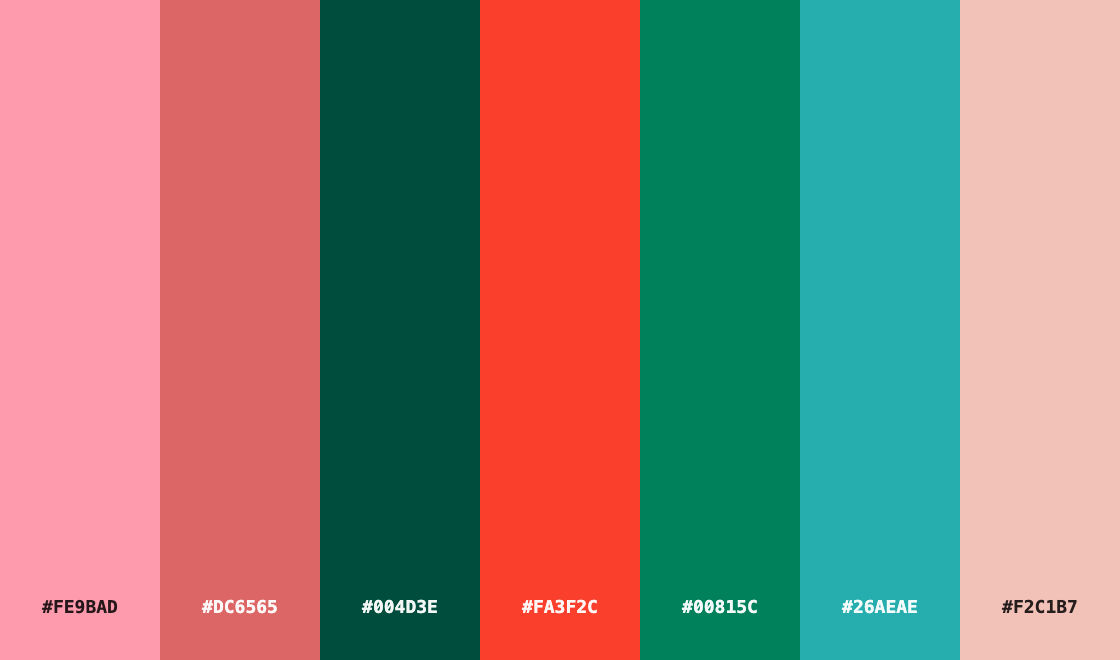 Color Palette ExtractionExtract color palettes from any image
 Image UpscalerUpscale any image to a higher resolution in one click.
 Layout ResizerResize layouts for any aspect ratio
 Prompt ExtractorReverse-engineers any image into a prompt
 3 Angle ShootFront shot in, 45, 90, and 180 angle back
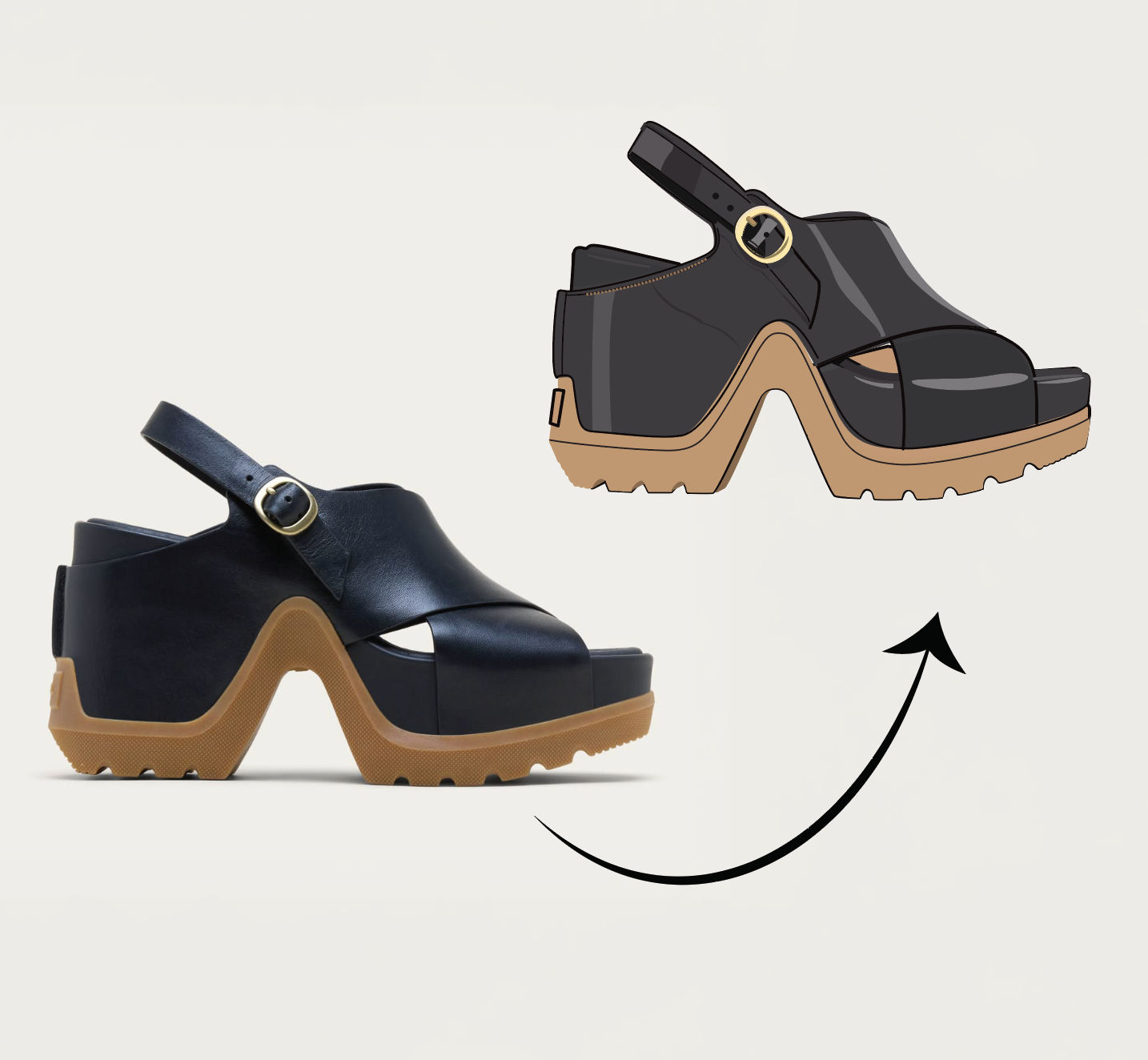 Anything to VectorTurn any image into a SVG vector illustration.
Use the Aspect Ratio Converter to Reframe Any Image Without Cropping
convert ONE image into every platform aspect ratio by generatively EXTENDING the frame, never cropping it. Useful for: social / performance marketers and designers who shoot one hero and need 9:16 (Reels/TikTok/Stories), 16:9 (YouTube/OG/banners), 4:5 (IG portrait) and 1:1 (feed) — each one outpainted to fit, so nothing is lost to a center crop and no black bars are added.

Louis Anderson